 Etappe
4. Viewing trips#
Under Trips (⌘1) you see all your trips. Chips at the top filter by status. How the trips are shown is up to you, in the “View” band or with a shortcut; the Mac remembers your choice.
| View | Shortcut | What for |
|---|---|---|
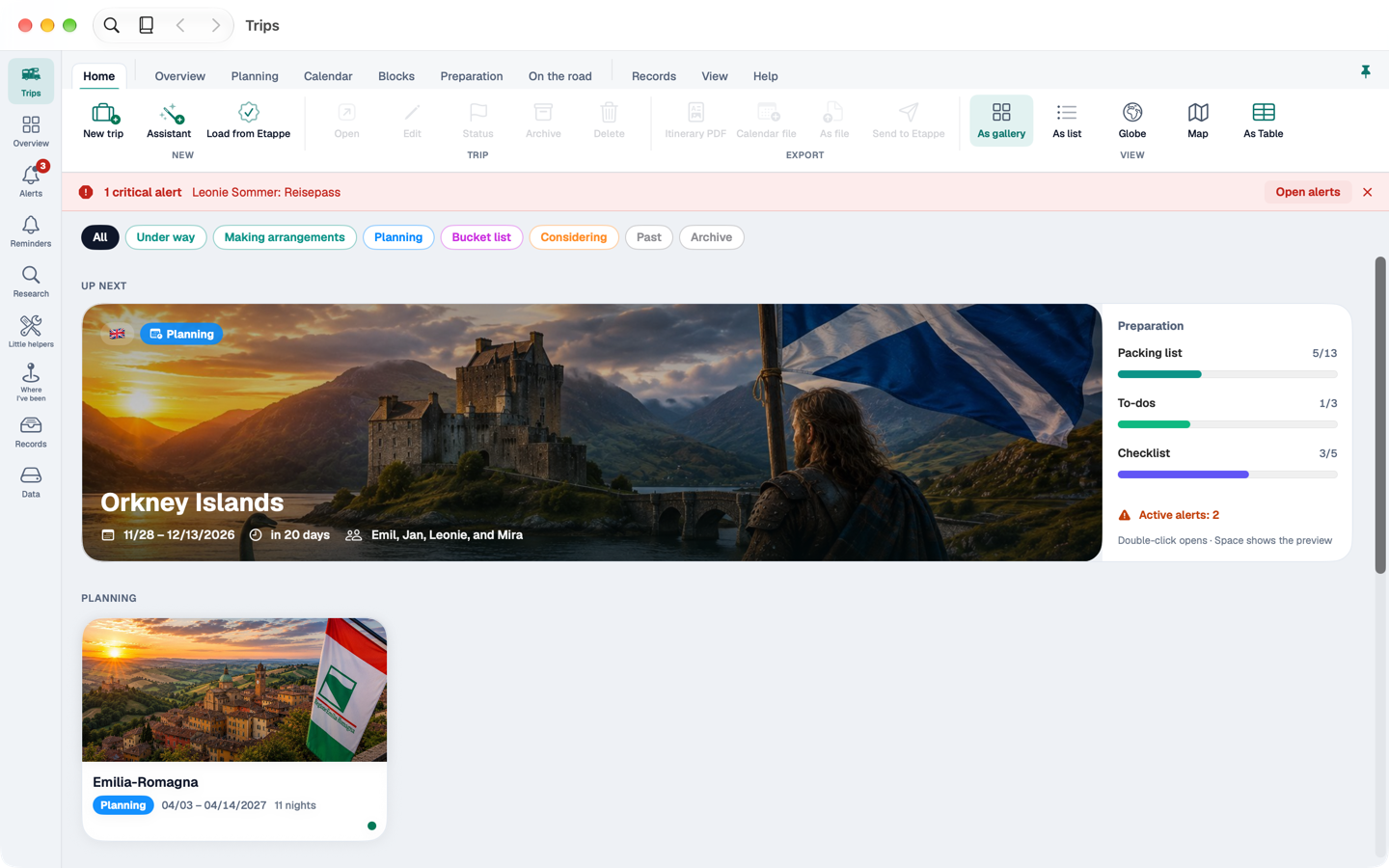
| Gallery | ⌃⌘1 | Large cards with pictures, the current or next trip as a banner at the top |
| List | ⌃⌘2 | With “All”, five columns by status |
| Globe | ⌃⌘3 | Your trips as pins on a globe you can turn |
| Map | ⌃⌘4 | The same pins on a flat map |
| Table | ⌃⌘5 | All trips as a table with preview and inspector |
4.1 Gallery#
At the very top is the current trip, otherwise the next one, with its preparation and alerts. Below follow the other trips as cards with nights, travellers, budget light and alert badges. A click selects a trip, a double-click opens it.
If a trip is running today but its status is not yet “Under way”, Etappe suggests the change. The status is only set when you click.
4.2 List#
With “All”, the list shows five columns, one per status. Drag a trip into another column to change its status; ⌘Z undoes it, as it does dropping a trip in the archive. On the right of the chip row are the archive and the bin as drop targets. With the bin, Etappe asks twice before a trip is deleted.
4.3 Globe and map#
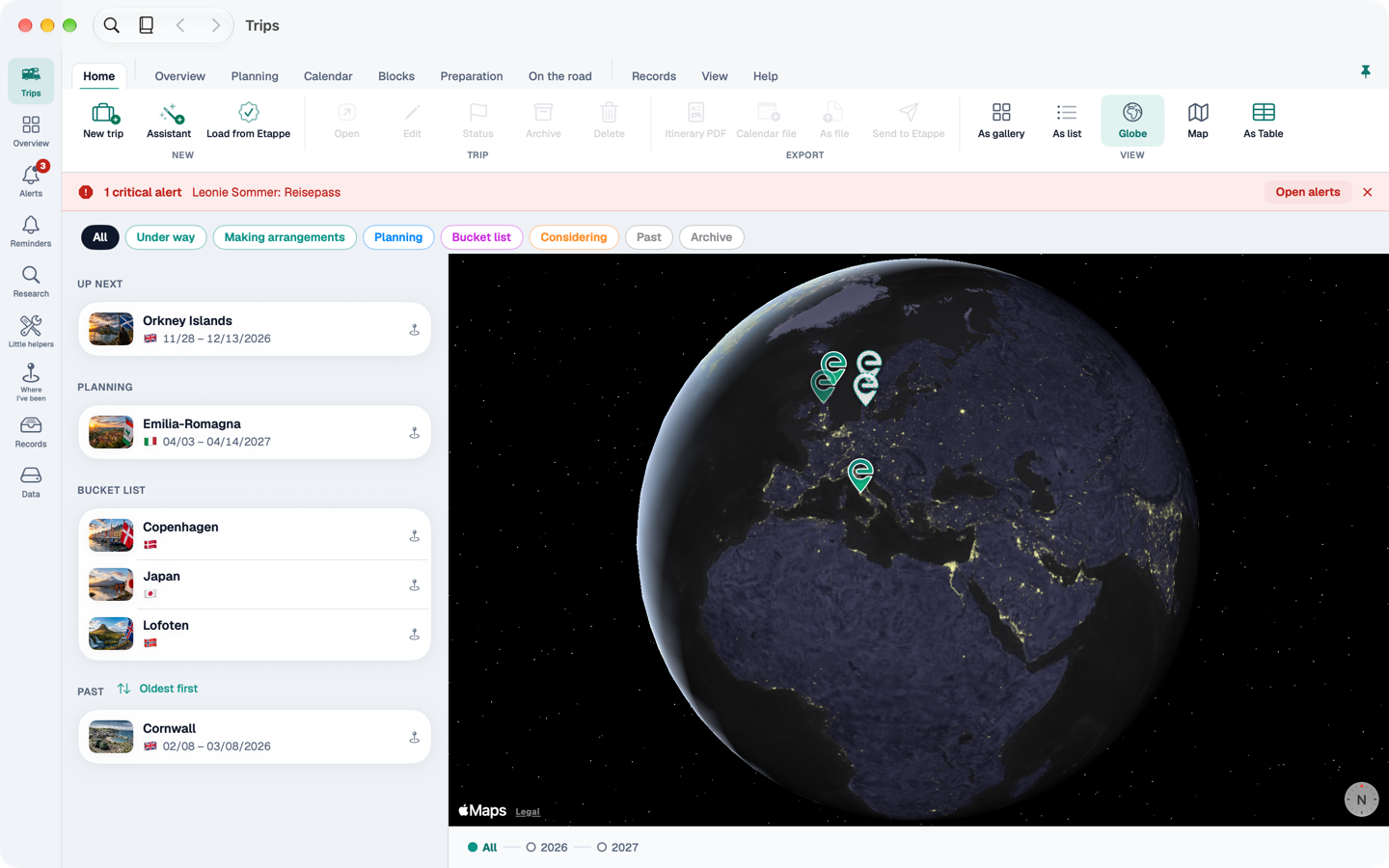
On the left is a compact list, on the right the globe or map with one pin per trip. Hover over a row in the list and its pin lights up, and vice versa. A timeline lets you choose the years.
4.4 Table#
The table groups trips by status; the groups fold in and out. Below, a preview shows the selected trip with map, key figures, alerts and next steps; on the right, the inspector edits title, region, status and dates without opening a window. A double-click opens the trip.
4.5 With the keyboard#
In every view, the arrow keys move between trips, ⏎ opens the selected one, the space bar shows a preview. Trips in the sidebar (or ⌘1) closes an open trip and takes you back to all trips. Create a new trip with ⌘N, or with the assistant via ⇧⌘N.