 Etappe
7. Calendar and sketch#
7.1 The calendar#
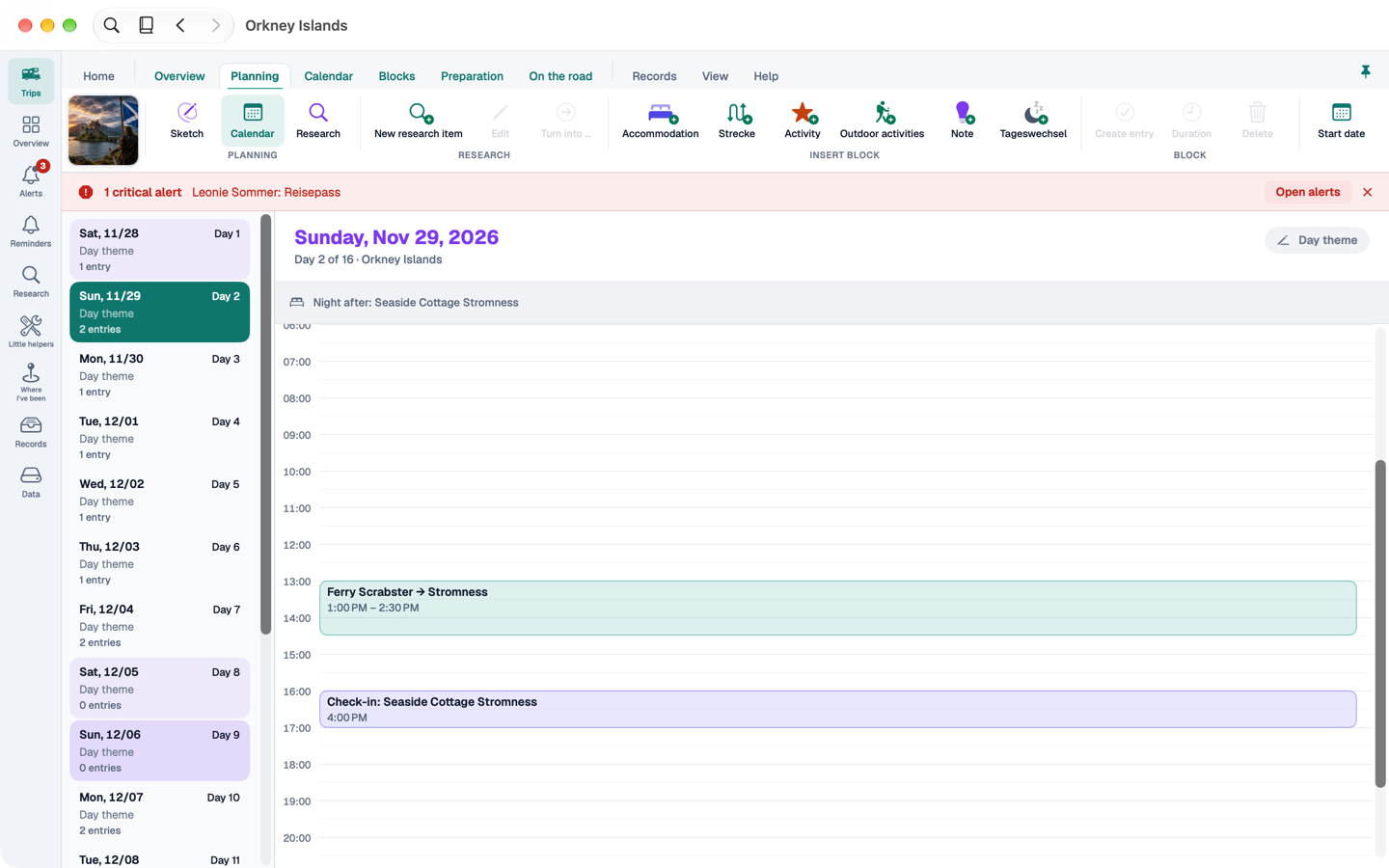
The calendar shows the days of the trip as a bar and the selected day as a timeline, in the time zone that applies that day. A click selects an entry, a double-click opens its window. The context menu (right-click) has the same commands as on iPhone: Edit, Move to …, half an hour earlier or later, copy and return trip for journeys, Delete.
The Calendar tab in the ribbon carries the matching commands: Add (with the selected day), Move, Duplicate, Delete, Agenda or Day, Day theme and Jump. You can also set the day theme by clicking the day's header. Saturdays are tinted lightly, Sundays more strongly in violet.
In the compact layout, the calendar shows a month grid on the left, the agenda of all days next to the timeline in the middle, and the inspector of the selected appointment on the right.
7.2 The sketch#
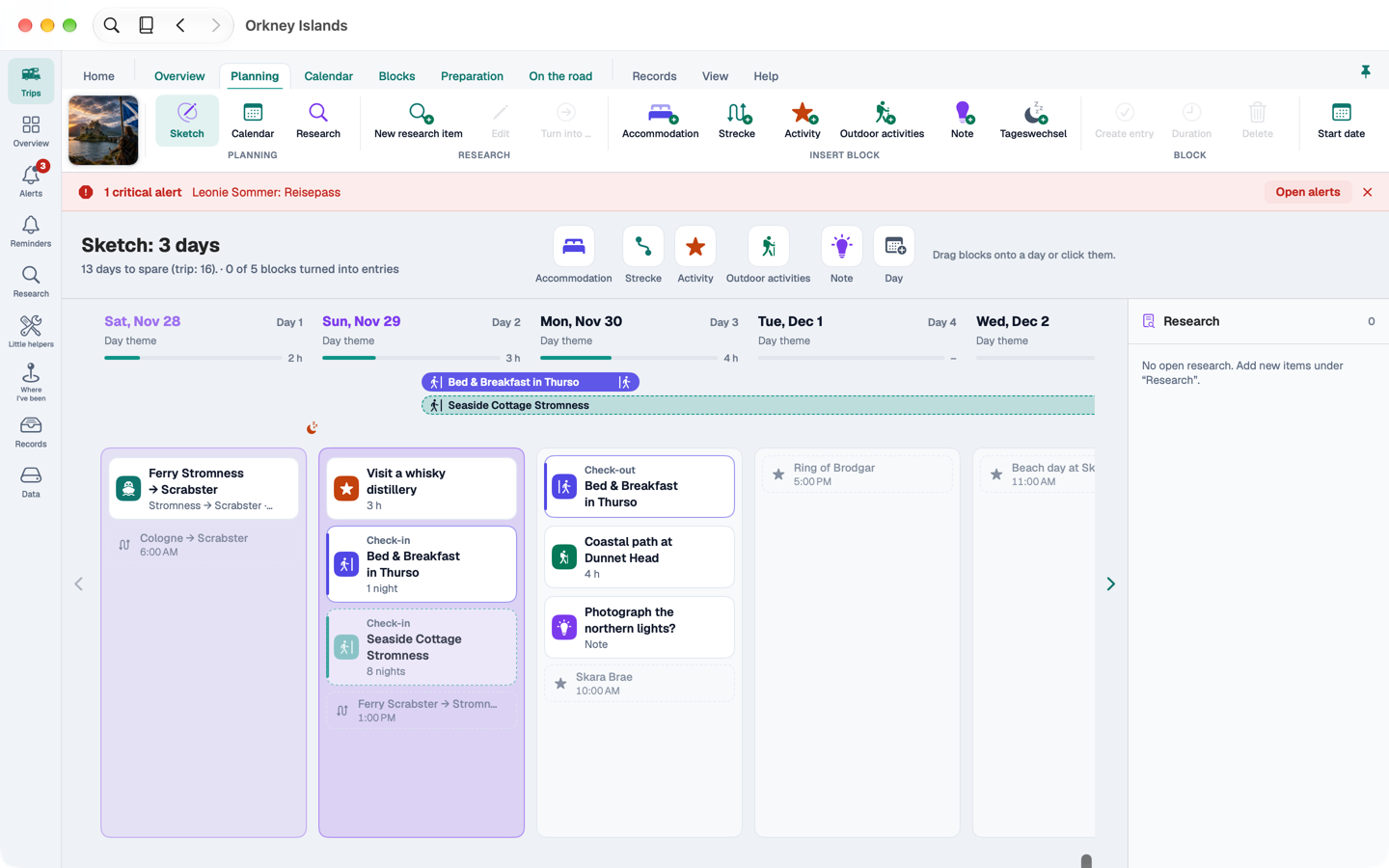
In the sketch you plan a trip roughly, before dates are fixed – as on iPhone, but with drag and drop:
- The palette at the top. From there you drag a block – an accommodation, a journey or an activity, for example – onto a day. The “Insert block” band also works as a source to drag from.
- Days as columns. Without trip dates, at least day 1 is there; with trip dates, all days of the trip. Drop a block on a day that doesn't exist yet and Etappe creates the missing days.
- Duration. When you drop a block, Etappe asks for its duration in hours, or in nights for accommodation. Cancel takes the block out again.
- Accommodation appears as a check-in on the day of arrival and a check-out on the day of departure. Drag the check-in to move the stay; drag the check-out to change the nights. A moon marks nights without accommodation.
- Fill level. Each day shows how full it is – full from ten hours, orange from fourteen.
- Real entries sit faded between the blocks, so you can see what is already fixed.
⌥ and the arrow keys move the selected block. ⌘Z undoes steps in the sketch while its window is in front.
7.3 Research and map panels#
Two panels can be shown on the right:
- Research (⌥⌘R) shows the open research of the trip and research without a trip, folded by category. Drag a research item onto a day to create a linked block; research without a trip then belongs to this trip.
- Map (⌥⌘K) shows the blocks with their day number and a dashed line in day order. Hover over a day column and its markers light up. Drag a block onto the map to give it its place there. With the “Look up route places” switch, Etappe looks up the places of journeys by their names; the place names go to Apple.
7.4 Turning blocks into entries#
Once a block is decided, Create entry turns it into a real entry with dates and times. Create entries (⌘R) does this for all blocks at once. Both ask first.