 Etappe
3. The interface#
3.1 The navigation bar#
At the bottom of the screen are the app’s four destinations – like the tab bar on the iPhone:
| Destination | What you find there |
|---|---|
| Trips | All trips, the current or next one at the top, the rest by status; search and filters |
| Travelers | People and pets with their IDs, vaccinations and medications |
| Alerts | Everything that needs attention; the number on the icon counts open alerts (Alerts) |
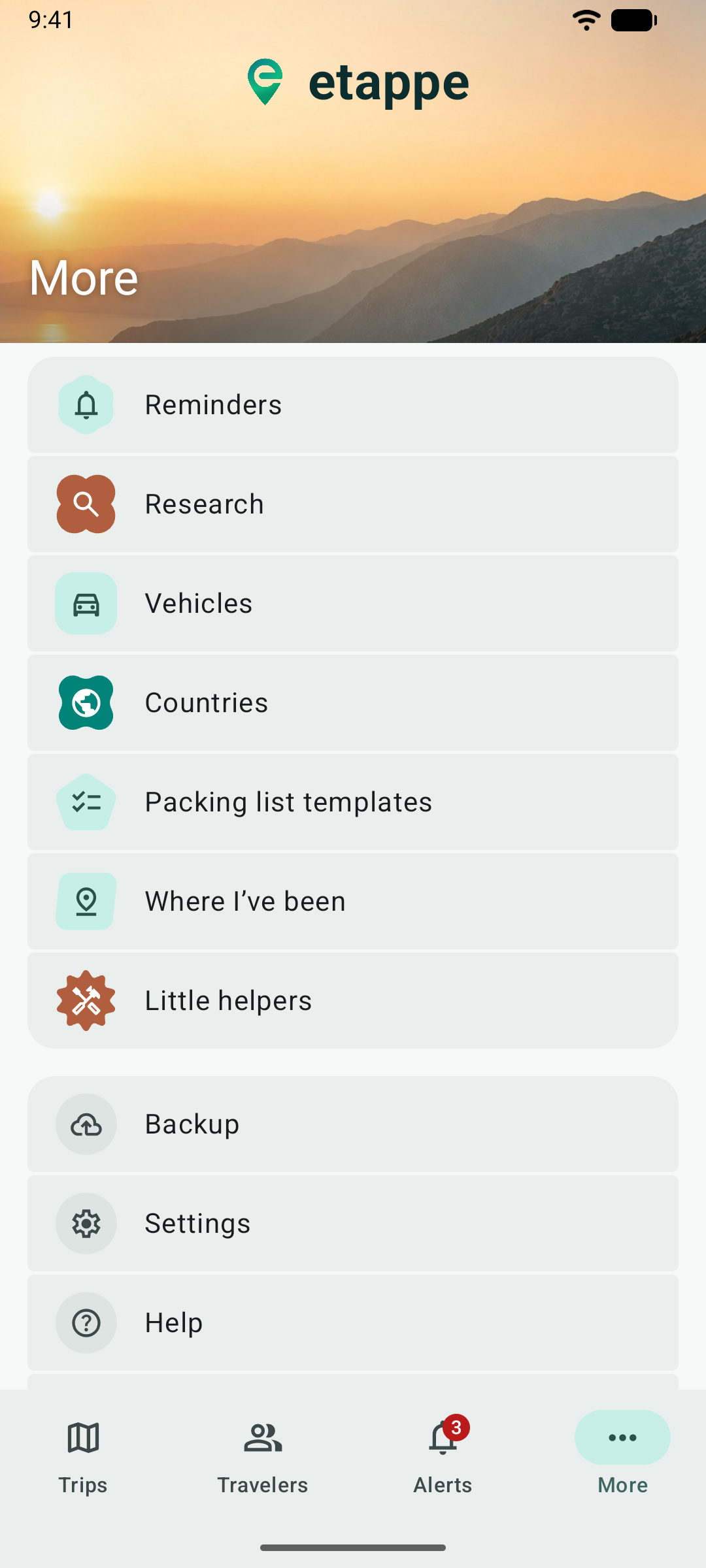
| More | Reminders, research, vehicles, countries, templates, little helpers, backup, settings, help |
Tapping the active destination again takes you back to its start.
3.2 Adding#
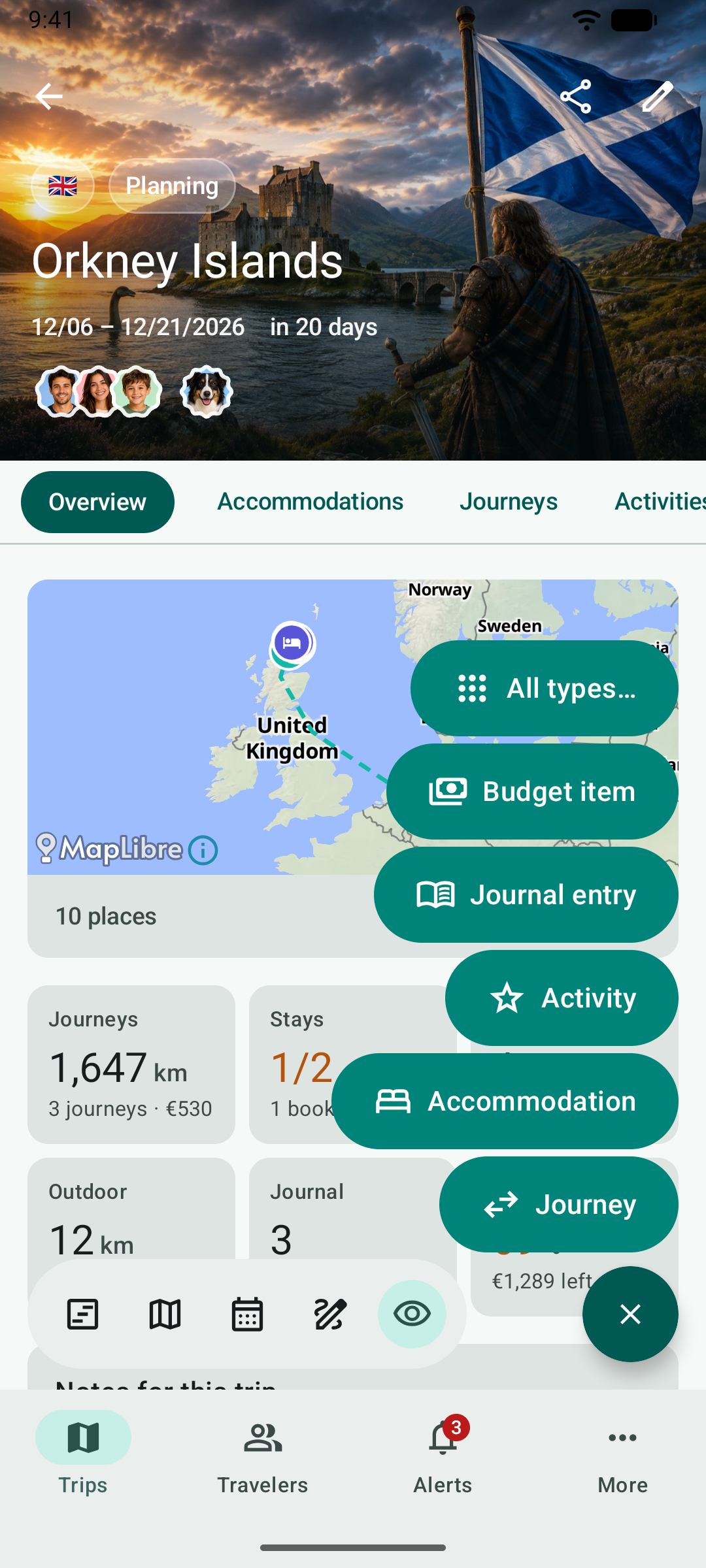
At the bottom right is the button for adding. In the list of trips it is called New trip and offers three ways: Add with assistant, Add manually and Load from Etappe (curated trips from etappe.app).
Inside a trip, the button opens the New menu: the most common types sit right above it – those of the section you are in first – and at the top All types… with everything you can add to a trip.
3.3 Back, swipe, long press#
- Back works with the back gesture or the arrow at the top left. In a form, back means “Cancel”: only Save at the top right saves.
- Swiping left on a row deletes it – after a question that tells you what will be deleted along with it.
- Long press opens more commands on entries and documents, such as “Mark as booking receipt”.
3.4 More#
More holds everything that doesn’t belong to a single trip: reminders and research across all trips, vehicles, countries, packing list templates, “Where I’ve been”, the little helpers, backup and settings, plus Help and About this app with version, links and licenses.
3.5 Display#
Etappe follows the light or dark appearance of your phone; under More → Settings → Appearance you can fix it. With Colors from wallpaper the app takes on the colors of your wallpaper (Material You). Pro mode hides the explanatory texts below the form fields.