 Etappe
6. On the road#
6.1 Recording a journey#
Open a journey and tap Start recording under Recorded route. The first time, Android asks whether Etappe may use your precise location and show notifications – allow location while using the app, and allow notifications.
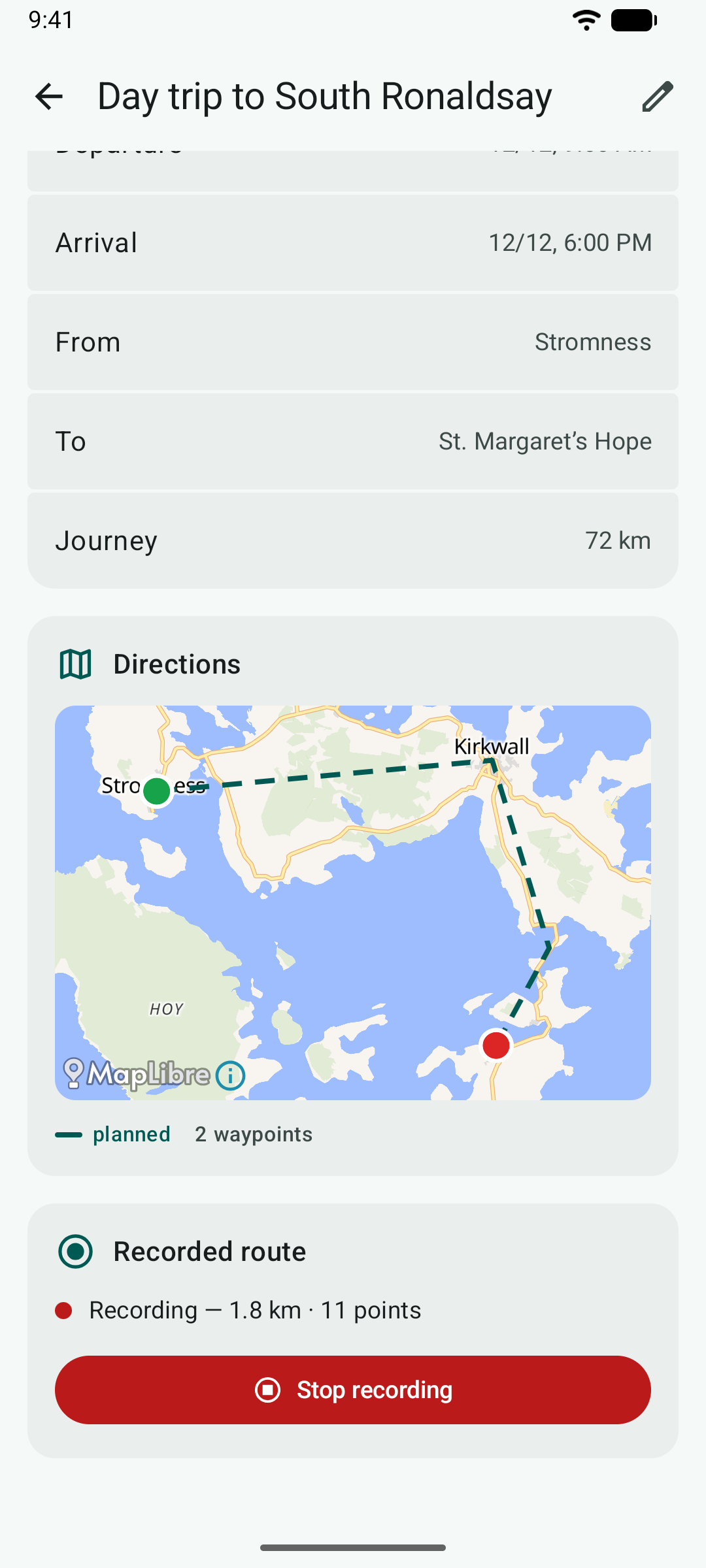
While recording, Android shows an ongoing notification Etappe is recording the route with a Stop recording button. You can turn the screen off or open another app; Etappe keeps measuring until you stop. The journey shows how far you have come and how many points are saved.
After you stop, Etappe asks whether to apply the route: kilometers and driving time go into the journey, missing start and destination points as well as departure and arrival are filled in, and on the maps the recorded route replaces the planned draft. You can still do this later with Apply route. Instead of recording, you can take over a file from another app with Import route from GPX.
The points stay on your phone. If Android closes the app during a recording, Etappe finishes the route the next time it starts. More on recorded routes in the main manual: Recording a journey.
6.2 Journal from photos#
In a trip’s journal, From photo … creates an entry from a picture. You choose the photo in Android’s photo picker; Etappe only sees the pictures you select. The entry takes the time and place the photo was taken from the photo, if it contains them – for this, Android asks once for access to photo locations.
You add more photos to an entry under Photos. In the main manual: Journal.
6.3 Notifications#
Reminders and vet appointments arrive as a notification at 9 a.m. on the day from which you want to be reminded – the due date minus the lead time. After the phone restarts, Etappe schedules them again by itself. If you don’t allow notifications, the alerts in the app stay complete anyway.
In the main manual: Reminders.