 Etappe
24. Reminders#
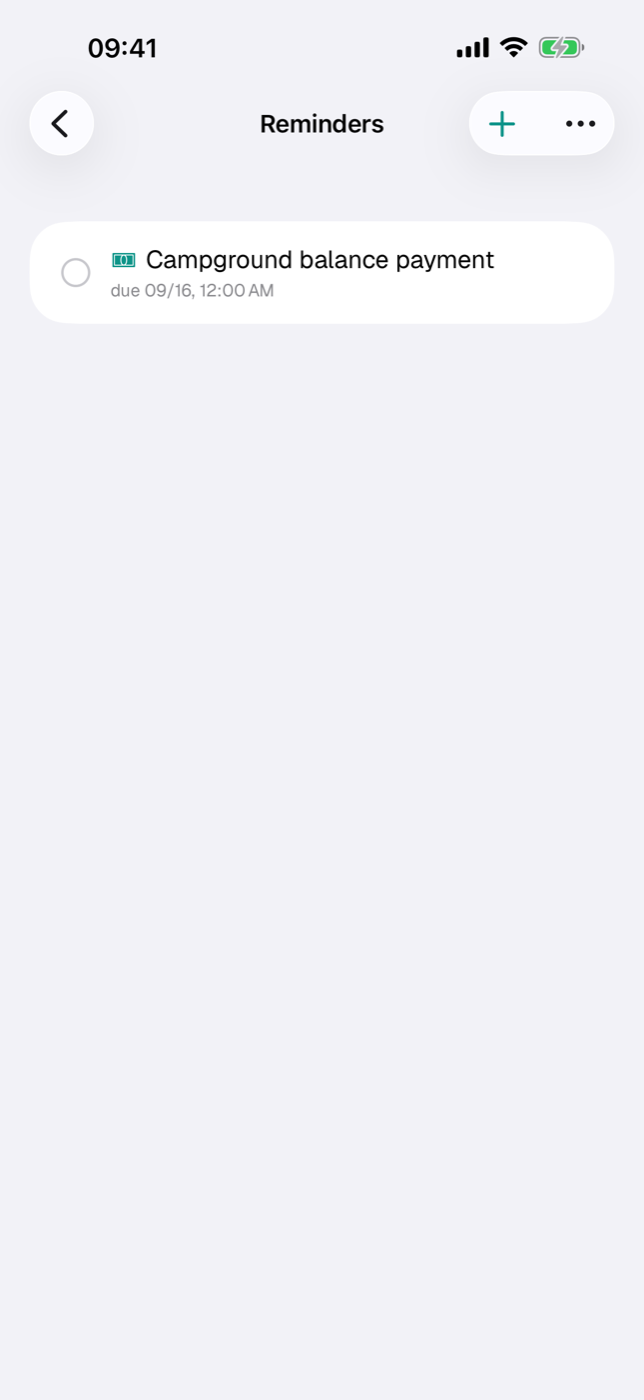
Some things have to happen before the trip, and at a particular time: the deworming treatment at the vet, the balance payment for the vacation home, the online check-in. A reminder in Etappe consists of a due date and a lead time — and shows up as a notification on your device in good time beforehand.
Reminders are not to-dos. To-dos are a task list to check off (To-dos); reminders are dated events that draw attention to themselves.
24.1 Creating a reminder (title, due date, lead time)#
You reach the list in two ways: via More → Reminders for all reminders together, or from within a trip via the Reminders section — there you only see the ones belonging to that trip.
- In the list, tap the plus at the top right (New reminder). In an empty list, the Add reminder button appears instead. In the trip view, Add new → Reminder also brings you here.
- Enter a Title. Without one, Save stays grayed out.
- Choose a Type — it determines the symbol in the list, in the Overview and in the Alerts, nothing else. The notification itself shows no type symbol.
- Optionally a Description; it appears later in the text of the notification.
- Under Due on, set the date and time.
- Set the Lead time with the stepper — 0 to 30 days, the default is 3.
- The Notify from row shows you right away when the reminder will go off.
- In the Photo section, you can attach an image via Choose photo (the vaccination record or the invoice, say); it appears as a small tile at the right edge of the list row.
These types are available:
| Type | Intended for |
|---|---|
| Deworming treatment | deworming before the border crossing |
| Vet | appointments to do with your pet |
| Vaccination | boosters for people and pets |
| Document expiry | ID documents and papers about to expire |
| Check-in | arrival or online check-in |
| Check-out | departure day at the accommodation |
| Departure | setting off, ferry, flight |
| Payment due | deposits and balance payments |
| Other | everything else |
24.2 Allowing notifications and what happens at 9:00 AM#
The first time you save, iOS asks whether Etappe may send you notifications. If you say no, everything else still works — the reminder is in the list, in the Overview and in the Alerts — only the notification stays off.
Delivery follows a fixed rule: 9:00 AM on the day that results from the due date minus the lead-time days. The time of day of the due date plays no part in this; it only appears in the text of the notification.
| Due on | Lead time | Notification |
|---|---|---|
| Jul 20, 3:30 PM | 3 days | Jul 17, 9:00 AM |
| Jul 20, 3:30 PM | 0 days | Jul 20, 9:00 AM |
Vet appointments you have given a lead time follow the same rule, by the way (Pets).
If you create a reminder whose lead-time window is already running, Etappe doesn’t stay silent: the notification then arrives about a minute later — but only as long as the due day isn’t over yet. For dates that have already passed, nothing is delivered anymore; they show up as overdue in the Alerts instead.
The notification itself shows the title as its heading, below it “Due on …” and — for a trip-related reminder — the trip title. The description forms the message text.
Every change to the due date or lead time reschedules the notification; you don’t have to confirm anything extra.
24.3 Reminders for a trip or in general#
Where you create a reminder decides what it belongs to:
- Created from within a trip, it belongs to that trip. It appears in the trip’s list and in the overall list, there with the trip title in the accent color below the name.
- Created via More → Reminders, it is independent of any trip — suitable for ongoing matters such as a vaccination that is about to expire.
The trip assignment is set when you create the reminder and can’t be changed afterwards in the form. If you want to assign a reminder to a different trip, create it there anew and delete the old one. If you delete a trip, its reminders go with it.
Open reminders show up in two more places:
- In the Overview as a card of their own with the next three open dates; overdue dates are shown in red there (Overview).
- In the Alerts: as soon as the lead-time window begins, the reminder appears as “Soon”; once the date has passed, it is listed as critical (Alerts).
24.4 Completing, moving, deleting#
Completing: Tap the row. The circle on the left turns into a filled check mark, the title is struck through, and the scheduled notification is withdrawn. Another tap undoes it — the notification is then scheduled again, provided its time is still in the future.
Completed reminders disappear from the list. The Show completed switch in the toolbar menu brings them back into view.
Moving: Swipe the row from left to right and choose Edit. In the form, change “Due on” or the lead time; the notification adjusts accordingly.
Deleting: Swipe the row to the left and tap Delete. The scheduled notification is removed along with it.
If a date has passed and hasn’t been checked off yet, the time in the list is shown in red — so anything left undone catches your eye right away when you look through the list.
Reminders are included in the backup, but their photos only if you enable “Include files” when exporting (Backup).