 Etappe
28. Recording a journey#
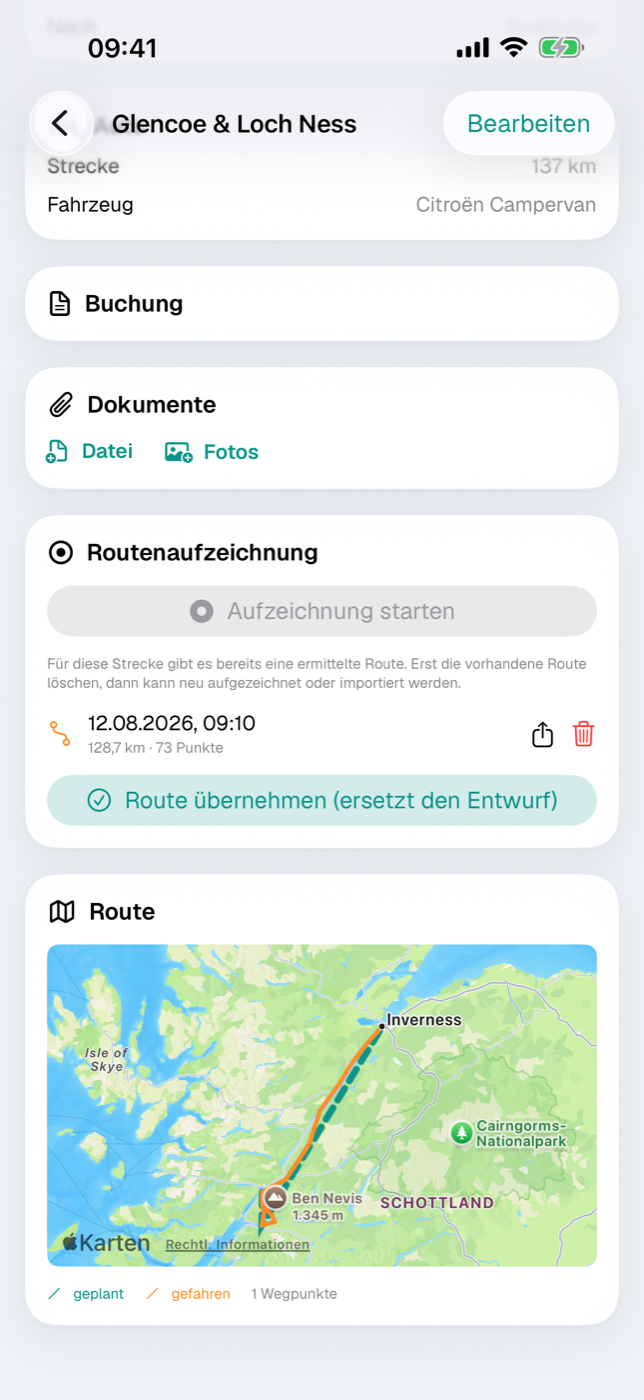
The plan is one thing, the drive another: detours, spontaneous side trips, the country road instead of the motorway. Etappe can log the route you actually take and lays it next to the planned one — including distance, duration and elevation gain.
28.1 What a recording is for#
A recording answers three questions that a plan alone leaves open: how far did we really drive, how long did it take, and which way exactly did we go. Looking back, that is often worth more than the plan — and it makes a better basis for estimating the next trip.
Recordings always belong to a journey (Journeys). So this is not about logging your movements in general, but about exactly the leg you are driving, cycling or walking right now.
28.2 Starting and stopping a recording#
- Open the trip and, within it, the journey you are currently on.
- Scroll to the Recorded route card.
- Tap Start recording. The first time, iOS asks for permission to use your location — without it, Etappe cannot log anything.
- While recording, the card shows a red dot along with the distance covered so far and the number of points.
- When you arrive, tap Stop recording.
After you stop, Etappe asks whether the recorded route should replace the planned route draft. You can decline and do it later (see 28.5 Applying the route: writing km and driving time to the journey).
Only one recording runs at a time. If you try to start a second one, Etappe tells you that a recording is already running for another journey.
28.3 What gets logged — and what the device needs for it#
Etappe stores a sequence of points with timestamps. It doesn’t record every second but filters: a new point is added only once you have moved far enough or changed direction. That keeps the file small and the line clean without distorting the route.
Recording continues when you leave the app or lock the screen — meanwhile iOS shows the familiar indicator that an app is using your location. You can end it at any time in the app.
A word on battery: a recording lasting several hours uses a noticeable amount of power. On long legs, a charging cable in the car is worth it.
All points stay on your device and are not sent to anyone — see Your data.
28.4 Comparing the planned and recorded route#
On the map in the journey detail you see both lines:
| Line | Meaning |
|---|---|
| dashed, teal | the planned route draft with your waypoints |
| solid, orange | the journey as actually recorded |
The legend below the map names both again and shows how many waypoints the plan has. As long as you don’t apply the recording, both lines stay side by side.
28.5 Applying the route: writing km and driving time to the journey#
With Apply route you make the recording the definitive route. Three things happen:
- The dashed draft disappears from all maps; the orange line stays.
- The recorded kilometers become the journey’s distance.
- The time between the first and last point becomes the driving time.
There is no button to undo this; if you want to work with the draft again, delete the recording or enter the values by hand.
28.6 Key figures: average speed and estimated consumption#
Once a route has been applied, the card shows a row of key figures: kilometers, driving time, average speed and — if the journey is assigned a vehicle with a consumption value on record — the estimated fuel or energy needed for this leg.
Consumption is calculated from the distance and the value in the vehicle profile (Vehicles), not measured. For the trip finances, what counts is the fuel receipt you record as an expense (Budget).
28.7 Sharing a recording as GPX or deleting it#
Next to each recording are two icons: the share icon exports the track as a GPX file — so you can bring it into other map or touring apps. The trash icon deletes the recording after a confirmation; the journey itself is kept.
More on the other output formats in Exports and printouts.
28.8 If the app was terminated during a recording#
If the app is terminated in the middle of a recording — for example because the device restarts — Etappe finishes the recording itself on the next launch: the last recorded point counts as the end. Recordings with fewer than two points are discarded, because they don’t make a route.
If you use Etappe on two devices, a recording running on the other device is not affected.