 Etappe
38. App lock#
Etappe holds passport numbers, addresses, booking receipts and journal photos. If you hand your device to someone for a moment, you don’t want them simply opening the app. That is what the app’s own lock is for: a four-digit code, combined with Face ID or Touch ID if you like. It is independent of the device passcode and applies only to Etappe. It protects what is shown on this device — not the copy of your data in iCloud; how that is protected is described in iCloud sync, section 37.6.
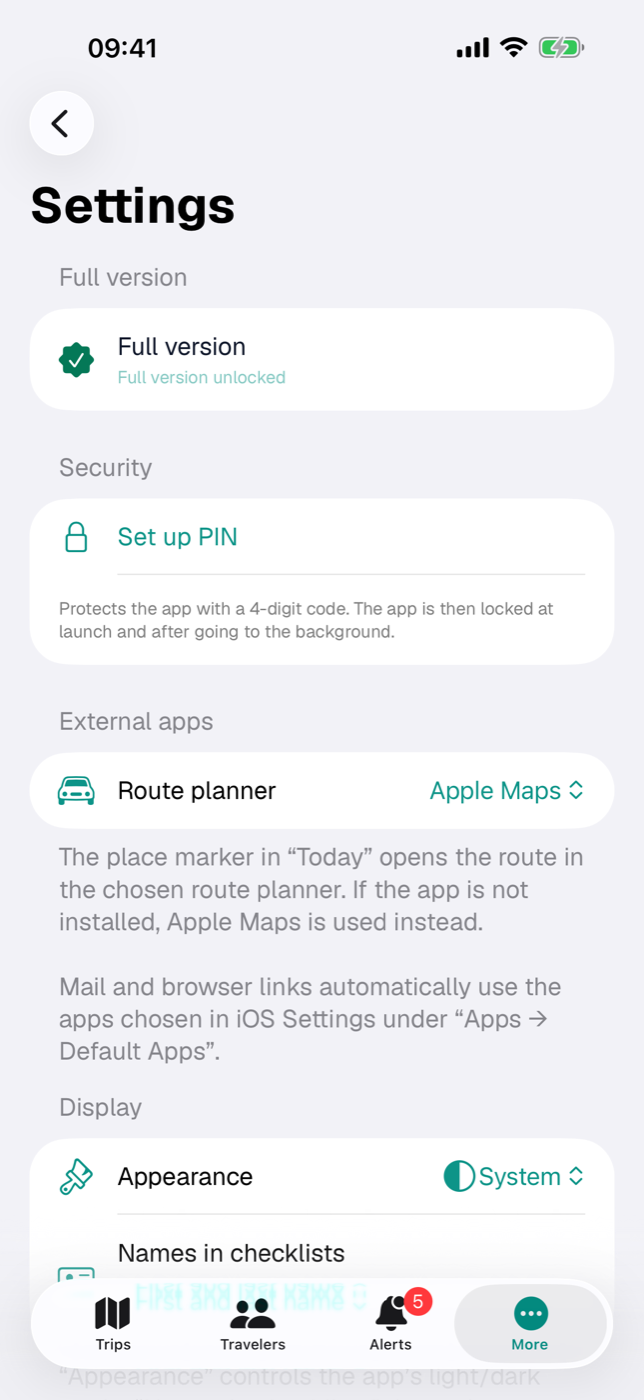
You’ll find it under More → Settings in the Security section.
38.1 Setting up a code#
- Open More → Settings and go to the Security section.
- Tap Set up PIN.
- Enter your code under New PIN (4 digits). The field accepts digits only and stops after four.
- Repeat it under Confirm PIN.
- Tap Save. The button only becomes active once both fields contain four digits.
If the two entries don’t match, the form reports “The two entries do not match.” and clears the confirmation field. Should saving fail, “The PIN could not be stored securely — please try again.” appears — in that case the app is not protected yet, so you need to try again.
The code is stored in the device’s keychain. It can only be read while the device is unlocked, stays on this one device and is never part of an export (Backup). From then on, the Security section shows the line App lock active.
38.2 Allowing Face ID or Touch ID#
Once a code is set and your device supports biometrics, the Allow Face ID or Allow Touch ID switch appears — the label depends on the device. It is on by default.
The lock screen then shows the Face ID or Touch ID symbol at the bottom left, next to the zero. Tapping it starts the check; iOS shows the reason “Unlock Etappe”. The first time, iOS asks for permission with the note “Unlock Etappe with Face ID.”
Etappe also triggers Face ID on its own — but only once the launch screen has finished and the app is actually in the foreground. When the app moves to the background, this deliberately does not happen.
If recognition is canceled or fails, the keypad stays in place: biometrics are the shortcut, the code is the route that always works. If you turn the switch off, the symbol disappears from the keypad and it stays with code entry.
38.3 When Etappe locks — setting the interval#
Two things are fixed: after a cold start, Etappe is locked as long as a code is set. And the lock screen sits in its own window above everything — including open forms, document previews and full-screen views.
The only thing you can choose is how long the app may stay in the background before it locks again when you return. The Lock picker offers:
| Setting | Effect |
|---|---|
| Immediately | locks as soon as you leave the app |
| After 1 minute | locks if the app was in the background for at least 1 minute |
| After 5 minutes | locks after 5 minutes in the background |
| After 15 minutes | locks after 15 minutes in the background |
Immediately is the default and the strictest option: the lock screen is built as soon as you leave, which is why the app switcher preview shows only the lock screen and no longer your last screen. With the other levels you can switch briefly to another app — say, to look up a booking confirmation — and come back without entering the code again.
If a quick action from the Home Screen is waiting, Etappe runs it only after unlocking (Quick actions from the Home Screen).
38.4 Changing or removing the code#
Change PIN opens the same form as when setting up: enter the new code twice, Save. You are not asked for the old code — you can only reach Settings in an unlocked app anyway.
Remove PIN is red and asks first, to be on the safe side: the “Remove PIN?” dialog explains “The app will no longer be protected by a code.” and offers Remove or Cancel. After removal, the biometrics switch and the interval disappear from the section, and the lock screen no longer appears — not even at the next launch.
Your settings for biometrics and interval remain stored and apply again as soon as you set up a code again.
38.5 What happens if the code has been forgotten#
First, the brake against trial and error: after five wrong entries in a row, Etappe locks the keypad for 30 seconds. With every further failed attempt, the waiting time doubles — 60 seconds, 120 seconds and so on, up to a maximum of 15 minutes. While this runs, the lock screen shows the note “Too many failed attempts — please wait N s.” The count survives an app restart; quitting the app does not shorten the wait. If biometrics are allowed, the Face ID or Touch ID button remains usable during the waiting time.
And then the uncomfortable truth: there is no fallback code and no security question. Etappe can neither show the code nor reset it, because it is stored encrypted in the keychain and nowhere else.
That leaves one way: delete Etappe and reinstall it from the App Store. On the first launch after a reinstall, Etappe clears away any leftover code, so the app starts unlocked. What you lose in the process depends on how well you have prepared:
- If iCloud sync is running, your trips come back from your iCloud after the reinstall (iCloud sync).
- If you have a JSON backup, you import it afterwards (Backup).
- Without either, the local data is gone with the app.
Your purchase is unaffected: the full version is tied to your Apple ID and can be retrieved via Restore Purchases; the start date of the trial also survives a reinstall, so it does not start over (Trial and full version).
In short: choose a code you will definitely remember, and keep a backup alongside it. What else Etappe protects and what leaves the device is covered in Your data.