 Etappe
7. People#
Anyone who travels with you is set up once and is then available everywhere: as a participant in a trip, as the owner of a packing list line, as the person whose passport the entry checklist checks. Etappe keeps their ID documents and vaccinations on file and lets you know when a document expires before the end of a trip.
You’ll find people in the Travelers tab, in the People group.
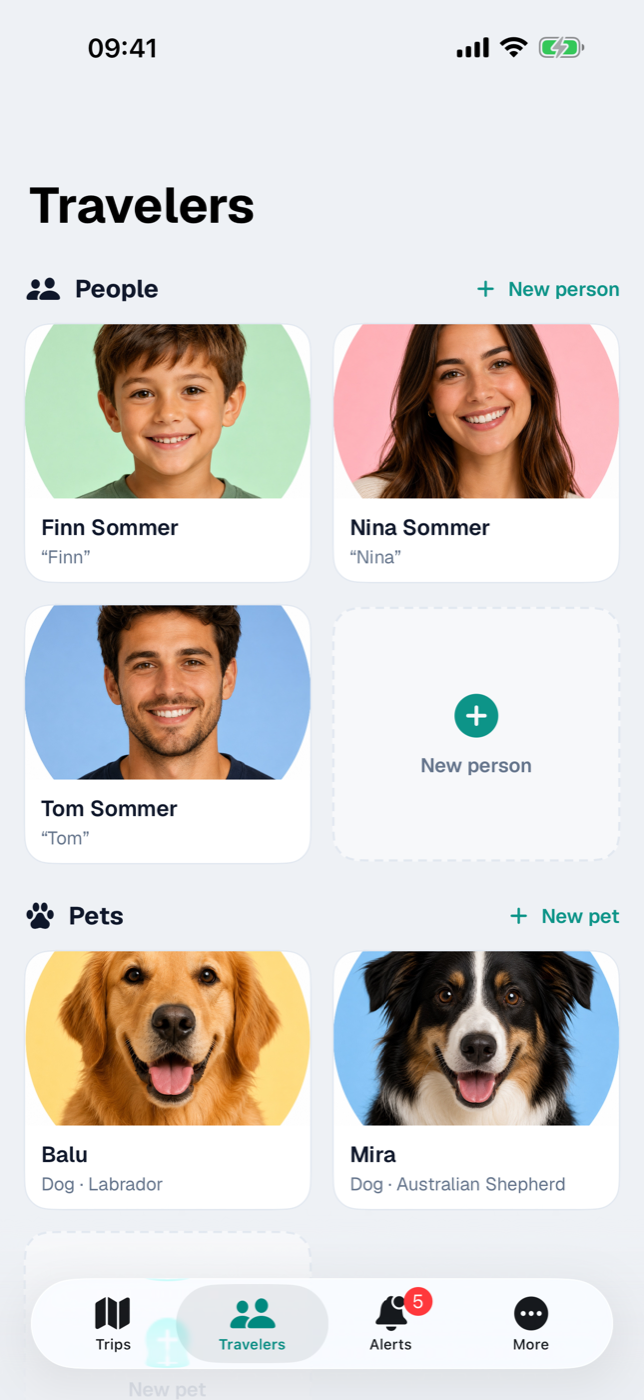
7.1 Adding a person, setting a profile picture#
- Open the Travelers tab.
- Tap New person to the right of the People heading, or tap the dashed tile at the end of the grid.
- Enter at least the First name — without it, Save stays inactive.
- Add Last name and Nickname as needed.
- Save.
The profile picture sits at the very top of the form. Choose photo opens your photo library; once a picture is selected, the button reads Change photo, with Crop (square, with zoom and pan) and Remove below it. Etappe reduces the image size before saving.
Without a photo, the tile shows a person symbol, and the detail view shows an avatar with the initials. Below the name — where entered — you’ll see the nickname in quotation marks and the age, for example “Momo” · 41 years.
7.2 Basic details: date of birth, nationality, contact#
The remaining fields are spread across four sections of the form:
| Section | Fields |
|---|---|
| Contact | Email, Phone |
| Date of birth | Set date of birth toggle, then Born on |
| Personal | Nationality |
| Notes | free text field |
Everything is optional. In the person’s detail view, the Personal card shows only what’s filled in; the email address and phone number there are tappable.
Whether packing lists and checklists show just the first name or first and last name is up to you, under Settings → Display → Names in checklists (All settings).
7.3 Adding an emergency contact#
The Emergency contact section takes a Name and a Phone number — meant for the case that someone else has to look at your phone while you’re on the road. In the detail view, both appear on one line, separated by a middle dot; if a number is on file, tapping the line dials it directly.
7.4 ID documents: national ID card, passport, driver’s license — with scan#
The ID documents card in the person’s detail view collects all their papers. + Add opens the form; tapping an existing line edits it.
For people, the choices are: National ID card, Passport, Driver’s license, Health insurance card, Vaccination record, ETA, Visa, and Other. Then there are Number (converted to uppercase), Place of issue, and Notes.
Validity has three toggles: Issued on, Permanently valid, and Valid until. Note the hint in the form: without an expiry date and without “Permanently valid”, a document counts as invalid in every check — Etappe doesn’t guess.
This determines the status pill on the right of the line:
| Pill | Meaning |
|---|---|
| Permanently valid | Permanently valid toggle is on |
| Valid | expires in more than 6 months |
| Expires soon | expires within 6 months |
| Invalid | expired, or no validity information |
Each document can carry two attachments: an image under Scan / photo (Add photo of the document) and a PDF or image file under File (PDF) (Add PDF / file). Both can be replaced and removed. A long press on the line in the detail view offers Show document, Show scan, and Delete.
Expiring documents automatically show up in Alerts. If the validity doesn’t last until the end of a planned trip, the alert becomes critical and also appears as a red box at the top of the person’s detail view. If a destination country requires a minimum remaining validity for the passport, Etappe checks that too (Countries, Entry checklist).
Receipts, bookings, and other files relating to a person belong in the Documents card below instead (Documents and receipts).
7.5 Recording vaccinations and keeping track of boosters#
The Vaccinations card works like the ID documents. In the form, you enter the Type; the small arrow symbol next to it offers common travel vaccinations — Rabies, Hepatitis A, Hepatitis B, Typhoid, Yellow fever, Cholera, Japanese encephalitis, Meningococcal, Tetanus, TBE, and COVID-19. Typing freely works just as well. Then there are Practice / doctor, the Vaccination date and Valid until toggles, and Notes.
The list is sorted by vaccination date, most recent first. Etappe shows a status pill only when a Valid until date is on file: Valid, Expires soon (6 months or less), or Expired.
Unlike ID documents, people’s vaccinations do not trigger an automatic alert. For a booster, your best bet is to set up a reminder (Reminders). For pets, on the other hand, the rabies vaccination is checked (Pets).
7.6 Archiving people#
Someone who no longer travels with you doesn’t have to be deleted. In the person’s detail view, open the More menu at the top right and choose Archive; in the Travelers tab, a long press on the tile is enough.
Archived people move to the Archive group at the bottom of the screen, faded and with the “ARCHIVED” banner. They are no longer offered when you select the participants of a trip or assign a packing list line to someone, and their ID documents no longer trigger alerts. Everything else stays: profile, documents, and the assignment to existing trips — wherever the person is already entered, they remain visible in the selection.
Reactivate in the same menu undoes this at any time.
7.7 Deleting people without losing the memory of past trips#
Deleting removes the record for good — but not the trace in your trips. The way there: in the person’s detail view, More → Delete …, or a long press on the tile → Delete …. A confirmation follows with the name and the sentence: “Documents, vaccinations, and photo are deleted. Only the name remains in past trips.”
That’s exactly what happens. Before Etappe deletes the person, it writes their name as a snapshot into every trip participation. In a trip’s list of travelers, a gray line with the name and the note “No longer in records” then appears; the name also stays among the participants in the itinerary PDF.
| Archive | Delete | |
|---|---|---|
| Profile, photo, contact details | kept | gone |
| ID documents, vaccinations, documents | kept | gone |
| Name in past trips | kept with profile | kept as a gray entry |
| Selection for new trips | hidden | no longer available |
| Alerts | go quiet | dropped |
| Undo | anytime | only from a backup |
Packing list lines that were assigned to this person remain and are then left without an owner — you can reassign or remove them (Packing list). Deleting can only be undone from a backup made beforehand (Backup).