 Etappe
36. Storage and files#
Text and numbers hardly take up any space. Photos do: a well-documented vacation with journal pictures, booking PDFs and GPX tracks can quickly fill a few hundred megabytes. Under More → Storage & files you can see where that space goes — for trips as well as records — and clean up trip by trip in three stages.
All three actions are final. There is no trash and no undo. Create an export first (Backup) — the confirmation dialogs point this out themselves.
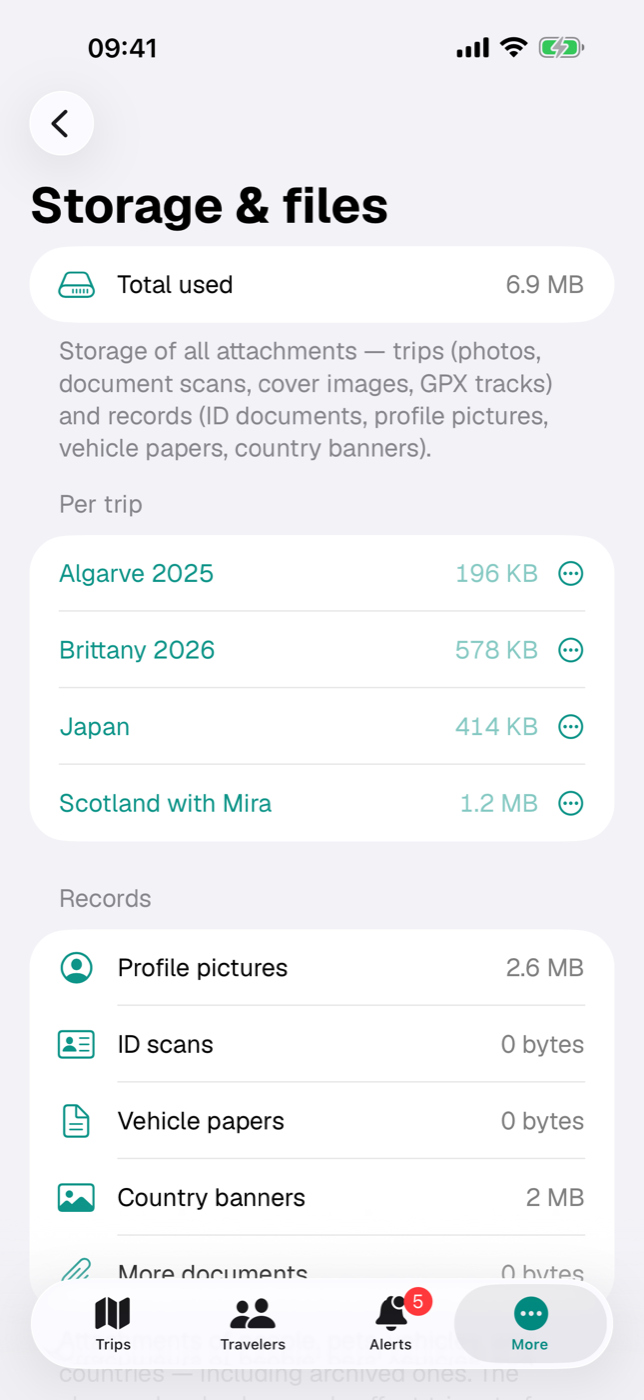
36.1 How much space the attachments take up#
At the very top is Total used — the sum of all attachments, of trips and records alike. Trip attachments include:
- cover photos of trips
- documents and photos attached to trips, accommodations, journeys, activities, outdoor activities and research items
- journal photos and journal cover images
- images attached to a trip’s reminders
- the imported GPX files of outdoor activities
Add to that the attachments of the records; how they break down is shown in 36.3 Storage used by records.
The values are calculated when the screen opens and recalculated after every action. The figure is the space the files themselves occupy; what iOS reports for the app as a whole is naturally somewhat higher. If iCloud sync is turned on, the same attachments also sit in your iCloud storage (iCloud sync).
If there are no attachments at all yet, the screen skips the breakdown: instead of the “Per trip” and “Records” sections, it shows only the note “No attachments yet — photos, scans, and documents appear here as soon as you add some.” The Total used row then shows 0 bytes. The two sections appear with the first attachment.
36.2 Storage per trip#
Below, the Per trip section lists all trips alphabetically with their size; archived ones carry the label “Archived”. If there is no trip yet, it says “No trips available.”
Tapping a row opens the menu with the three cleanup stages:
| Menu item | Effect |
|---|---|
| Remove attachments only | files gone, text and structure stay |
| Reduce to key data | contents gone as well, trip is archived |
| Delete trip completely | the whole trip and everything in it disappears |
Each stage asks first. For the first two, the prompt states how much space will be freed; for complete deletion it says instead that the trip and its contents will disappear irrevocably.
36.3 Storage used by records#
Below the trip list, the Records section shows five rows:
| Row | What counts |
|---|---|
| Profile pictures | the pictures of people, pets and vehicles |
| ID scans | scan photo and file attachment of the ID documents, plus the documents attached to them |
| Vehicle papers | scan photo and file attachment of the vehicle papers |
| Country banners | the banner images of the countries |
| More documents | documents attached directly to people, pets, vehicles or countries |
These attachments belong to no trip; the cleanup stages in the trip list therefore leave them untouched. To free up the space, delete them individually in the respective detail view (Documents and receipts). Archived people, pets and vehicles count too — their space is only freed once you delete the attachments or the whole entry there.
36.4 Removing only a trip’s attachments#
The gentlest stage: it clears away files and nothing else.
- Tap the trip and choose Remove attachments only.
- The Remove attachments? dialog names the trip and the space that will be freed.
- Confirm with Remove or back out with Cancel.
Afterwards, all photos, scans, GPX files and the cover photo of this trip are deleted. What remains is the complete plan: accommodations, journeys, activities, outdoor activities, journal texts, budget, packing list, to-dos.
Two consequences stand out in everyday use: the trip’s card and hero show the automatically generated cover again instead of your photo. And for outdoor activities, the route line drawn from the GPX file and the elevation profile disappear — the values derived from it, such as distance and elevation gain, remain as numbers (Outdoor activities). The document entries themselves are deleted as well, so no empty placeholders are left behind.
36.5 Reducing a trip to key data#
This stage is meant for trips long past, of which you only want to remember that they happened and when.
- In the trip’s menu, choose Reduce to key data.
- The Reduce to key data? dialog lists what will disappear.
- Confirm with Reduce.
The action first removes all attachments as in 36.4 Removing only a trip’s attachments and then deletes the contents:
| Deleted | Kept |
|---|---|
| Journal entries | Title, period, region, status |
| Budget items | Countries, participants, vehicle |
| The trip’s packing list | Accommodations |
| To-dos | Journeys including recorded routes |
| Entry checklist items | Activities |
| Research items | Outdoor activities |
| The trip’s reminders | Sketch blocks |
| Pet planning for the trip |
Finally, the trip is archived: it moves into the Archive group in the trip list and its status is no longer updated automatically. Via the trip’s context menu, you can bring it back at any time with Restore from archive — but the deleted contents don’t come back with it.
The trip’s budget screen still shows the costs from accommodations, journeys and activities afterwards, because those amounts are attached to the bookings themselves, not to the budget items (Budget).
36.6 Deleting a trip completely#
The last step removes the trip with everything attached to it: accommodations, journeys, activities, outdoor activities, journal, photos, budget, packing list, to-dos, reminders.
- In the trip’s menu, choose Delete trip completely.
- A sheet opens, titled “Delete … completely?”, with the note that everything will disappear irrevocably.
- Drag the Swipe to delete slider all the way to the right. An accidental tap therefore deletes nothing. Cancel takes you back out.
Your records are not affected: people, pets, vehicles, countries and packing list templates stay as they are — they belong to no trip.
If iCloud sync is active, the deletion takes effect on all devices. And once again: only an export made beforehand brings the trip back (Backup).
36.7 What this means for “Where I’ve been”#
The country map counts the countries of trips with the status “Under way” or “Past”, plus the countries you marked by hand (Where I’ve been).
- Remove attachments only changes nothing here.
- Reduce to key data doesn’t either: countries and status are kept, after all. The trip still counts, year included.
- Delete trip completely takes the country out of the statistics — unless you were there on another trip or marked it manually on the map.
So if space is all you are running short of, “Reduce to key data” is the better choice than deleting: the trip remains as a row in the archive and as a patch of color on the world map.
36.8 Images: the right dimensions#
Etappe brings every image to its own dimensions when you add it: larger images are reduced, smaller ones scaled up — and then look blurry. The best fit is an image that matches the target size and has its subject where something is still visible on screen after cropping.
Header images of trip and country. A trip’s cover photo (Creating a trip, section 12.4) and a country’s banner image (Countries) go through the same photo picker: at most 1,600 pixels on the long edge, and with Crop exactly 1,600 × 900 pixels (16:9) as JPEG.
| Trip cover photo | Country banner image | |
|---|---|---|
| Best | 1,600 × 900 pixels, 16:9, landscape | 1,600 × 900 pixels, 16:9, landscape |
| At least | 1,200 × 675 pixels | 1,200 × 675 pixels |
| Where it appears | trip card in the list (about 2:1 on iPhone), header image in the trip detail (full width, up to about 3:1 on iPad), square mini tile | header of the country detail (about 2.4:1 on iPhone, wider still on iPad) |
| Safe area | main subject in the middle band, about 1,600 × 550 pixels — top and bottom get cut off, on the tile the sides too | narrower still: middle band of about 1,600 × 450 pixels |
| What sits on top | notes and flag at the top, title, dates and travelers on a dark gradient at the bottom — no text in the image, keep the bottom left calm | ISO code at the top right, flag and name at the bottom left — no text in the image |
Portrait images work but lose much of the subject on the card. A header image then takes up about 150 to 400 KB.
All images at a glance.
| Image | Best | Aspect ratio | What Etappe stores | Format |
|---|---|---|---|---|
| Trip cover photo | 1,600 × 900 pixels | 16:9, landscape | at most 1,600 pixels, cropped 1,600 × 900 | JPEG |
| Country banner image | 1,600 × 900 pixels | 16:9, landscape | like the cover photo | JPEG |
| Photo of a reminder | 1,600 × 900 pixels | 16:9, landscape | like the cover photo | JPEG |
| Profile picture of a person, pet, vehicle | 800 × 800 pixels | 1:1, subject centered | at most 800 pixels, cropped 800 × 800 | JPEG |
| Photos in the journal | from 2,000 pixels on the long edge | any | at most 2,000 pixels; the location is read first, the rest of the photo data is dropped | JPEG |
| Photos of documents and receipts | from 2,000 pixels on the long edge | any | at most 2,000 pixels | JPEG |
| Scans of ID, vaccination card, vehicle papers | from 2,000 pixels on the long edge | any | at most 2,000 pixels | JPEG |
| PDF attachments | — | — | unchanged | |
| GPX files | — | — | unchanged | GPX |
HEIC photos from the iPhone, JPEG and PNG all work as source material. Etappe saves everything as JPEG; transparent areas of a PNG are filled in. In the journal PDF the photos appear at 1,200 pixels (Exports and printouts).