 Etappe
30. Quick actions from the Home Screen#
On the road, every tap counts. That’s why Etappe attaches two quick actions directly to the app icon: one press takes you to the day’s program, or you take a photo that immediately becomes a journal entry — without tapping your way through trip, section and form first.
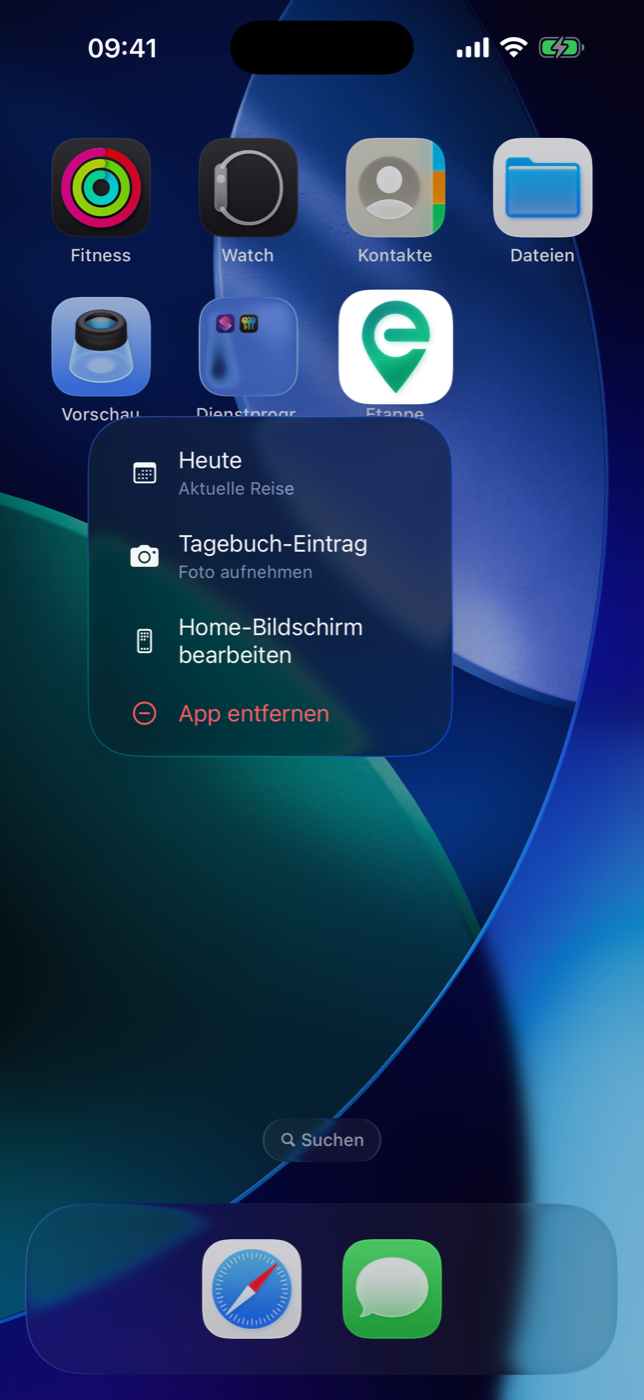
30.1 Press and hold the app icon#
Press and hold the Etappe icon on the Home Screen. Two entries unfold beneath the icon:
| Quick action | Subtitle | What it does |
|---|---|---|
| Today | Current trip | Opens the Today screen of the current trip |
| Journal entry | Take a photo | Camera, then a new journal entry |
Both are built into the app and available right after installation — you don’t need to have launched or set up the app first. Both do require a trip that is under way, though (see 30.4 Requirement: a trip with the status “Under way”).
30.2 Opening “Today” directly#
Today shows the day screen of the current trip full-screen on top of whatever is open at the moment. You see the same cards as in the regular Today section: the day’s program items to check off, ongoing overnight stays, jumps into the details, documents and place markers (Today).
At the top left is Done. It closes the quick action and takes you back exactly where you were before.
30.3 A journal entry with a photo in one step#
Journal entry is the quick route for the moment when you see something and want to capture it:
- Etappe opens the camera full-screen.
- You take a photo and confirm it.
- Etappe immediately creates a journal entry with today’s date and the current time, attaches the photo and saves both.
- The entry then opens for editing — title, text, mood, highlight, place and the other fields as described in Journal.
The entry is only created when you tap Save — just like the normal way via the journal. If you tap Cancel in the form, nothing remains; the photo you took is discarded as well. If you cancel the camera already, nothing happens either.
When attached, the photo is scaled down and stored as JPEG so the database doesn’t grow unnecessarily (Documents and receipts).
If no camera is available, Etappe skips steps 1 and 2 and creates the entry without a photo — so you never end up in a dead end.
This quick action writes data and therefore needs write access. If the trial has expired and the full version is not unlocked, the purchase notice appears instead of the camera or the form (Trial and full version).
30.4 Requirement: a trip with the status “Under way”#
Both quick actions refer to the trip you are currently on. Etappe looks for trips with the status Under way and prefers the one whose date range includes today. If there is no such trip, the first trip with this status is used.
If there is none at all, the alert No current trip appears with the text: “There is currently no trip with the status ‘Under way’. Set this status on your current trip to use the quick actions.” A tap on OK dismisses it.
As a rule, you don’t need to do anything for this: Etappe updates the status itself at app launch and when you open the trip list — Making arrangements becomes Under way on the first day of the trip and Past after the last day. Trips in other statuses (Considering, Bucket list, Planning) and archived trips are left untouched. If your trip is still in planning or has no start date, set the status by hand in the trip form (Creating a trip).
30.5 Interaction with the launch screen and app lock#
A quick action doesn’t push in ahead. Etappe remembers your choice and only carries it out once two conditions are met: the launch screen has finished, and the app is unlocked. So if a PIN or Face ID is set up, unlocking comes first, and right after that Today or the camera opens (App lock).
This applies equally whether Etappe was closed completely and starts fresh, or whether the app was only in the background.