 Etappe
34. Exports and printouts#
For a printout for the glove box or for companions who don’t use Etappe, the app generates finished files: PDFs for printing and a calendar file for importing. They are created on the device, from the state your data is in at that moment.
These exports are meant for reading and passing on. A backup you can restore from is something else — see Backup.
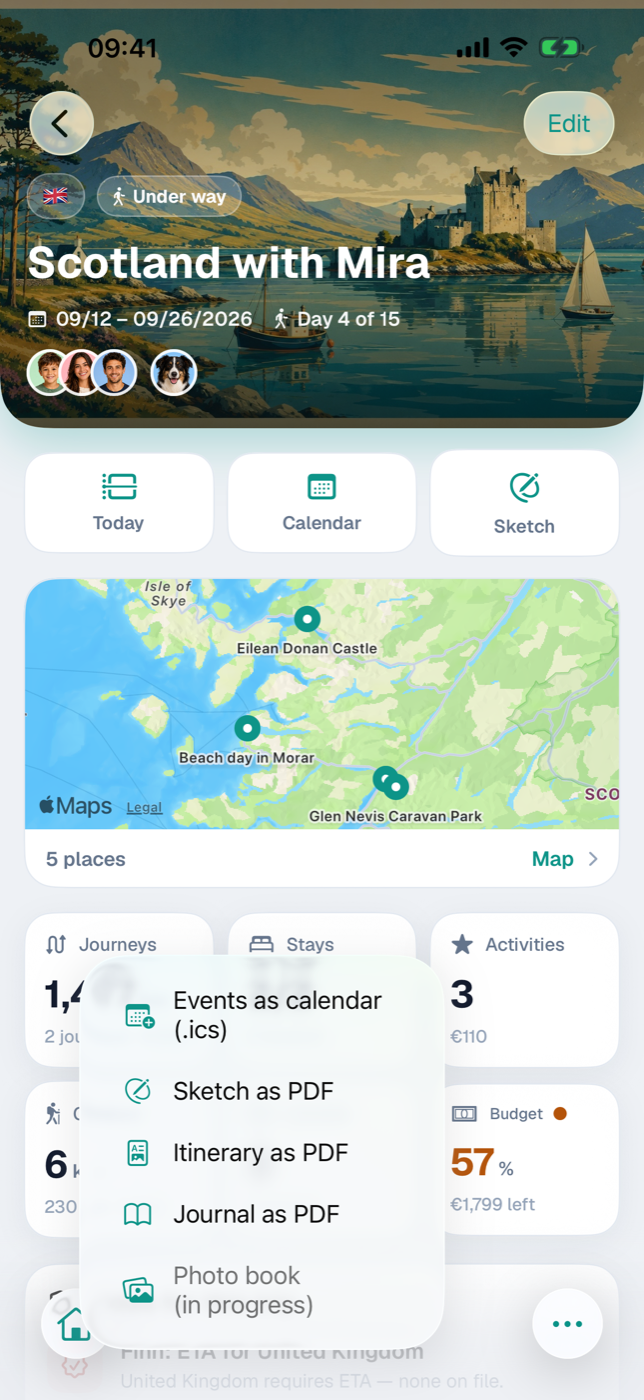
34.1 The trip’s Share menu#
Open a trip. In the bar at the bottom edge sits Share; a tap unfolds the menu upward:
| Entry | Result | Not selectable if … |
|---|---|---|
| Trip as file | .etappe-reise file, preceded by a dialog (Backup, section 35.6) | — |
| Send to Etappe | email with the trip as a template to Etappe, preceded by a dialog with credit and consent (Backup, section 35.7) | — |
| Events as calendar (.ics) | calendar file | the trip has no calendar day at all |
| Sketch as PDF | the trip has no blocks in the sketch | |
| Itinerary as PDF | PDF, preceded by a dialog | the trip has no calendar day at all |
| Journal as PDF | the trip has no journal entry | |
| Photo book (in progress) | — | grayed out |
A trip has a calendar day as soon as a period is entered or any dated entry exists — an accommodation with check-in, a journey, an activity, an outdoor activity or a journal entry. Without either, the calendar file and the itinerary would be empty, which is why those entries stay gray.
Photo book (in progress) is already visible as the placeholder for a future output format — see What’s next.
Once generated, the iOS share sheet opens (34.8 Where you can share to). An export is not a write operation — the outputs remain available even when you can only read your data (Trial and full version). The packing list takes its own route (34.4 Packing list as PDF).
34.2 Itinerary as PDF — one page per day, optionally with receipts#
If you choose Itinerary as PDF, a half-height dialog of the same name appears first, with one decision and one button:
- If receipts are marked, it shows the Attach booking receipts (N) switch — N is their number; it starts out off.
- Otherwise it shows a note that only the itinerary is created.
- Create PDF generates the file.
The cover page carries the title, the period with weekdays, region and flags, below that companions, pets and accommodations (each with name, period with the number of nights, address).
Then comes one page per day — never two days on one sheet. The header names the weekday and date; on the right sits the “Day N” pill. If the day has a day theme from the sketch (Sketch), it appears in teal directly below the date — on continuation pages too, so every sheet can be matched to its day. Below that, in a subdued style, comes the day’s overnight stay, provided an accommodation covers the adjoining nights: Overnight: ‹name› for the same accommodation in both nights, on arrival, departure and changeover days split into Night before and Night after — as in the day view (Calendar and day view). It is not repeated on continuation pages. Below that, the schedule in chronological order: time or “all day”, symbol, title and place — check-in and check-out, journeys, activities and outdoor activities; in a trip with time zones in local time, with the zone’s label where it differs from that of the day (Travelling across time zones). Journal entries are deliberately left out; they have their own export. Without a program, the page reads “Nothing scheduled.” A very full day runs over onto a following page marked “Continued”. Included are all days of the trip period plus every day outside it on which something is entered.
With receipts, each receipt is placed directly after the day its booking refers to: accommodation at check-in, journey at departure, activity at its start, outdoor activity on its date. Receipts that can’t be assigned to a day are collected at the end, announced by the divider page More booking receipts. Receipt PDFs are taken over page by page; images each get a page of their own.
Only what you have marked is attached: in the Documents card of an accommodation, journey, activity or outdoor activity, press and hold a file and choose Mark as booking receipt (Documents and receipts). Journal photos and attachments of people or pets are never included.
34.3 Journal as PDF#
Journal as PDF turns your entries into a travel journal. The cover page shows the trip’s cover image, title, period, flags and two counters: entries and photos.
Then comes one page per entry, in chronological order, with date, time, title and the “Day N” pill. Below that, where present:
- pills for mood and for weather with temperature
- the highlight in an emphasized box
- the text, set paragraph by paragraph
- the photos — title image first, then the rest, two per row
- the coordinates of the location
Long entries run over onto further pages (“Continued” in the header). Photos are always downsized so the file stays manageable. On the entries themselves, see Journal.
34.4 Packing list as PDF#
You export the packing list in the trip’s Packing list section via Export as PDF in the toolbar. The menu offers:
- Complete list — all entries; assigned ones carry the person’s name after them.
- For ‹name› — one line per person who has entries assigned. The PDF contains their entries plus everything general without an assignment.
At the top it reads “Packing list · ‹trip›”, in the per-person export supplemented by the name, below that “x of y packed” and today’s date. The entries are grouped by category, each with a checkbox — packed items are checked off, a quantity greater than one appears after the item as “(× 3)”. The finished PDF opens in the preview; its Share symbol takes you to printing or sending (Packing list).
34.5 Sketch as PDF#
Sketch as PDF outputs the planning status while no dates are fixed yet (Sketch). The header of the first page names the title and flags, the period with the number of days — or “No start date yet” —, the “x of y blocks turned into entries” pill and the time of the planning status. Then the blocks run through in sketch order, interrupted by day headers such as “Day 2 · Sat, 07/25”.
Each block appears with symbol, title, brief details (country flag, mode of transport, duration or nights), route text and notes; those already created carry the entry created mark. If a research item is attached, a gray box follows with topic, category, place, cost (in the research item’s currency, with an “≈” amount in the base currency if that differs), link, source and content. Following pages are titled “Sketch · continued”.
34.6 Events as a calendar file (.ics)#
Events as calendar (.ics) writes the trip’s events into a standard calendar file. Etappe doesn’t access your calendar itself — you import the file into the app of your choice.
| Entry | Form in the calendar |
|---|---|
| Overnight stay per accommodation | all-day bar from the check-in day to the check-out day, marked as “free” |
| Day theme | all-day entry with the theme as its title, marked as “free” — the day’s heading |
| Check-in, check-out | event at the stored time |
| Journey | from departure to arrival |
| Activity | from start to end |
| Outdoor activity | from the start time, otherwise all day |
Events without an end time get a duration of one hour; entries without a time become all-day. Journal entries are left out — they are a look back, not an event. In a trip with time zones, entries sit at the right point in time and your calendar shows them in its own time zone; the description also gives the local time, such as “Local time: 4:30 PM JST (UTC+9)”.
The file is a snapshot, not a subscription: later changes don’t flow into the imported calendar — export again in that case. The ongoing planning is easier to follow anyway in Calendar and day view.
34.7 GPX of a recorded journey#
A recorded route you pass on directly from the recording in the journey detail — as a GPX file for map and touring apps (Recording a journey).
34.8 Where you can share to#
All exports end up in the iOS share sheet. What it offers depends on the device and the installed apps; typical are Print, Save to Files, AirDrop, and Mail or Messages.
Until then, the files sit only in a temporary folder. Whatever you want to keep, save from the share sheet to a permanent location. The names carry the trip title after “Itinerary-”, “Journal-”, “Sketch-”, “Packing-list-” or “Etappe-” (.ics).
Linked from
- 3. Finding your way around
- 5. Trial and full version
- 13. Sketch — planning before the dates are fixed
- 15. Accommodations
- 16. Journeys
- 19. Budget
- 20. Packing list
- 23. Documents and receipts
- 28. Recording a journey
- 29. Journal
- 35. Backup
- 36. Storage and files
- 39. Your data
- 43. Glossary
- 44. What’s next
- 46. Travelling across time zones