 Etappe
17. Activities#
Accommodations and journeys form the skeleton of a trip; activities fill it in. Everything you want to do along the way goes here: the museum with a timed-entry ticket, the beach without a fixed date, the restaurant where it’s better to reserve. Each activity can have a date, a place, costs and a status — but none of these is required.
You reach the section from the trip via the Activities tile or via the floating actions at the bottom edge: eye symbol → Activities, plus symbol → Activity.
17.1 Adding an activity: type, place, period#
- Open the trip and then Activities.
- Tap + at the top right (or, in the empty section, Add activity).
- Enter a Name — without one, Save stays grayed out.
- Under Type, choose one of the fourteen categories: Beach, Museum, Gallery, City walk, City tour, Dining, Shopping, Groceries, Amusement park, Entertainment, Hiking, Arrival, Departure or Other. “Not specified” is also allowed. The type only determines the symbol in the list and the detail view.
- Turn on Set date when date and time are fixed. From and To then appear; the To date cannot be before the From date. As a default, Etappe uses today if it falls within the trip, otherwise the start of the trip.
- Under Place & costs, enter Address and Place and choose the Country. The choice is limited to the trip’s countries (Countries); if the trip has exactly one country, it is preselected.
- Choose on map lets you set a point. The row then shows the coordinates — that is the prerequisite for the activity to appear on the trip map later.
An activity without a date is not an error but the normal case early in the planning. The list collects such entries at the bottom in a separate section, No date yet, sorted alphabetically; the dated ones sit above them in chronological order.
If you set a date outside the trip period — or if the trip has no period at all yet — Etappe asks after saving whether the period should be applied or extended. Save date only deliberately leaves the outlier as it is.
17.2 Reservation, costs, participants#
There are three separate fields for money, and they don’t do the same thing:
| Field | Meaning |
|---|---|
| Costs | the amount this activity takes out of the trip’s funds |
| Adult admission | a note from your research, purely for information |
| Child admission | a note from your research, purely for information |
Only Costs goes into the Budget as a transaction in the “Activity” category and into the trip’s expenses. The two admission fields help with comparing and checking figures, but stay out of it.
All three fields share one Currency, which you choose in the Place & costs section — preset to your base currency — and one exchange rate, which Etappe freezes when you save. The admission fields are not converted in the process: in the detail view they simply show this currency. The other rules are described under Accommodations (Accommodations, section 15.3).
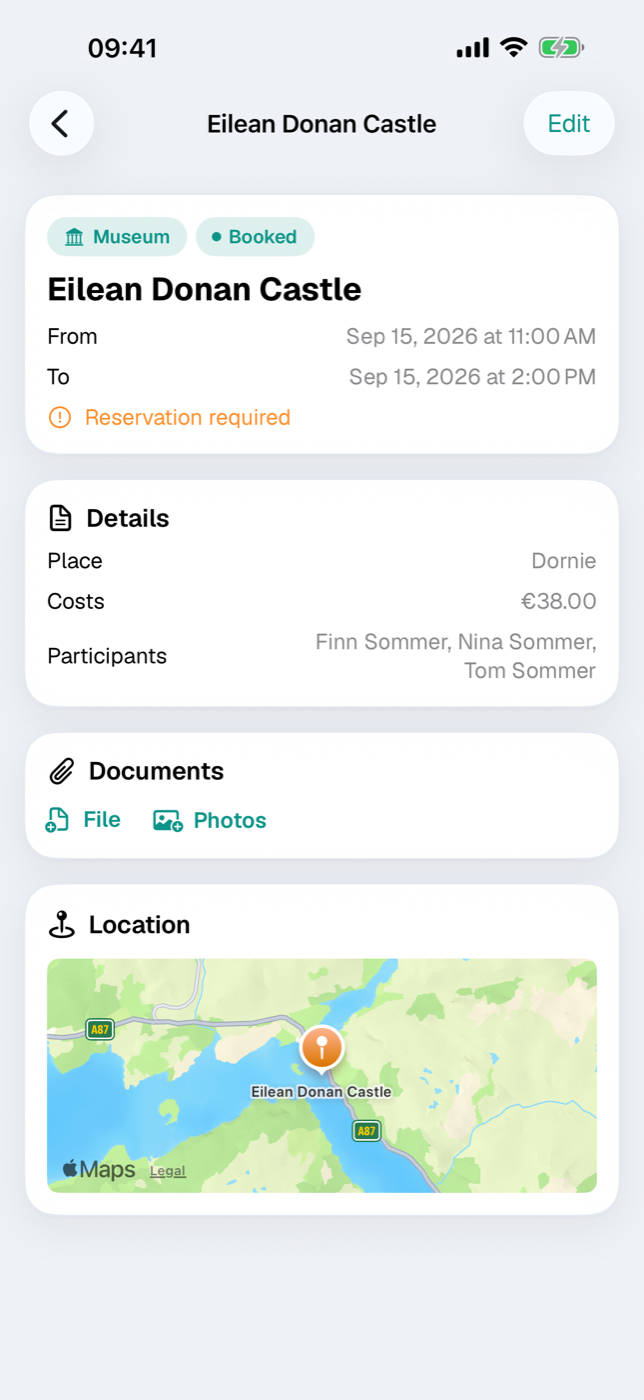
The Reservation required switch marks activities where nothing works without booking ahead. The detail view then shows an orange row, Reservation required. You enter the Booking number under “Contact & links”.
The Worth repeating switch is meant for afterwards: it highlights activities you would plan again on your next trip.
You set who is taking part in the form under Participants: the Assigned row opens a checklist with the trip’s companions (People) — tapping selects, tapping again deselects. Archived people are no longer offered; but if one is already assigned to the activity, they stay in the list and can be deselected. Assignments from an imported backup (Backup) also appear preselected, even if the person doesn’t belong to the travel party. The detail view shows the selected people under Participants; without an assignment the row is omitted. If the trip has no companions yet, the form points this out — you manage the travel party when editing the trip.
17.3 Status from idea to completed#
Each activity has exactly one of four statuses. It appears as a pill in the list and in the detail view:
| Status | What it stands for |
|---|---|
| Idea | collected, nothing binding yet |
| Planned | firmly scheduled, but not actually booked |
| Booked | ticket or reservation is in hand |
| Completed | done, behind you |
The status is entirely manual — Etappe doesn’t move it automatically, not even when the date has passed. New activities start at Idea; if a research item is turned into an activity, it starts at Planned (Research).
17.4 Opening hours, links and notes#
The Contact & links section holds what you really need on the road: Phone, Opening hours (as free text, multi-line — “Closed Mondays, last admission 5 PM” fits in here too), Website URL, Ticket URL and Booking number.
In the detail view these become tappable rows: Open website and Tickets launch the browser, the address opens your route planner with the destination and can be copied to the clipboard via the symbol next to it. Which maps app launches is something you set in the settings (All settings).
Under Rating & notes you give up to five stars — a second tap on the same star clears the rating again — and write free text to go with it. Receipts, tickets and photos are attached in the detail view via the Documents card (Documents and receipts).
17.5 Where else activities show up#
An activity doesn’t live only in its list:
- Calendar: Dated activities appear in the day view and can be moved to another day there (Calendar and day view).
- Map: Activities with coordinates get their own pin. A long press on the map opens the New entry dialog — “Activity” is preselected there, you confirm day and place and get to the prefilled form via Next (Map).
- Budget: The costs amount appears as a transaction in the Journal (Budget).
- Sketch and research: Blocks and research results can be turned into activities, complete with place, address, admission prices and notes (Sketch, Research).
To delete, swipe the entry to the left in the list. Sporting outings with a route, elevation gain and a GPX track don’t belong here, by the way, but in Outdoor activities.