 Etappe
10. Packing list templates#
Typing the same things again for every trip would be pointless. Templates are packing lists that belong to no trip: you maintain them once and apply them to a trip’s packing list with one tap. Whatever you check off, change or delete there afterwards leaves the template untouched.
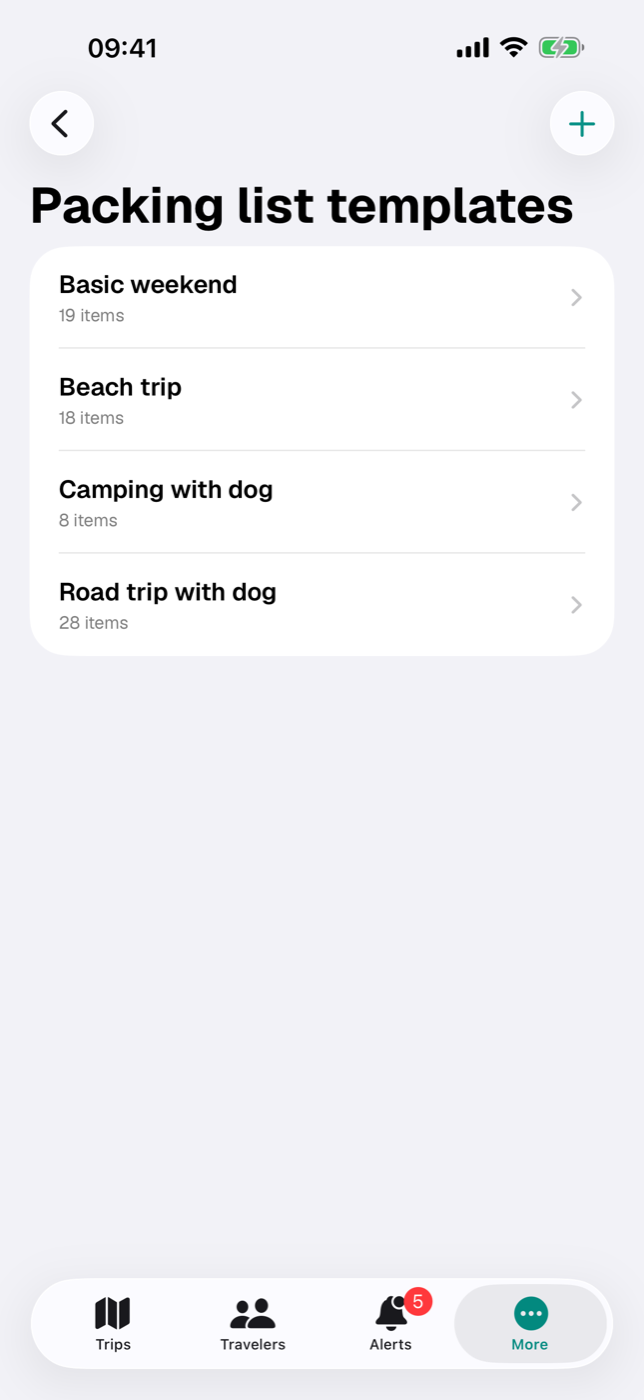
You find the section under More → Records → Packing list templates, on the iPad via the entry of the same name in the sidebar. For each template the list shows the name and, below it, the number of its items, such as “19 items”.
10.1 The built-in default templates#
On first launch, Etappe creates five templates — the first three are the same as in the web version, “Camping” and “Groceries” came with version 1.4:
| Template | Categories | Items |
|---|---|---|
| Basic weekend | Documents, Clothing, Toiletries, Electronics | 19 |
| Road trip with dog | Documents, Clothing, Toiletries, Electronics, Pet supplies, Car | 28 |
| Beach trip | Documents, Clothing, Toiletries, Beach | 18 |
| Camping | Documents, Camping, Kitchen, Toiletries, Travel first-aid kit | 37 |
| Groceries | Pantry basics, Non-perishables, Drinks, Buy fresh, Snacks | 24 |
If you already used Etappe before 1.4, the update adds “Camping” and “Groceries” once per device — a template of your own with the same name stays untouched, and if you delete one of the two, it does not come back.
Every category has a symbol in its group header, in the template as in the packing list — the tent for camping, the shopping cart for “Buy fresh”, the T-shirt for clothing. Categories of your own get a bag.
They are deliberately plain: passport, health insurance card, phone + charging cable, toothbrush — and for the road trip also EU pet passport, bowl, leash, poop bags, plus safety vest, first-aid kit and warning triangle for the car.
These templates are not special cases: you can rename, extend, trim and delete them like any template of your own. One detail is worth knowing — the launch routine only creates them as long as no template at all exists. So if you delete all of them, they are back the next time the app starts; if you delete only some, that is how it stays.
If you use Etappe on two devices, both may create the default templates before the first sync runs. Etappe cleans that up itself at launch and keeps exactly one copy per name — the same one on both devices.
10.2 Creating your own template#
- Open More → Records → Packing list templates.
- Tap the plus at the top right (New template). If the list is empty, the Add template button in the middle also leads to the same form.
- Enter a Name. Without it, Save stays grayed out.
- Optionally a Note over several lines — for instance what the template is meant for. It later appears in the selection sheet below the name and helps you tell similar lists apart.
- Save.
The new template starts out empty and greets you with “Template is empty” and the Add item button.
New templates and changes require write access. Once the trial has expired, the purchase notice appears instead of the form — see Trial and full version.
10.3 Managing items, quantities and categories#
Inside a template you add items via the plus at the top right (New item):
- Name — what needs to come along. Without text, Save stays inactive.
- Category — a free text field. Via the picker symbol next to it you take over a category already used in this template; in addition, Documents, Clothing, Toiletries, Electronics, Pet supplies, Car and Beach are available. If you leave the field empty, the item ends up under “Other”.
- Quantity — set with minus and plus, from 1 to 99, preset to 1.
- Save.
The list groups the items by category, with the sections in alphabetical order. Within a category, the order in which you created the items is kept. A quantity above 1 appears on the right as “× 3”; at quantity 1 the row stays plain.
Tapping a row opens it for editing. Swiping from right to left deletes the item without asking.
Category and quantity carry over when the template is applied to a trip’s packing list. There is no assignment to a person in templates — you set that in the trip itself (Packing list).
10.4 Renaming, extending and deleting templates#
Rename — the toolbar menu of an open template offers Rename. It opens the same form as when creating, note included.
Delete — in the template list, swipe the row from right to left. The template disappears along with its items and without asking. Packing lists of your trips that have already been filled are not affected.
There is no function to copy or duplicate a template — and it is rarely needed: templates can be stacked when applied, because items with the same category and the same name are not added twice. So instead of a “Beach trip with dog”, you apply the Beach trip and then the Road trip with dog to the same packing list, one after the other. How that works in detail is covered in Packing list.
Changes to a template are not retroactive: a packing list that has already been filled stays as it is. If you apply the changed template again, only the new items are added.
Templates and their items are part of the backup and are exported and imported with it (Backup).