 Etappe
25. Today#
On the road, only one day counts: this one. “Today” hides the rest of the trip and shows what is scheduled for today’s date as cards you can check off — along with the current overnight stay, the matching document, and the place marker that opens the route planner with the right destination.
You reach this area through the Today tile in the trip detail, where it sits next to Calendar and Sketch. From the Home Screen, a single tap takes you straight there (Quick actions from the Home Screen).
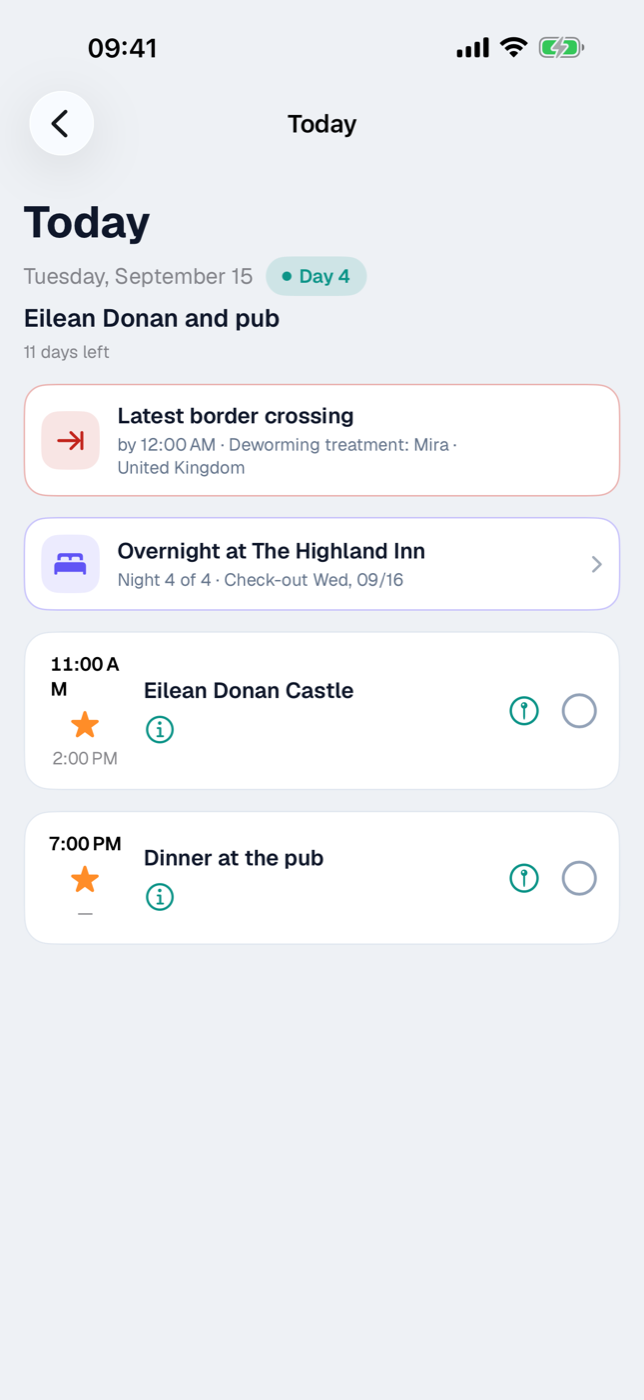
25.1 What the Today screen shows#
At the very top is today’s date with the weekday, next to it the Day N badge — which day of the trip today is, counted from the trip’s start date. If today is past the end of the trip, the badge is omitted. Below that, as long as there is time left, you see “X days left” until the end of the trip.
If the clock where you are differs from home, below that reads “At home it’s 3:12 AM”. In a trip with time zones, on the day of an arrival with a time difference, the note “Time difference +1 h from arrival 6:30 AM — reset the clock in the vehicle” is added; the times on the cards are local time (Travelling across time zones).
Next come — if a deworming border-crossing window begins or ends today — the note cards for it (see 25.6 Border-crossing window when deworming treatment is required), then the overnight-stay card (see 25.2 Overnight stay: “Night 4 of 12”), and below that the day’s scheduled items. They come from the same source as the calendar: check-in and check-out of accommodations, journeys, activities, and outdoor activities. Journal entries do not appear here — they are a look back, not a plan (Journal).
The order is the same as in the calendar: items without a time come first, then everything else in chronological order by start time. On the left of each card is the time column with start, type symbol, and end; if a time is missing, a dash appears instead.
Below the title sits the Details button; the remaining actions are on the right of the card. Which ones appear depends on the item:
| Symbol | Meaning |
|---|---|
| i in a circle (Details, below the title) | opens the full record — accommodation, journey, activity, or outdoor activity |
| Document | shows the first attached document in a preview |
| Place marker | opens the route to the destination in the route planner |
| Red dot | starts route recording (journeys only) |
| Circle / check mark | checks off the item |
The document symbol appears only if a file is attached to the record; the first one in sort order is shown (Documents and receipts). The red record button starts and stops recording the journey without a detour through the journey detail. It is grayed out if another recording is already running or a route has already been recorded for this journey (Recording a journey).
25.2 Overnight stay: “Night 4 of 12”#
On days when an accommodation simply continues — with neither check-in nor check-out due — a separate card with an indigo border appears at the top: Overnight at \<name\>. Below it the counter, for example “Night 4 of 12 · Check-out Fri, 07/31”.
The count refers to the coming night: on the first full day after check-in it says “Night 2”. The total is the number of calendar days between the check-in and check-out day; the times of day play no role (Accommodations).
This card deliberately cannot be checked off — there is nothing to do; tapping it takes you to the accommodation. If several accommodations run in parallel, they are listed alphabetically, one below the other. On arrival and departure days, the regular check-in or check-out item appears in the list instead.
25.3 Checking off items#
A tap anywhere on the card sets the check mark. The title is struck through, the card fades, and the circle on the right fills in. A second tap removes the check mark again.
The check mark belongs to that specific item, is kept permanently, and is included in the backup (Backup).
With Activities, more happens the first time you check one off:
- The activity’s status switches to Completed.
- A Completed sheet opens with the name and the question “How was it?”.
- You give one to five stars — tapping the same star again removes the rating.
- Done closes the sheet and saves.
The rating is the same as in the activity’s form and can be changed there at any time (Activities). If you remove the check mark later, the status goes back to “Planned” — the previous state is not stored, so correct it in the form if needed. There is no star rating for journeys, outdoor activities, or accommodations — there the check mark is only a memory aid.
25.4 Tapping the place marker and opening the route in the route planner#
The place marker appears as soon as Etappe can read a usable destination from the record. What is used depends on the type:
| Scheduled item | Destination, in this order |
|---|---|
| Check-in / check-out | Address and place, otherwise the coordinates |
| Journey | Destination coordinates, otherwise the destination place |
| Activity | Address and place, otherwise the coordinates |
| Outdoor activity | Start coordinates, otherwise the GPX start point, otherwise the start point text |
An address takes precedence over coordinates because it reads better in the route planner. If the record has neither, the symbol is missing as well.
Which app opens is set under Settings → External apps → Route planner (All settings). The choices are Apple Maps (default), Google Maps, Waze, and TomTom GO; apps that are not installed are marked “(not installed)”.
If the chosen app cannot be opened, Etappe tries the same app’s web link and falls back to Apple Maps as a last resort — so you are never left without a route. TomTom GO navigates to coordinates only; a plain address is resolved first. In each case, a driving route to the destination is started from your current location.
25.5 When nothing is scheduled today#
If there is no scheduled item, no ongoing overnight stay, and no border-crossing note for today, the list is replaced by the message Nothing planned today — “There is nothing scheduled in this trip for today.” This is also the normal case when you open “Today” for a trip that has not yet begun or is already over: the area always shows the real current date, never a day of the trip. For other days, use the calendar (Calendar and day view).
The Today quick action from the Home Screen, on the other hand, needs a trip with the status Under way: it prefers the one whose period includes today, otherwise the first trip with this status. If there is none at all, it reports “No current trip” with a note to set this status on the current trip.
Usually you don’t have to do anything for that: once a trip is set to Making arrangements, Etappe advances the status by date — to Under way on the start date, to Past after the end date. Considering, Bucket list, and Planning are left untouched; those are mere intentions (Creating a trip).
25.6 Border-crossing window when deworming treatment is required#
If a destination country requires a deworming treatment for a pet traveling with you and the time of that treatment is known, “Today” shows a note card on the relevant day: Earliest border crossing with a green arrow as soon as the permitted entry window begins today, and Latest border crossing with a red arrow when it ends today — each with the time (“from …” or “by …”), the pet, and the country. Day and time follow the zone of the border crossing; if it differs from the zone of the day, the time carries a label.
Like the overnight-stay card, this card is purely informational and cannot be checked off. The treatment time is taken from the deworming treatment checked off in the Entry checklist, or failing that from a vet appointment whose type contains “worm” (Pets). The same notes also appear on their days in the Calendar.
25.7 Day theme#
Below the date is the day’s theme, if you have set one, and a tap lets you change it. It is the same theme as in the Sketch and the Calendar.
On Apple Watch, Etappe also shows the trip day, the theme of the day and the next appointment (Apple Watch).
Linked from
- 8. Pets
- 13. Sketch — planning before the dates are fixed
- 15. Accommodations
- 22. Entry checklist
- 26. Calendar and day view
- 30. Quick actions from the Home Screen
- 31. Overview
- 39. Your data
- 40. All settings
- 41. How Etappe does the math
- 42. FAQ and troubleshooting
- 43. Glossary
- 46. Travelling across time zones
- 48. Apple Watch