 Etappe
33. Where I’ve been#
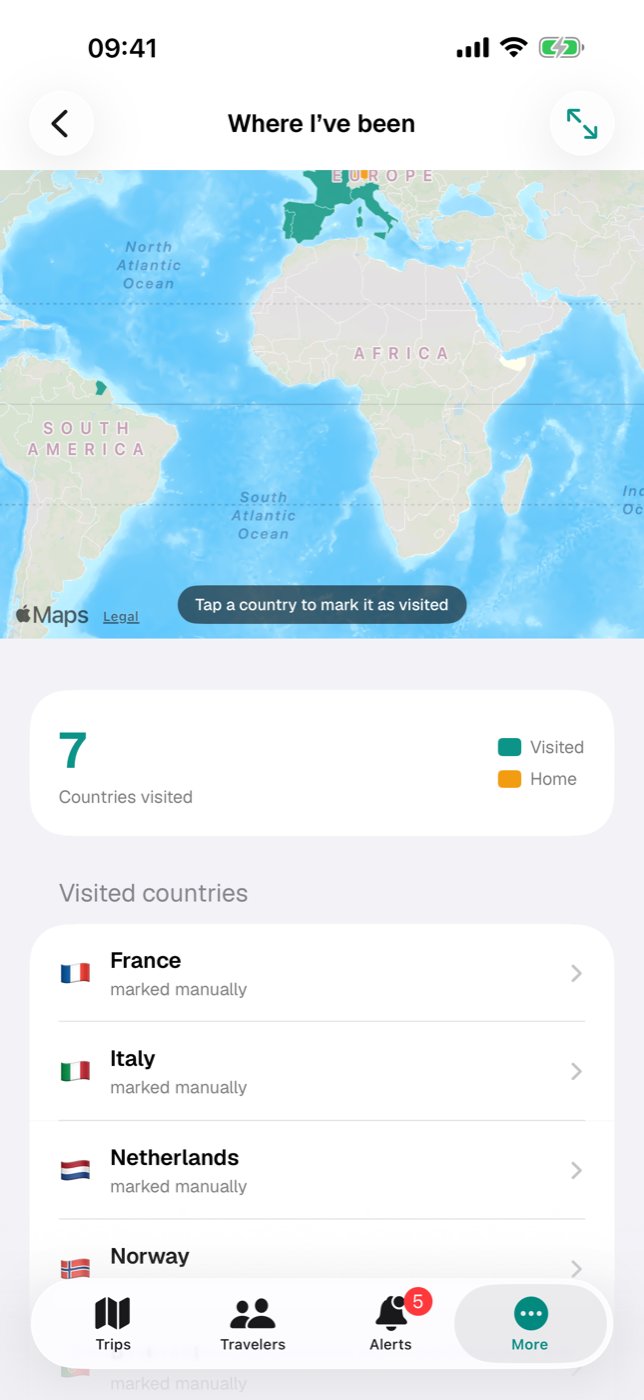
After a few years of traveling, it’s easy to lose track of all the places you’ve already been. “Where I’ve been” answers that at a glance: a world map on which every visited country is colored in, and below it a counter and the list of countries with the number of trips and the years.
The map is built from what is already in Etappe — there is nothing extra to maintain. For countries from the time before the app, you simply tap them on the map.
33.1 The world map of visited countries#
The map shows 175 country areas in up to three colors. The legend to the right of the counter names the ones in use:
| Color | Meaning |
|---|---|
| Teal | Visited — via a trip or marked by hand |
| Gold | Home — the home country you chose in Settings (section 33.5); without a selection there is no gold country and no legend entry |
| Gray | not visited yet |
You can zoom and pan the map; rotating and tilting are disabled so the world view keeps its familiar orientation. The map is drawn in muted colors and points of interest are hidden so the country outlines stay in the foreground.
If you have set a home location (Home), it appears here too: as a white house on a green circle, the same marker as on the maps of your trips. The house is display only — it can’t be tapped; a tap at that spot hits the country underneath. Without a home location there is no house.
At the top right is Full screen. It opens the same map filling the screen, with the note “Tap a country to mark it · rotate iPhone for a wider view” along the bottom edge. The cross at the top right closes it again.
Not every country has an area of its own: microstates such as Monaco, Liechtenstein, San Marino, Andorra, Malta or Singapore are not included in the map data as separate outlines. You therefore can’t tap them on the map, and they aren’t colored in there. For them there is the section Microstates without map area below the map (section 33.3) — there they can be tapped just like a map area.
33.2 When a country counts as visited#
There are exactly two ways, and they can be combined.
From a trip. Every country assigned to a trip (Countries) counts as visited as soon as the trip has the status Under way or Past. Trips in planning, trips you are still considering and bucket-list entries don’t count — otherwise the map would be a wish list rather than a tally. Whether a trip is archived makes no difference; it keeps counting.
By hand. Tap a country on the map — it turns teal and then appears in the list. The hint pill at the bottom edge of the map says so: “Tap a country to mark it as visited”. A second tap removes the mark. This is the way for everything you experienced before you used Etappe, and for countries you don’t want to create a trip for.
Two cases deliberately don’t respond to a tap: countries that already count as visited via a trip, and the home country — provided you have chosen one in Settings. Both are fixed and can’t be deselected by tapping. Without a chosen home country, every country can be marked as usual.
You can also get rid of a manual mark in the list: swipe the row to the left and tap Remove. This swipe action exists only for countries labeled “marked manually” — a country attached to a trip only disappears once you change the assignment or the trip itself.
Marking is a change to your data. If the trial has expired and the full version isn’t unlocked, the tap opens the purchase notice instead (Trial and full version). You can always view the map.
33.3 The counter and the list of countries#
Below the map, the number of visited countries is shown in large type, next to it “Country visited” or “Countries visited”. All countries from both sources are counted together — without the home country, if one is chosen. It would be part of almost every trip and would only inflate the tally; that’s why it appears neither in the counter nor in the list, only in gold on the map. Without a chosen home country, every visited country counts.
In the Visited countries section below, every country is listed with flag and name, sorted alphabetically. The second line tells you where the entry comes from:
| Second line | Meaning |
|---|---|
| “3 trips · 2023, 2025” | number of trips with this country, plus the years of the departure dates |
| “marked manually” | only tapped on the map, no trip on record |
Tapping the row opens the trips of that country as cards, newest first. There you see all trips with this country, including planned ones — the count in the row above sticks to “Under way” and “Past”. For a country that is only marked, it says “No trip to … yet”.
If the list is empty, Etappe explains both ways in one sentence: tap, or create a trip with the matching status.
Microstates without map area. Below the country list follows a separate section with all countries from your country records, your trips and your manual marks that have no outline of their own on the world map — sorted alphabetically. Each row shows flag and name, and on the right a color swatch following the logic of the map: teal visited, gold home (only with a chosen home country), gray not visited yet. Tapping the row works like tapping a map area: it marks the country as visited, and a second tap removes the mark. The rules from 33.2 apply here as well — countries with a trip and the home country don’t respond to a tap.
The list starts out collapsed: the section shows only the button Show microstates; tapping it expands the country rows, and Hide microstates collapses them again. That way the enumeration doesn’t dominate the view as long as you don’t need it — right after a country import it would otherwise be longer than your list of visits. If there are no countries without map area in your data at all, the section doesn’t appear in the first place.
There is no grouping by continent here — you’ll find that in the country records, in the Continents view (Countries).
33.4 Getting there via “More” or the Overview#
Two paths lead to the full view:
- Directly: on the iPhone More → Where I’ve been, on the iPad the entry of the same name in the sidebar.
- Via the Overview: scroll all the way down to the Where I’ve been card and tap its heading — the arrow on the right leads to the full view.
The small world map on the Overview shows the same colors and can also be zoomed and panned. But you can’t mark countries there: on the Overview, a tap on a country has no effect, so you don’t color anything in by accident while scrolling. For that, go to the full view. The home location’s house is also missing from the small map — it belongs to the full view.
33.5 The home country in gold#
The gold country is your home country from More → Settings → Home (Home). If one is chosen there, it is always colored in — regardless of whether you have ever recorded a trip in it — and can’t be tapped. If the setting is Not specified (the default), there is no gold country: the legend then shows only “Visited”, and the country you actually live in behaves like any other — gray until you tap it or a trip brings it along.
It’s the same setting that leaves out the home country’s flag on the small trip tiles of the trip list (Home) — chosen once, it takes effect in both places.
Your manual marks are ordinary app data: they go into the backup and come back with an import (Backup).