 Etappe
6. Countries#
In Etappe, a country is more than a name on the map: it carries the details that the entry checklist and the alerts are built from — ID document, passport validity, deworming treatment, currency. You reach the list via More → Records → Countries; on the iPad, Countries sits in the sidebar.
6.1 What the country list is for#
You assign countries to a trip as a whole (edit the trip, section Countries) and additionally to individual entries such as accommodations or budget items. From this come the country sections of the Entry checklist, notes on passport, ETA, visa and deworming treatment (Alerts), the flags in lists and the statistics under Where I’ve been.
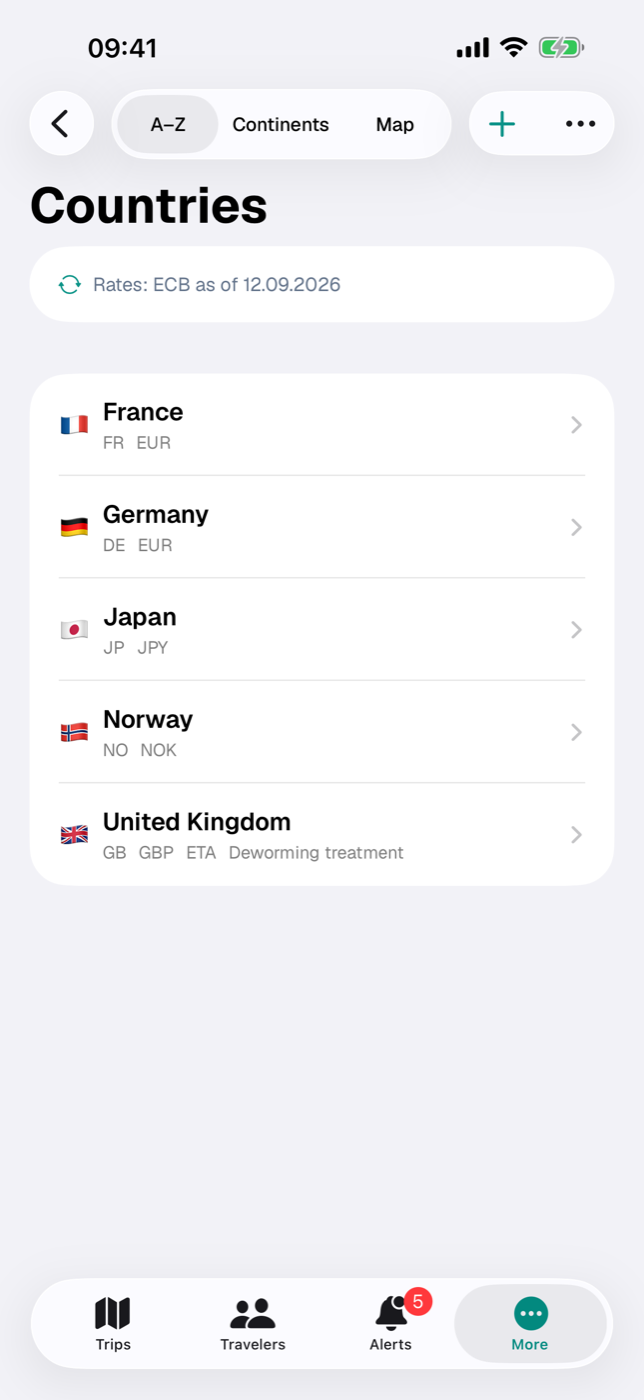
At the top you switch between three views:
| View | What you see |
|---|---|
| A–Z | all countries alphabetically; only here can you delete by swiping left |
| Continents | fixed order Europe, Asia, Africa, North America, South America, Oceania, Antarctica; unknown ISO codes under “Other” |
| Map | one flag pin per country, tap to open the detail |
The grouping comes from a built-in mapping of the ISO code, not from the imported field; the same mapping also supplies the Continent row in the detail. Only countries with a known ISO code appear on the map; with an unknown code, the continent row in the detail is missing as well. Each list row shows flag and name, and below them ISO code, currency and the short notes ETA, Visa, Deworming treatment. At the very top of the A–Z and Continents views there is a status line for the exchange rates — Rates: ECB as of … or No rates loaded yet (6.8 Maintaining exchange rates).
6.2 Importing countries from etappe.app — and what the signature check means#
The most convenient way to get maintained country data is to import a signed file from etappe.app. As long as the list is empty, this route sits right on the start screen: the main button is Load countries from etappe.app, and below it Add country leads to the manual route (6.3 Adding or completing a country by hand).
- In the empty list, tap Load countries from etappe.app — or, once countries already exist, tap the three-dot menu in the navigation bar and there Import from etappe.app.
- Confirm the prompt “Import countries from etappe.app?” with Download & verify.
- Etappe loads the file — deliberately without a cache, so that you get the current version — and verifies it with a built-in public key; while the download is running, a small car drives across the screen.
- Only when the signature matches is the file read; then the Country import preview appears.
- Check Add new, Update and Skipped and tap Import — or Cancel, and everything stays as it was.
- Finally Etappe reports: “X countries added, Y updated.” In the background, Etappe then fetches the current ECB rates once and lays them over the countries; you see the result in the status line at the top of the list (6.8 Maintaining exchange rates).
The check is not a formality: if the file has been modified or does not come from etappe.app, the import stops with a message about the invalid signature.
Without a connection to the server, the import still works: Etappe then falls back to a bundled version of the country data, signed in the same way. A note line in the preview points out that it comes from the bundled records, together with their creation date (as of). After importing, the closing message adds: “No connection to the server — the countries were taken from the bundled records (as of …). Check later under More → Records → Countries whether newer data is available on the server.” A later import with a connection therefore brings in the current data. Only when neither the server nor the bundled file can be used does the import stop with an error message.
Matching runs on the ISO code (two letters, case doesn’t matter): known code — update, otherwise add. If a code appears twice, the first row counts. Rows without a valid code or name are reported under “Skipped” with their row number.
| Overwritten | Left untouched |
|---|---|
| all fields of the template: names, ISO codes, flag, continent, currency, exchange rate, language, hemisphere, entry and pet rules, vaccination recommendations, embassy, links | banner image, your notes and everything linked to the country: trips, places, accommodations, activities, documents, journal entries |
The file is the truth: an empty cell clears the field. A note of your own on a country is therefore gone after the import if the template has nothing there — anything important is better kept on the trip. Missing continents are created by the import. Only for the exchange rate does the file not have the last word: immediately afterwards, the ECB rate table lays over its value (6.8 Maintaining exchange rates).
6.3 Adding or completing a country by hand#
- In the country list, tap the plus at the top right (New country); in the still-empty list, Add country sits below the main button.
- Name and ISO code are required — Save stays inactive as long as the name is missing or the code isn’t exactly two letters.
- Fill in the rest and tap Save.
You change existing countries via Edit in the detail. Adding, editing, importing and Refresh Rates require write access (Trial and full version).
6.4 The fields in detail: flag, continent, currency, language#
| Field | Note |
|---|---|
| Name | required |
| Name in local language | shown in the detail below the name |
| ISO code (e.g. GB) | automatically uppercase; key for import and map |
| ISO 3 code (e.g. GBR) | for information only |
| Flag (emoji) | if it is missing, Etappe shows a white flag |
| Language | free text |
| Hemisphere | Not specified, North or South |
Then there is the Banner image section: a photo of your own replaces the automatically generated cover in the detail (suitable dimensions: Storage and files, section 36.8). There is no field for the Continent in the form — the row under General comes from the built-in mapping of the ISO code (6.1 What the country list is for); the imported continent field is only stored.
6.5 Entry: ID document, minimum passport validity, ETA, visa#
In the Entry section you set what the country demands:
- ID document — Not specified, National ID card, Passport or Both.
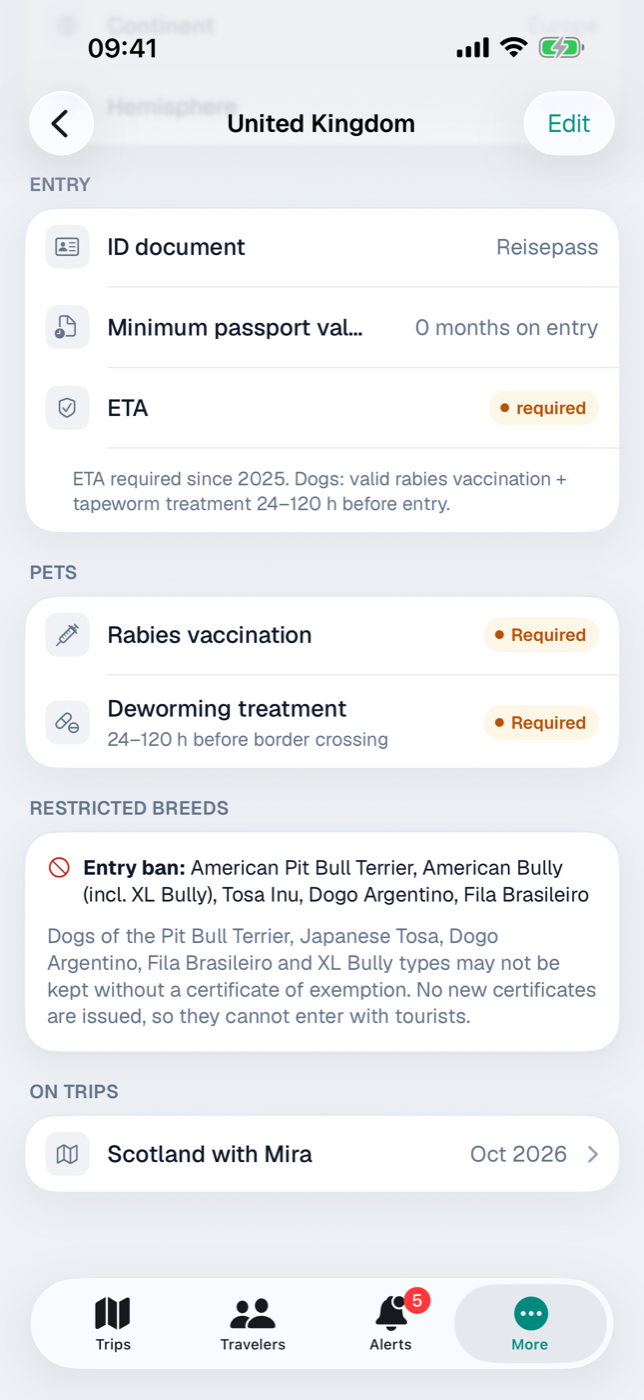
- ETA required and Visa required — each creates a checkable item in the checklist (“Apply for ETA”, “Apply for visa”) and an orange “required” pill in the detail.
- Quarantine — in the detail as a red “Observe regulations” pill.
- Minimum passport validity in months: if this says 6, Etappe warns you when the passport of a traveling person doesn’t reach that on the day of entry.
- Entry requirements — free text, shown in full in the detail and in the checklist.
Whether someone has the required document on file and how long it is valid, Etappe checks against the details under People.
6.6 Health: vaccination recommendations, rabies and the deworming treatment window#
The Vaccination recommendations section offers switches for Hepatitis A, Hepatitis B, Typhoid, Rabies, Yellow fever, Cholera, Japanese encephalitis and Meningococcal, plus a More field. Recommendations that are set appear as a single line in the detail and in the checklist — notes, not medical advice.
The Pets section controls the rules from Pets:
- Rabies vaccination required — Etappe checks for each animal whether the vaccination is effective when the trip starts (21-day waiting period after a primary vaccination) and is valid until the trip ends.
- Deworming treatment required — then two fields appear, in hours before the border crossing: Earliest (the larger value) and Latest (the smaller one). The note gives the example of the United Kingdom: 120 / 24, meaning deworming treatment 24 to 120 hours before the border crossing.
From both numbers and the entry date, Etappe calculates the permitted window for the checklist; if, conversely, the time of the deworming treatment is fixed, the permitted period for the border crossing follows from it. If the fields stay empty, 24 to 120 hours apply; swapped entries are quietly put in order by the app.
Restricted breeds. The Restricted breeds section holds two breed lists — Entry ban and Restrictions — and a Note with the details: muzzle, lead, permit, exceptions for tourists, regional differences. The country file from etappe.app includes this information for all supplied countries (as of October 2026); in a country’s detail view it appears in the Restricted breeds card. If a breed is in both lists, the ban applies. You enter your dog’s breed with the dog (Pets).
6.7 Embassy, emergency contact and further links#
The Emergency & links section takes Embassy emergency phone, Embassy email, Wikipedia URL and Travel advice URL (foreign ministry).
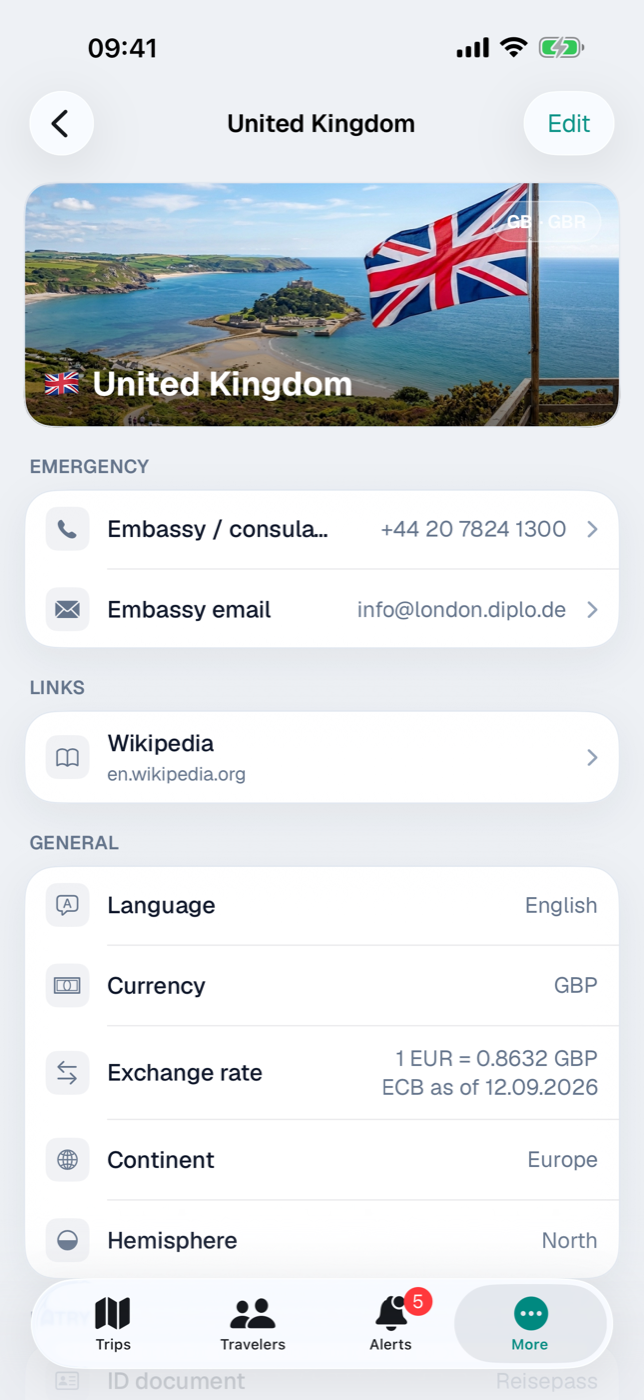
In the detail, phone and email sit at the top of the Emergency card — the “Embassy / consulate” row dials the number, “Embassy email” opens a new message. The addresses appear in the Links card with the hostname as a second line. Below that, On trips lists all trips with this country, most recent first.
6.8 Maintaining exchange rates#
In the Currency section of the form you enter the three-letter code; it is automatically converted to uppercase. If it says anything other than EUR, Exchange rate (1 EUR = ? GBP) appears — the amount of foreign currency for one euro; the detail shows “1 EUR = 0.85 GBP” in the number format of your language, with two to four decimal places. Set back to EUR, Etappe discards the rate.
You rarely need to do this by hand. Etappe fetches the reference rates of the European Central Bank — via the frankfurter.dev service — and lays them over all countries with a matching currency. Only you trigger the fetch:
- via Refresh Rates in the three-dot menu in the navigation bar of the country list,
- once after every country import, including in the Getting started assistant (Installation and first launch),
- via the Refresh button next to the rate line in a trip’s budget (Budget) and in the settings (All settings).
At app launch or in the background, Etappe loads nothing — it sticks to the principle “network only when you tap” (Your data).
Where the rates stand is shown by the first line of the country list in the A–Z and Continents views: Rates: ECB as of Sep 12, 2026 or, as long as nothing has ever been loaded, No rates loaded yet. If a fetch fails, a single line with the reason appears below it — such as “No connection — the rates could not be loaded.” — never a dialog; the previous data stays. The loaded rate table travels to your other devices via the iCloud key-value store (iCloud sync).
A few rules so the numbers stay traceable:
| Case | What Etappe does |
|---|---|
| Country with the euro | no rate — the field stays empty |
| Currency in the ECB list (CHF, GBP, NOK, USD …) | rate from the table; the detail adds “ECB as of …” as long as the rate matches the table value |
| Currency outside the ECB list (such as MKD in North Macedonia) | stays manual — the fetch doesn’t touch the field, and the detail shows no ECB date |
| Country import from etappe.app | the file is the truth, then the ECB table lays over it — so an old rate from the file never overwrites a fresh daily rate |
The reading direction is “1 EUR = X” everywhere. If your base currency is not the euro, the country detail additionally shows “1 CHF = 0.91 GBP” — the rate from your base into the country’s currency (Glossary).
Budget items and research items have a field of their own with the reverse reading direction — EUR factor (1 GBP = ? EUR) (Budget, Research). Etappe prefills it as soon as a currency is chosen and the field is empty: from the ECB table with six decimal places, otherwise with the reciprocal of the country rate, rounded to four places:
| Rate | Prefilled EUR factor |
|---|---|
| 1 EUR = 0.85 GBP (ECB table) | 1 GBP = 1.176471 EUR |
| 1 EUR = 11.60 NOK (maintained on the country only) | 1 NOK = 0.0862 EUR |
A factor you entered or adjusted yourself is never overwritten — each item keeps its rate as a snapshot, even if the rates change later. The same goes for accommodations, journeys, activities and the trip budget: their rate to the base currency is frozen when saving (Budget).
Keep in mind: the next import from etappe.app also overwrites the exchange rate — with the value from the file, which the ECB table immediately lays over again. A rate you maintained by hand therefore holds, for currencies in the ECB list, only until the next Refresh Rates or import; for currencies outside the list, until the next import. Amounts already saved keep the rate they took over at the time.
Linked from
- 2. Installation and first launch
- 7. People
- 8. Pets
- 9. Vehicles
- 11. Home
- 12. Creating a trip
- 13. Sketch — planning before the dates are fixed
- 14. Research
- 15. Accommodations
- 16. Journeys
- 17. Activities
- 18. Outdoor activities
- 19. Budget
- 22. Entry checklist
- 26. Calendar and day view
- 29. Journal
- 32. Alerts
- 33. Where I’ve been
- 35. Backup
- 36. Storage and files
- 39. Your data
- 40. All settings
- 42. FAQ and troubleshooting
- 43. Glossary
- 45. Legal and contact
- 47. Little helpers