 Etappe
9. Vehicles#
If you travel in your own vehicle, you need its key figures again and again: the height at the entrance to the underground garage, the length when booking the ferry, the expiration date of the vignette at the border. All of that lives here in one place — and Etappe lets you know on its own when a document is about to expire. On the iPhone you find the section under More → Records → Vehicles, on the iPad directly in the sidebar.
9.1 Creating a vehicle: type, license plate, year of manufacture#
- In the vehicle list, tap the New vehicle tile or the plus at the top right.
- At the very top, Choose photo lets you add a picture; Crop straightens it up and Remove deletes it again.
- In the Vehicle section, enter the Name — without it, Save stays grayed out. Then come Type, License plate (automatically converted to uppercase), Color and Year of manufacture.
- Save creates the vehicle.
The Type determines the symbol on the tile and the cover card:
| Type | for |
|---|---|
| Car | passenger car, station wagon, van |
| Motorhome | converted vehicle with a living area |
| Caravan | towed caravan |
| Trailer | cargo, boat and bicycle trailers |
| Motorcycle | motorcycle, scooter |
| Bicycle | bike, e-bike |
| Other | everything else |
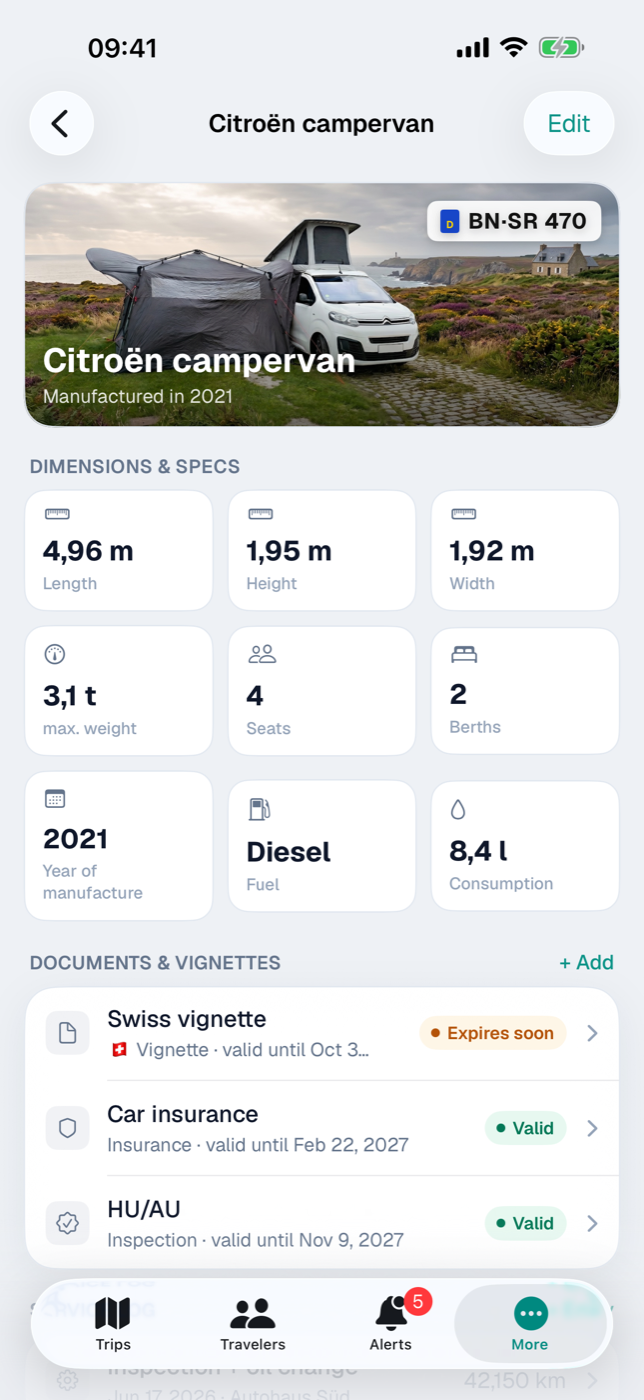
On the tile, a line below the name shows the type (omitted for “Car”), license plate and fuel type. In the detail view, the license plate sits as a badge at the top right of the cover card, with color and year of manufacture below it.
9.2 Dimensions and weights — important for ferries, tunnels and pitches#
The Dimensions & specs section of the form holds Length, Height and Width in meters as well as Max. gross weight in kilograms. Etappe doesn’t check these values against anything — they are there so you have them at hand when the ferry company’s booking form asks for the vehicle length.
In the detail view, the values you filled in appear in a grid of tiles; empty fields don’t appear at all. Etappe shows weights of 1,000 kg and above in metric tons with one decimal place (3.5 t), anything below in kilograms.
9.3 Seats and berths#
Also under Dimensions & specs are Seats and Berths. The seats tell you how many fellow travelers can ride along; the berths are meant for motorhomes and caravans. These two numbers, too, are only displayed, not compared with the number of participants.
9.4 Consumption and fuel type#
The Consumption section has two fields: Fuel type as free text (diesel, gasoline, electricity, LPG) and Consumption in l/100 km.
The consumption value is the only vehicle field Etappe does any math with: if a journey has a vehicle assigned and a route has been recorded and applied for that journey, the key figures bar in the Route recordings card — above the map view — shows approx. liters next to kilometers, driving time and average speed. The calculation is simple: kilometers driven × consumption ÷ 100. It is an estimate, not a measurement — details in Recording a journey. Without a stored consumption value, the figure is left out.
A vehicle is assigned in two places: to the whole trip (Creating a trip) and to individual journeys with the mode of transport Car or Other (Journeys).
9.5 Vehicle documents: inspection, registration, insurance, roadside assistance, emissions sticker#
In the Documents & vignettes card of the vehicle detail, + Add creates an entry. Only the Title is required (for example “Vehicle inspection (TÜV)”); in addition you choose the Type: Inspection, Registration, Insurance, Roadside assistance coverage, Emissions sticker, Vignette or Other.
Under Validity, switch on Set valid until and pick the date. The status pill next to the entry follows from it:
| Pill | Condition |
|---|---|
| Valid | more than 60 days remaining |
| Expires soon | 60 days or less |
| Expired | date is in the past |
Without a date, the row has no pill — and no alert. Because this is exactly the date the alerts engine reports (Alerts): an expired document is always critical, and so is one whose validity ends before the end of an upcoming trip with this very vehicle — the trip title then appears in the alert. Everything else shows up as an advance warning from 60 days remaining. Documents of archived vehicles no longer raise alerts.
Each document takes two attachments: under Scan / photo an image (Add photo of the document), under File (PDF) a file (Add PDF / file). A long press on the row then offers Show document, Show scan and Delete. For receipts that don’t belong to a particular document, there is the Documents card further down (Documents and receipts).
9.6 Vignettes per country with validity period#
If you choose Vignette as the type, an additional Country field appears. You can pick from your country records (Countries) or Not specified. The country then shows as a flag in front of the type in the row — with half a dozen vignettes, you can see at a glance which border is already covered.
You enter the validity period the same way as for any other document, via Valid until — for a 10-day vignette, that is the tenth day. The list is sorted by expiration date, the next one to expire at the top.
9.7 Service log: recording maintenance and repairs#
The Service log card collects what has been done to the vehicle. + Entry creates a new one:
- Service: title (for example “Inspection & oil change”), Date and Workshop
- Details: Odometer and Costs — your base currency appears next to it as the unit; the value is for information only and is never converted anywhere
- Notes for everything else
In the list, entries are ordered by date, the most recent at the top; below the title run date and workshop, on the right the odometer reading. Tapping opens the entry for editing; a long press offers Delete.
The costs stay in the log — they don’t flow into the trip budget (Budget). The log answers the other question: when was the car last at which workshop, and what was the mileage then?
9.8 Archiving, deleting and “On trips”#
A vehicle you have sold doesn’t have to go. A long press on a tile offers Archive; the vehicle moves to the INACTIVE section, wears the Inactive banner and is no longer offered for selection in new trips and journeys. In past trips it remains visible. Its detail view then starts with the note This vehicle is inactive and a Reactivate button.
Delete from the context menu removes the vehicle for good, together with its documents, service entries and attachments; trips and journeys remain and are left without a vehicle from then on. When in doubt, archiving is the better choice.
At the very bottom of the detail view, the On trips card lists all trips with this vehicle, with month and year — a tap jumps to the trip.
9.9 Towing combination: towing vehicle and trailer for a trip#
If you travel with a caravan or trailer, you link both into a Towing combination for a trip. To do so, add the caravan or trailer here as a vehicle of its own — with dimensions, weight and documents. In Edit trip, the Towing combination section appears below the vehicle as soon as the vehicle is a car, motorhome or other and a caravan or trailer exists. There you pick the Trailer and enter Towing consumption; with the same combination from an earlier trip, the value is already filled in.
In the trip detail, the Towing combination card shows the dimensions of the combination: Length and max. weight add up, Width and Height follow the larger of the two vehicles — what ferries, pitches and passages want to know. If a dimension is missing on either vehicle, it stays open there.
The trailer goes along on every journey with the towing vehicle. For single drives — the day trip without the caravan — switch off With trailer on the journey (Journeys, section 16.4); the vehicle’s own consumption then applies. Documents and vignettes of the trailer show up in the Alerts just like those of the towing vehicle. Fuel still does not count towards the budget.