 Etappe
15. Accommodations#
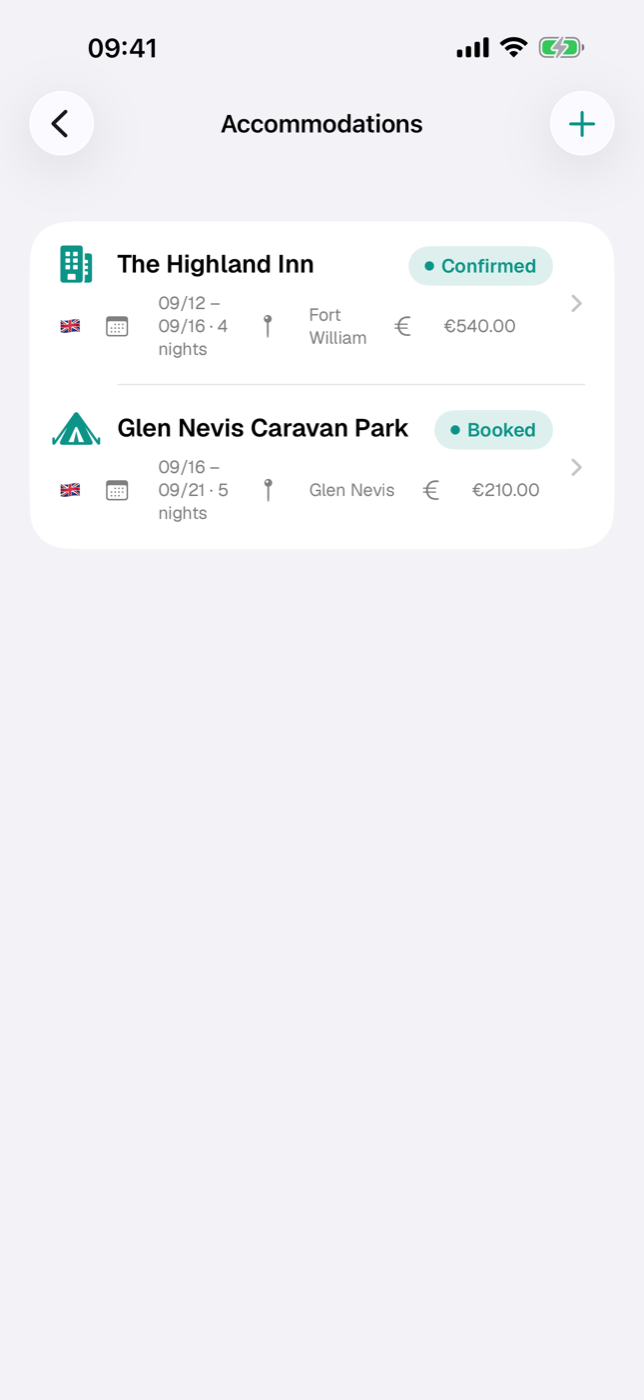
The Accommodations section is where you collect hotels, vacation homes, private apartments and campgrounds — with period, booking status, costs and address. From that, Etappe works out the nights, puts each place on the map and in the calendar, and pulls the costs into the trip budget.
The list has two parts: everything with a date at the top, sorted chronologically by check-in, and below it the section No date yet. Swiping left deletes an entry along with its camping details and attached documents.
15.1 Adding an accommodation: type, address, period, nights#
You reach the form via the plus in the Accommodations list (New accommodation), via the Accommodation tile in the “Add new” plus sheet on the trip page (the metric tile of the same name above it leads to the list), from a research item via “Turn into …” (Research), when creating entries from a sketch (Sketch) or from the map — in that case, coordinate and date are already filled in.
- Enter a Name. Without a name, Save stays grayed out; everything else is optional.
- Choose a Type: Vacation home, Hotel, Bed & Breakfast, Private apartment, Caravan, Campground or Other. “Not specified” is allowed. The type determines the symbol in the list and, for “Campground”, unlocks the camping details.
- In the Period section, flip the Set period switch.
- Set Check-in with date and time (preset to 3:00 PM).
- Set Overnight stays with the stepper (1 to 90).
- Check-out at sets only the time (preset to 11:00 AM). Etappe shows the date below it as a calculated value: check-in day plus nights.
The key difference from other events: an accommodation thinks in nights. Check-out always follows from check-in day plus overnight stays — you can’t set its date independently, and the times don’t affect the number of nights. Three nights stay three nights, whether you arrive at 2 PM or at 10 PM.
In the Place section you enter place, country, address and, optionally, coordinates. The country picker shows the trip’s countries; if it has none yet, all are available (Countries). Choose on map opens a map where a tap sets the marker; Current location takes your position.
If the period lies outside the trip dates, Etappe asks after saving whether the trip period should be applied or extended; Save date only leaves the outlier as it is (Creating a trip).
15.2 Booking status and booking number#
The booking status records how binding things are. The default is “Planning”.
| Status | What it means in practice |
|---|---|
| Planning | candidate, nothing done yet |
| In progress | inquiry sent, reply pending |
| Booked | firmly booked |
| Confirmed | confirmation received |
| Completed | stay is over |
| Discarded | sorted out, but kept as a note |
In the list, the status only appears as a badge if it differs from “Planning”; “Discarded” is shown in gray. In the detail view it always sits at the top next to the type.
You enter the booking number in the Booking section, together with Provider and Provider URL. In the detail view this becomes the row Open booking page, which opens the link in the browser.
One thing that otherwise catches people out: the status controls nothing else. Even a discarded accommodation stays in the expense total with its costs — anything that shouldn’t count, you delete or leave without a cost figure.
15.3 Costs and currency#
The Costs & payment section records the price of the stay and how it is paid. Total amount is the price for the whole stay, not per night. Below it you choose the Currency — preset to your Base currency (“€”, “CHF”, “£” …), which you chose in the Getting started assistant or under More → Settings (All settings). Right behind it the list shows the currencies of the trip’s countries, then all others; under Other … you type any currency code. A holiday home in Norway is entered in kroner, just as the booking confirmation says, and the Equals row shows the value in euros and in your base currency.
The amount is saved exactly as you typed it, together with its currency and the rate, which Etappe freezes on saving — so a later rate change doesn’t make the figure drift. If you change the currency of a saved accommodation, the current rate of the new currency applies. The total amount flows into the trip’s expenses without any further action and appears in the budget view as a transaction (Budget); internally, the math is done in euros (How Etappe does the math).
Deposit and balance. If you have already paid part of it, enter that under Deposit. Its currency follows the total amount; under Deposit currency you pick another one, for example if you paid a €300 deposit by card and the balance is due in kroner. Etappe works out the Balance itself, in the currency of the total amount. With Due date for the balance you set the date it is due: two weeks ahead, “Balance payment: ‹accommodation›” appears under Alerts, three days ahead it turns critical, and in the list the accommodation carries the Balance open pill. Once you have paid, turn on Balance paid — the alert disappears. The budget still counts only the total amount; deposit and balance split it up and are not added again.
Three cases you should know about:
- Existing entries from before the base currency: a saved amount without a rate is a euro amount. The list then shows “EUR”; if you pick another currency, the amount counts in that currency from the moment you save.
- Currency without a rate — outside the ECB list, and no country carries a rate either: the form then asks for the EUR factor (1 MKD = ? EUR). If the field stays empty, it says below: “No rate for MKD — the amount is saved in euros. Refresh rates in the budget or under Countries.”
- Display: in the list and the detail view, the amount appears in its own currency; if that differs from the base, “≈ CHF 1,150.00” follows in the base currency. The detail view also shows the deposit, the balance and the due date or “Balance paid on”.
15.4 Campground details: pitch, amenities, price per night#
If the type is set to Campground, the detail view offers the button Add camping details. The form has four sections:
- Contact — website, phone, email.
- Amenities — fourteen switches: Electricity, Fresh water, Waste disposal, Wi-Fi, Dogs allowed, Leash required, Showers, Toilets, Shop, Restaurant, Pool, Playground, Marked pitches, Shade.
- Pitch & price — pitch type as free text, width and length in meters, price per night and a currency of its own (three capital letters, such as GBP or DKK).
- Notes — free text.
In the detail view, the active features appear as chips with a symbol. If a price per night is stored and the accommodation has a period, Etappe adds a row Total (x nights): price times nights, in the campground currency. This projection is display only — it doesn’t go into the budget. Whatever should count belongs in the accommodation’s costs field (see 15.3 Costs and currency).
15.5 Contact details, check-in/check-out, notes#
The header card in the detail view shows type and booking status, the star rating on the right, and below that the name, the Worth repeating marker, check-in and check-out with date and time, and the number of overnight stays. You set stars and the marker in the form under Rating & notes; tapping the same star again clears the rating.
The Booking & place card brings together provider, booking number, costs, place and country. The address is tappable — it starts navigation — and can be copied to the clipboard via the symbol next to it. Campgrounds get a card of their own, Campground, with phone (call), website and email. Free-text notes get their own card as well.
Check-in and check-out appear as separate events in the calendar and can be moved there — never past each other, so that no negative nights arise (Calendar and day view). On days when the accommodation simply continues, Today shows it as an info card without a checkbox.
15.6 Attaching receipts and documents#
Every accommodation has a Documents card. File lets you choose something from the Files app, Photos up to five images from your photo library; tapping an entry opens the preview.
If you press and hold an entry, you can Mark as booking receipt or remove the mark. When creating the itinerary PDF, you can then decide whether these receipts are attached — the switch is off to begin with. More on this in Documents and receipts and Exports and printouts.
15.7 Checking on the map and opening a route there#
As soon as coordinates are stored, the detail view shows a small map with a marker at the bottom. On the trip map, all places fall under the Accommodations category; with the day filter, they stay visible across their whole period, from check-in to check-out (Map).
For navigation, tap the address in the detail view. Etappe opens the route planner you chose in the settings — Apple Maps, Google Maps, Waze or TomTom GO (All settings). If there is no address but there are coordinates, the row is called Plan route and navigates to the point.