 Etappe
31. Overview#
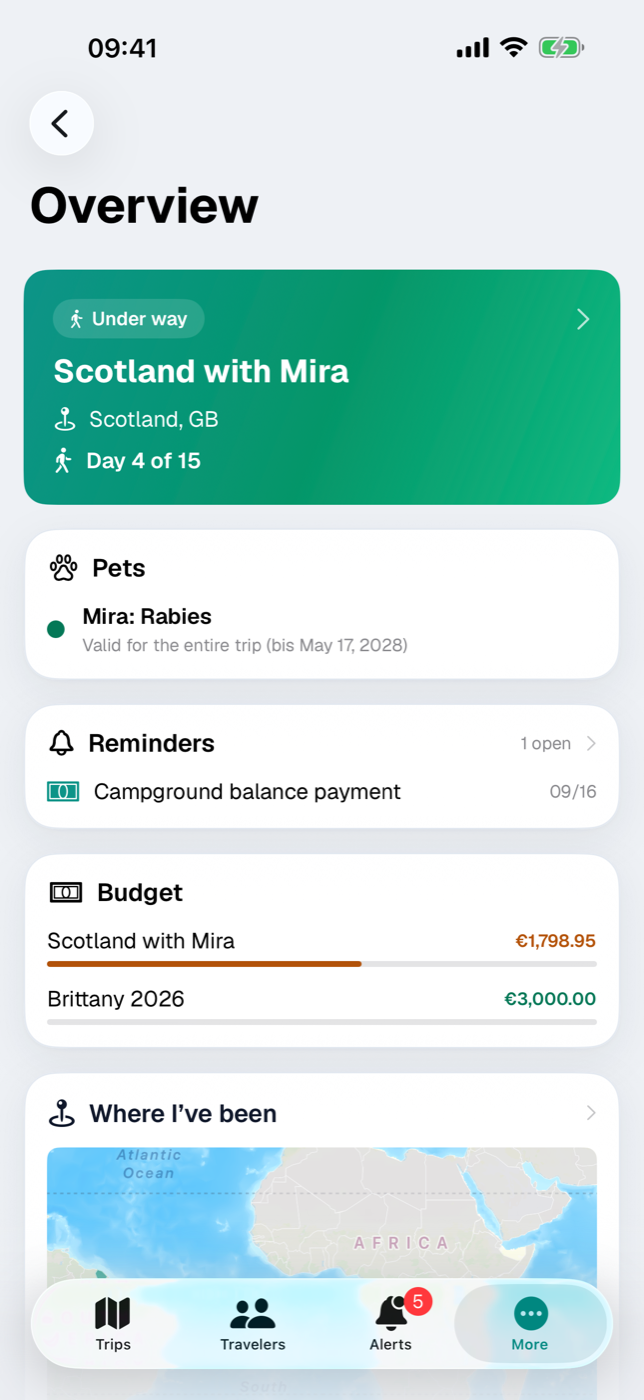
The Overview is the bird’s-eye view: it doesn’t show one trip in detail but what matters right now across all your trips. You don’t enter anything here — every card is an entry point and takes you to the place where you actually do the work.
On iPhone you reach it via More → Overview, on iPad via the Overview entry in the sidebar. Not to be confused with Today: that belongs to a single trip and answers the question “What’s on today?”, whereas the Overview looks across everything you have.
31.1 Next and current trip#
At the very top sits a wide card in the app’s color gradient. It shows the trip’s status pill, the title, the Region (if filled in) and the day counter. A tap opens the trip. If the trip is under way and the local clock differs from home, it also shows the local time, such as “Local time 2:30 PM WEST (UTC+1)” (Travelling across time zones).
Which trip ends up there is decided by three rules:
- If a trip is under way today — today’s date lies between start and end, both days included — it takes precedence. If several are under way, the one that started first wins.
- Otherwise Etappe takes the next upcoming trip, i.e. the one with the earliest start after today.
- If there is none of those either, the most recently created trip without a start date steps in — instead of the day counter it then reads “Period still open”.
Trips that have already ended and archived trips are never considered. If the end date is missing, the start also counts as the end. Only when there is no current, no future and no undated trip does the card disappear entirely.
Directly below, a second card may appear: Pets. It shows up only if pets are assigned to the displayed trip and at least one of its countries requires a rabies vaccination. For each animal there is then a status-light row “Name: Rabies” with plain-text wording next to it, such as “Valid for the entire trip” or “Expires during the trip”. The full check, including the deworming treatment window, is in Entry checklist.
31.2 Day counter and countdown#
The trip card contains exactly one line with a time reference — which one depends on where you currently stand:
| Situation | Line | Calculation |
|---|---|---|
| Trip under way | Day 3 of 10 | days since start + 1; total duration with both boundary days included |
| Trip upcoming | 42 days to go | calendar days from today to the start |
| Trip without start date | Period still open | — |
Whole calendar days are counted, not hours: the day you set off shows Day 1, the day you head home shows the last day. A trip from May 1 to 10 has ten days, not nine.
The day counter needs both dates. If a trip has only a start, the card shows the countdown, and from the start day on the line stays empty — add an end date then (Creating a trip).
31.3 Open reminders and document expiries#
Two narrow cards take care of deadlines.
Reminders lists the reminders not yet done from everything you have — trip-related and standalone alike; only reminders of archived trips are left out. The header shows the total as “N open”, below it the three due next with type symbol, title and date as day and month. A date that has already passed is shown in red. The header is what you tap: it takes you to the full list (Reminders); the individual rows are display only.
Document expiry collects ID documents of people and pets whose validity ends within the next six months or has already run out — sorted by expiry date, at most five entries. Documents marked as permanently valid never appear here, nor do documents of archived people or pets. Each row names “Name: Document type” and below it the date: as long as the document is still valid, it reads “valid until Mar 14, 2027” next to an orange dot; if it has expired, “expired on Mar 14, 2025” next to a red one. The header takes you to Travelers, where you edit the document (People).
Both cards are a selection. The deadlines in full, with reasons, are in Alerts.
31.4 Budget status lights across all trips#
The Budget card stacks up to three trips, sorted by start. A trip is included only if both apply: its status is Planning, Making arrangements or Under way, and a budget limit is set. Trips you are considering, bucket-list entries, ended and archived trips are left out.
For each trip you see the title, on the right the remaining amount in your base currency and below it a bar that sets the expenses so far against the limit. Both carry the same status-light color (if Etappe has no rate for your base currency, “No rate for … — amounts in EUR” appears below the card, Budget):
| Color | Remaining budget |
|---|---|
| green | more than 50 % |
| yellow | more than 20 % |
| orange | 0 to 20 % |
| red | budget exceeded |
When the budget is exceeded, the bar stays full and the amount turns negative. Tapping a row opens that trip’s Budget screen; what counts toward expenses is explained in Budget.
31.5 “Where I’ve been” on the world map#
The bottom card shows a small world map of the countries you have visited. It is the only one that is always there — even if you haven’t been anywhere yet.
| Color | Meaning |
|---|---|
| teal | visited country |
| gold | your chosen home country (Home); without a selection there is no gold |
| gray | not yet visited |
A country counts as visited if it belongs to a trip with the status Under way or Past — or if you have marked it by hand. You can pan and zoom the small map; tapping and marking countries only works in the large view, which you reach via the Where I’ve been header (Where I’ve been).
31.6 Which card disappears when#
The Overview has no empty placeholders: whatever has nothing to report doesn’t appear at all. The order of the cards is fixed.
| Card | Appears only if … |
|---|---|
| Trip card | a trip is under way, still upcoming or created without dates |
| Pets | that trip has pets and a country requires a rabies vaccination |
| Reminders | at least one reminder is open |
| Document expiry | a document expires within six months or has expired |
| Budget | a planned or current trip has a budget limit |
| Where I’ve been | always |
If no trip has been created at all, a notice replaces the whole screen: “Welcome to Etappe — Create your first trip under ‘Trips’ — or import a backup under ‘Backup’.” How the import works is described in Backup.