 Etappe
21. To-dos#
Every trip comes with things that have to be done beforehand: sort out health insurance for abroad, buy dog food, ask the neighbor about the flowers. The To-dos section collects exactly these tasks — with a priority, a “no later than” date and a progress bar.
To-dos are deliberately kept simple. They don’t remind you on their own. If you want a notification on your device for a date, use a reminder instead (Reminders).
21.1 Collecting tasks for the trip#
You find the section on the trip page via the eye symbol (“View sections”) in the bottom toolbar. The plus next to it is faster: “To-do” is listed there as its own item and opens the form directly.
If nothing has been entered yet, the section shows “No to-dos” with the Add to-do button. Otherwise you add to-dos via the plus at the top right.
- Enter the title under “What needs to be done?”. Without text, Save stays grayed out.
- Choose the Priority: High, Medium or Low. The default is Medium.
- If you need a deadline, switch on Set date in the No later than (NLT) section and pick a date. The calendar highlights the trip period, but you are not tied to it — preparations, after all, come before the trip.
- Notes has room for details, such as a phone number or the booking reference.
- Save.
The abbreviation NLT stands for “not later than” — to be done by that date at the latest. There is no time of day; what is stored is always the whole day.
To change a to-do, swipe a row from left to right and tap Edit. Swiping in the opposite direction deletes the to-do without asking. Creating and editing require write access — once the trial has expired, the purchase view appears (Trial and full version).
21.2 Due date, done, order#
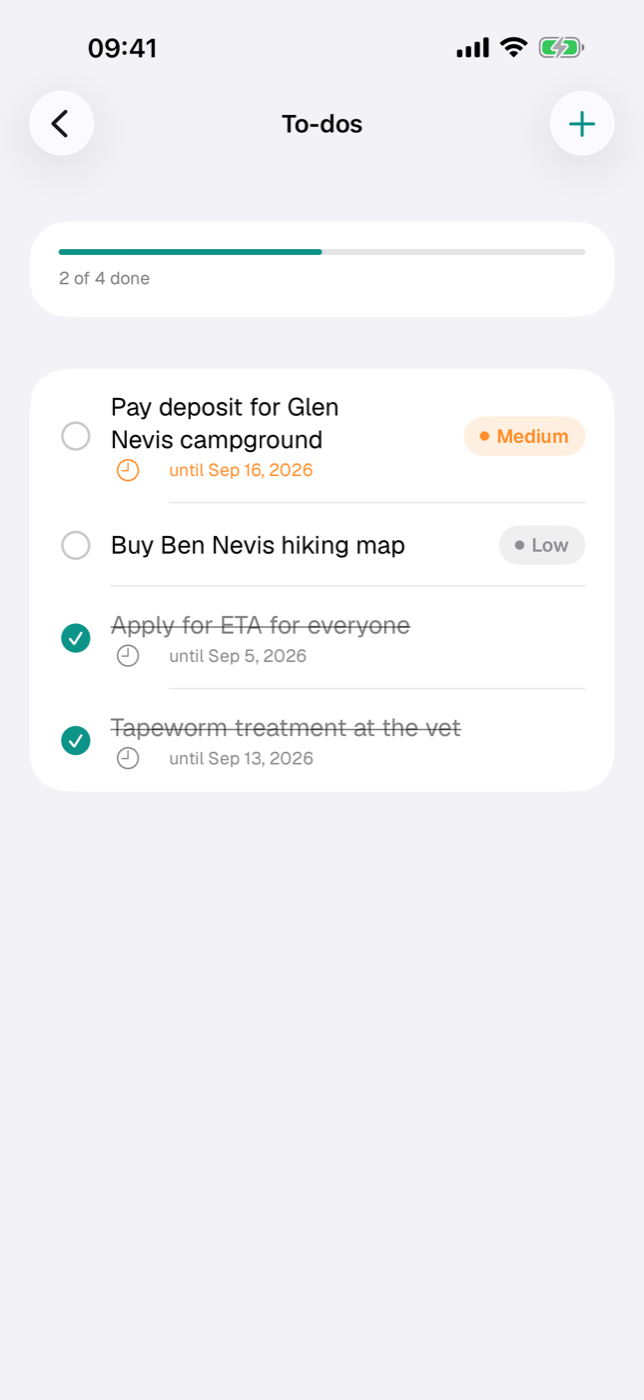
Marking as done. A tap on the row checks off the to-do: the circle turns into a checkmark, the title is struck through and turns gray, the priority badge disappears. Etappe records the moment it was checked off. Another tap undoes it. Done to-dos stay in the list — they only move down. If you want them gone, delete them by swiping.
At the very top, a bar shows the status with the line “x of y done”.
Due date and color. If a to-do has a due date, it appears with a clock symbol under the title, for example “until Jun 12, 2026”. The color shows how urgent it is:
| Situation | Display |
|---|---|
| Date is in the past | red, with the suffix “— overdue” |
| today or within the next 3 days | orange |
| more than 3 days away | unobtrusive gray |
As soon as you check a to-do off, the coloring goes away — a done to-do can’t be overdue.
Priority. Open to-dos carry a badge on the right with the level: High (red), Medium (orange), Low (gray).
Order. The list sorts itself; you can’t reorder it by hand. The rule is:
- Open to-dos first, done ones after.
- Within that, by priority — first High, then Medium, then Low.
- With equal priority, by due date, the nearest one first.
- To-dos without a date come at the end of their priority group, among themselves in the order in which you created them.
The Next steps card in the trip’s Overview uses the same ranking: it shows the three most important open to-dos with a dot in the priority color and the date — a quick glance without opening the section.
To-dos belong to the trip: if you delete the trip, they go with it. They are included in the backup (Backup).