 Etappe
13. Sketch — planning before the dates are fixed#
A trip rarely starts with a date. It starts with an idea: ferry first, then three nights on the coast, then on south. The sketch is the place for exactly this sequence — no times, no bookings. Once it fits, you turn it into real entries with a single action.
13.1 What the sketch mode is for#
You reach the sketch through the Sketch tile on the trip page, right next to Today and Calendar. Inside is a list of blocks in the order you have in mind.
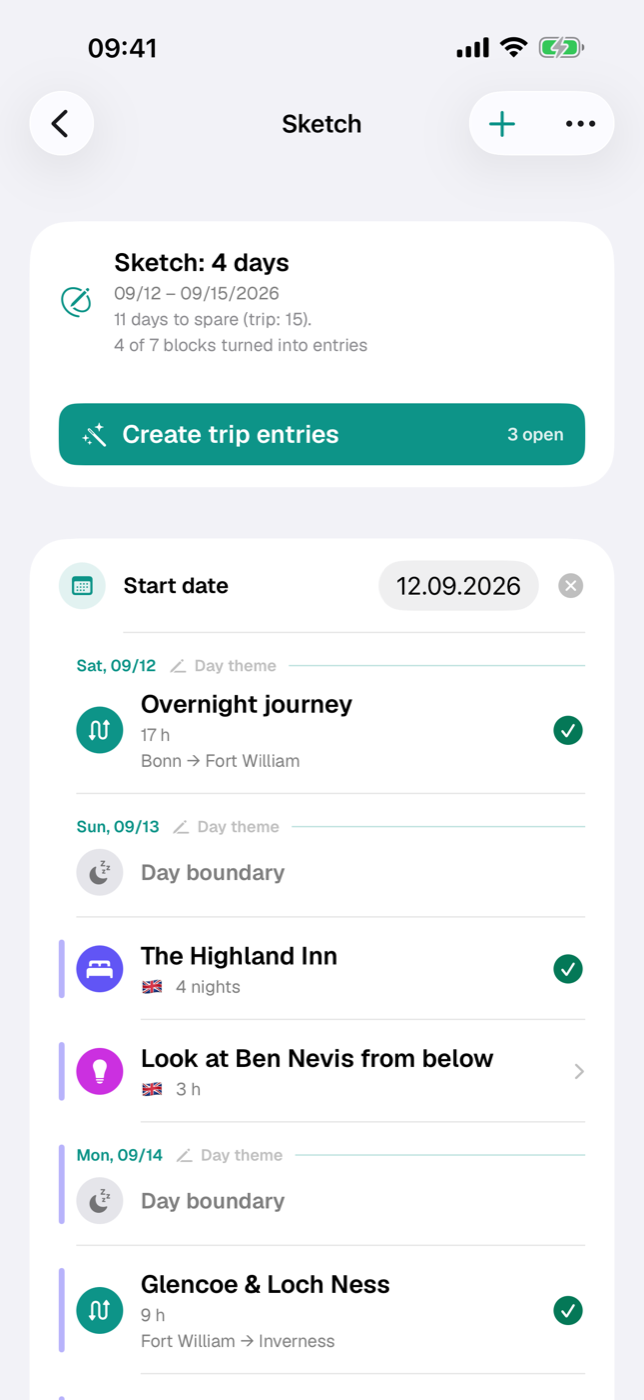
At the top is the summary: how many days the sketch covers and — if the trip already has dates — the period calculated from that. Below it, Etappe compares the two: “Fits exactly into the 12 trip days”, “3 days to spare” or, highlighted in orange, “2 days more than the trip”. The last line counts how many blocks have already been turned into entries. Without trip dates, the sketch simply counts relative days.
The sketch is the middle of three zoom levels of planning — between the trip status and the individual research item (Core concepts).
13.2 Creating blocks: accommodation, journey, activity, outdoor activities, note#
The plus at the top right opens a menu with five block types plus the day boundary.
A sketch that is still empty first asks: Roughly how many days do you plan to travel? If the trip already has a period, its length is filled in. Create sketch with N days builds the day structure from it — the days, separated by day boundaries — which you then fill. The number is not binding: you can extend or shorten the structure at any time by adding or deleting day boundaries. If you prefer to start freely, tap Start without a day structure instead and create the first block right away.
Every block has a title, a type, a duration and, optionally, notes. In addition:
- Journey gets a mode of transport and its own Route section with start place, start country, destination place and destination country. In the list this appears as “Bonn → St. Ives” with flags.
- All other types have a single Country field. Only the countries assigned to the trip are available (Countries).
- Note is the catch-all for anything that has no shape yet — the block type, not the notes field that every block has anyway.
- All types except the note can carry a research item — in the list and in the form it appears with the symbol of its category and opens directly when tapped (Research).
When a block is created, Etappe sets a default duration:
| Block type | Default |
|---|---|
| Accommodation | 1 night (24 h) |
| Journey | 4 h |
| Activity | 3 h |
| Outdoor activities | 5 h |
| Note | not specified |
13.3 Duration in hours, order by dragging#
The duration is purely for orientation, in hours (0 to 96; Etappe shows “0” as “not specified”). It has no influence on which day a block falls on — that is determined solely by the day boundary.
Accommodations are the exception: they count in overnight stays (1 to 60), because these later become check-in and check-out.
To sort, press and hold a row and drag it. Swiping left deletes the block.
13.4 Day boundaries and overnight stays in the bar#
A new day begins only where you insert a Day boundary. The sketch is therefore as long as 1 plus the number of your day boundaries. Above the first row and above every day boundary, Etappe inserts a day header; several day boundaries in a row skip ahead the corresponding number of days — handy for days that are meant to stay empty for now.
To the left of the rows runs a colored bar for each overnight stay: it starts at the accommodation block and ends with the day boundary into the check-out day. If two stays overlap, each gets its own lane — an accommodation that follows another one on the same day, however, gets no bar.
13.5 Setting the start date — Etappe works out the dates#
Above day 1 sits the row Choose start date. As soon as a date is set, the day headers become real calendar days (“Sat, 07/05” instead of “Day 2”), and the sketch can assign dates.
For the trip’s end date:
- If the trip has no end date yet — or it lies before the new start — Etappe sets it to the start date plus the sketch days minus 1.
- If an existing end date matches the calculated one, everything stays as it is.
- If it differs, Etappe asks under Adjust end date? whether the calculated or the previous date should apply.
The cross next to the date removes the trip’s start and end again. It is the same date as in the trip form (Creating a trip) — change it here and it changes there too.
13.6 Turning a block into a real entry#
Swipe a row to the right or press and hold it and choose Create entry. The real entry is created from the block; the block stays in the sketch with a green check mark.
| Block | becomes | Date (with start date) |
|---|---|---|
| Accommodation | Accommodation (Accommodations) | Check-in 3 PM on the day, check-out 11 AM after the number of nights |
| Journey | Journey (Journeys) | Departure 10 AM, arrival after the duration in hours |
| Activity | Activity (Activities), status “Planned” | from 10 AM, end after the duration |
| Outdoor activities | Outdoor activity entry (Outdoor activities) | date of the day, duration in hours |
| Note | new research item (Research) | no date |
Whatever is in the notes field always comes along; so does the country for accommodation, journey, activity and note. For outdoor activities the country stays empty — add it in the new entry if you need it. If a research item is linked, its data comes along as well (Research). Without a start date, the entries are created without a date.
Once a start date is set, the button Create trip entries appears above the list. After a confirmation, it turns all blocks that are still open into entries at once — in sketch order and with the dates from the day assignment.
13.7 Back to planning: turning an entry back into a sketch block#
For a block with a green check mark, the action is called Back to planning. After a confirmation, the created entry is deleted and the block counts as open again; a research item that was turned into an entry in the process returns from the archive and is “Open” again. This way each block can only ever have exactly one entry — no duplicates are created.
13.8 Duplicating and deleting blocks#
The context menu holds Duplicate. The copy lands directly below the original, without a green check mark. Title, type, duration, mode of transport, country, notes and, for journeys, the start and destination places with their countries are carried over — but not the link to a research item (that can only be turned into an entry once).
Delete removes only the block from the sketch. An entry that has already been created stays in the trip.
13.9 Sharing the sketch as a PDF#
Via Export as PDF in the sketch — or via the trip’s share menu as Sketch as PDF — Etappe lays out the planning status on A4 pages: a header with the trip title, flags, period, progress and timestamp, below it the blocks with day headers, duration, route, notes and a box for each linked research item.
The PDF opens in the preview, from where you can share or print it — like the other outputs in Exports and printouts.
13.10 Entering a day theme#
Every sketch day can have a heading — “North coast and Kronborg”, “Copenhagen”, “Return trip”. To do this, tap the small pencil in the day header row or the existing theme. A short text is enough; left empty, the theme disappears again.
The theme is attached to the number of the trip day, not to the date. If you move the start date later, it moves with it. It appears everywhere a day is shown: here in the sketch, in the Calendar, in the day view and in Today — and can be changed there in the same way.