 Etappe
5. Trial and full version#
Etappe is free to download and can be tried out in full for fourteen days. After that, you decide: buy once and keep planning — or do nothing and still keep, read and export your data. There is no subscription, no user account and no feature that will later lock you out of your own records.
5.1 Testing everything for 14 days#
The trial starts the first time you launch the app and runs for 14 days. The day of the first launch counts; on day 15 it has expired. Nothing is restricted during this time: every section, every trip, as many entries as you like.
The start date is stored in your device’s keychain, not in the app’s settings. It therefore survives deleting and reinstalling the app — the trial cannot be extended by reinstalling. Setting the device clock back doesn’t help either: Etappe never counts more than the full 14 days.
How much time is left is shown as a status line in the places described in 5.7 Where to find the purchase status (More → Etappe Full Version), for example “Trial — 6 days left”.
5.2 What still works after the trial without a purchase (reading, searching, exporting)#
If the trial expires without a purchase, the app is not locked. It switches to a read-only mode:
| Stays free | Needs the full version |
|---|---|
| View all trips, records, journal entries, maps, calendar and alerts | Create new trips, accommodations, journeys, activities, outdoor activities, to-dos, reminders, people, pets, vehicles, countries |
| Tick off items in the packing list and to-dos | Edit existing entries, apply templates, attach photos or documents |
| Generate and share PDF output | Import a backup |
| Create and save a complete JSON export |
So export stays open in both forms: the printouts from Exports and printouts and the complete backup from Backup. Only the reverse direction, the import, is locked there.
This keeps the most important principle intact: your data belongs to you and you can get at all of it at any time — even without a purchase. If you tap a locked button, the purchase view opens instead of the form; nothing is lost, and when you close it you’re back where you were.
5.3 Buying the full version — once, no subscription#
- Open More and tap Etappe Full Version at the very top. On the iPad, the same row is at the top of the sidebar.
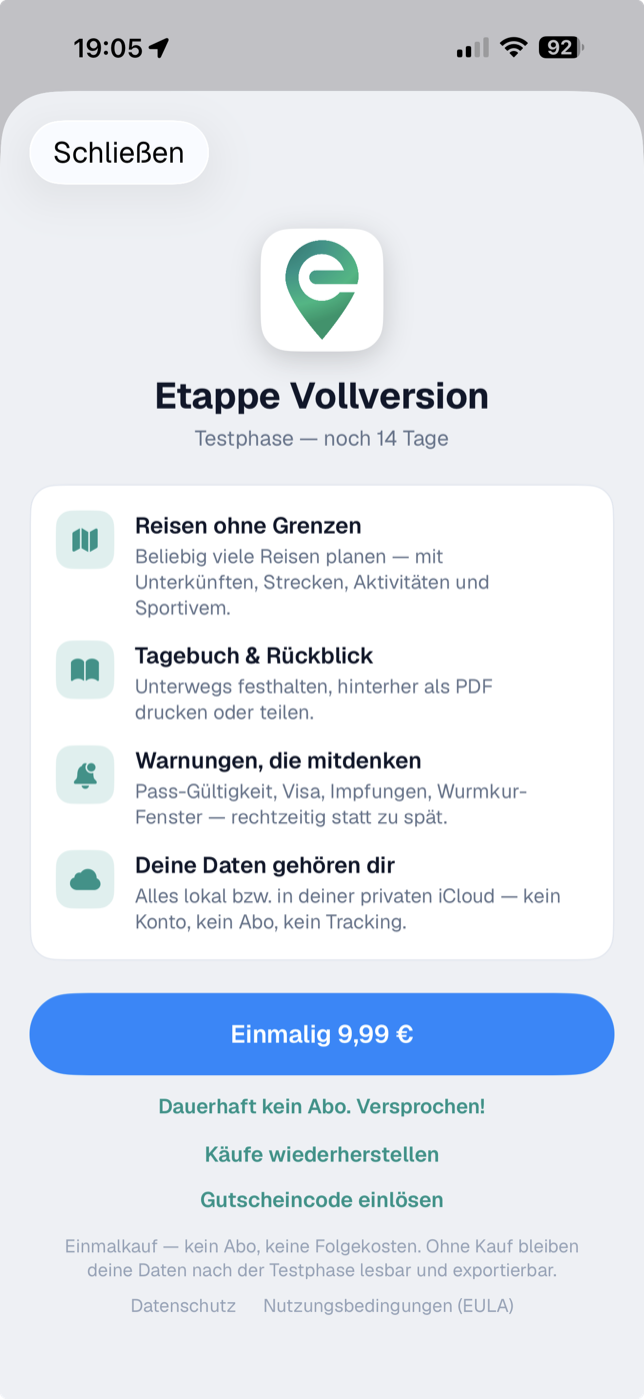
- The purchase view summarizes what the full version includes.
- Tap the One-time … button showing the price.
- Confirm the purchase as usual with Face ID, Touch ID or your App Store password.
- After the purchase, a thank-you view appears in the same place — the app is permanently unlocked.
Below the purchase button is the sentence “Never a subscription. Promise!”. That is meant literally: a one-time purchase, no follow-up costs, no renewal you would have to cancel.
If the button only says Buy instead of showing a price, Etappe couldn’t load the price information from the App Store — usually there is no internet connection. The purchase button then tries again; if it still doesn’t work, a notice appears.
If a payment is initiated but not confirmed, Etappe deliberately does not unlock and asks you to tap Restore Purchases later. Nothing is charged twice.
5.4 Restoring the purchase on other devices#
The purchase is tied to your Apple ID, not to the device. On a new iPhone or iPad — or after a reinstall — signing in to the App Store is usually enough; Etappe recognizes the purchase on launch by itself.
If that doesn’t happen, open More → Etappe Full Version and tap Restore Purchases. Etappe then checks with the App Store and unlocks. Two responses are possible:
- “No previous purchase found.” — The full version wasn’t bought with this Apple ID. Check that the same account is signed in to the App Store.
- “Restore canceled or not possible.” — The sign-in was canceled or there is no internet connection. Just try again.
If you buy on a second device while the app is open on the first, that one unlocks as well without you doing anything, as soon as the information arrives.
5.5 Redeeming a code#
Codes for the full version are not redeemed in Etappe but in the App Store itself — that is how Apple requires it. The purchase view has the Redeem code link for this; it opens the App Store’s redemption page.
- In the purchase view, tap Redeem code.
- Enter the code in the App Store and confirm it.
- Switch back to Etappe. The unlock arrives via the App Store; the status refreshes by itself when you return to the app.
If the status doesn’t change, Restore Purchases from 5.4 Restoring the purchase on other devices helps.
5.6 Family Sharing and “Ask to Buy”#
If “Ask to Buy” is set up for your account — for example on a child’s account in Family Sharing — the purchase isn’t completed immediately but sent to the family organizer for approval. Etappe then shows a notice that the purchase is awaiting approval.
You don’t need to do anything after that: as soon as approval is given, the unlock arrives and Etappe unlocks automatically — even if the app was closed in the meantime.
5.7 Where to find the purchase status (More → Etappe Full Version)#
You can see the current status in two places:
- More → Etappe Full Version (on the iPad, at the top of the sidebar): the prominent row with the status text and, before the purchase, the one-time price. Tapping it opens the purchase view.
- More → Settings → “Full version” section: the same information as a row in the settings (All settings).
The status text is always one of three:
| Status text | Meaning |
|---|---|
| Trial — N days left | Trial running, everything can be used |
| Trial expired — reading & export remain free | Read-only mode, see section 5.2 |
| Full version unlocked | Purchased, permanently active |
After the purchase, the row’s icon changes to a green seal, and the purchase view shows the thank-you instead of the price and buttons. More about what happens to your data and what Etappe does not transmit is in Your data.
Linked from
- 1. Welcome to Etappe
- 2. Installation and first launch
- 3. Finding your way around
- 6. Countries
- 10. Packing list templates
- 12. Creating a trip
- 19. Budget
- 20. Packing list
- 21. To-dos
- 23. Documents and receipts
- 27. Map
- 30. Quick actions from the Home Screen
- 33. Where I’ve been
- 34. Exports and printouts
- 35. Backup
- 37. iCloud sync
- 38. App lock
- 39. Your data
- 40. All settings
- 42. FAQ and troubleshooting
- 43. Glossary
- 45. Legal and contact