 Etappe
35. Backup#
Everything you record in Etappe lives on your device. Backup turns it into a single file that you keep yourself — on your Mac, in the Files app, on a hard drive. It is also the way to move your data to another device if you don’t use iCloud.
You’ll find the section under More → Backup; on the iPad it sits in the sidebar under the same name.
35.1 Why a backup of your own makes sense#
iCloud sync is not a backup: it keeps your devices at the same state — including when you delete. What you remove on one device disappears on the others too (iCloud sync). An export, by contrast, freezes a state and stays untouched from then on.
Good moments for an export:
- before cleaning up under “Storage & files” (Storage and files)
- before loading someone else’s or an older backup
- before switching devices
- after every completed trip, once journal and photos are complete
35.2 Exporting a backup#
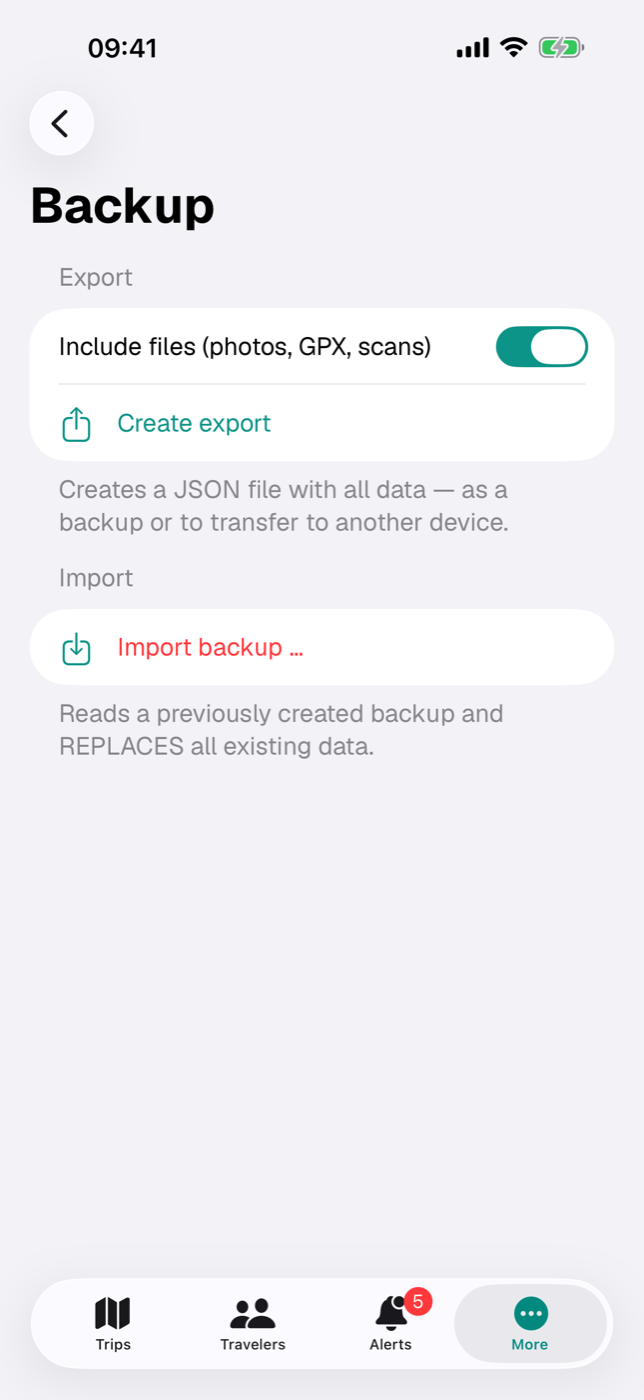
- Open More → Backup.
- Use the Include files (photos, GPX, scans) switch to decide whether the attachments go into the file. It is on by default.
- Tap Create export. While it runs, the button reads “Exporting …”; with many photos this takes a moment.
- Below it, a share row appears with the file name and size, such as Share “etappe-export-2026-08-10_14-30.json” (86.4 MB).
- Tap it and put the file somewhere — in Files, via AirDrop, by mail, or in a cloud service of your choice.
The last step is the one that counts: at first, the file exists only in a temporary folder. Only once you’ve stored it somewhere via the share sheet do you actually have a backup. The file name includes date and time, so several backups don’t overwrite each other.
With the switch off, the file becomes many times smaller: only text, numbers and links go in. The document entries are kept with name, type and size, but their content is missing — after such an import, the preview stays empty.
You can export at any time, even after the trial has expired. Importing a backup, on the other hand, is one of the writing functions and requires the full version or a running trial (Trial and full version).
35.3 Restoring a backup — and what happens when you do#
The import replaces the entire data set. It doesn’t merge anything: everything is deleted first, and afterwards the app contains only what is in the file. So two backups cannot be combined.
- In the Import section, tap Import backup ….
- Select the file. Only JSON files are offered; it may be no larger than 500 MB.
- Etappe asks Replace all data? and points out that the existing data will be deleted. Import carries on, Cancel stops without any effect.
- After loading, the Imported section appears with one line per area — trips, countries, people, documents / photos and so on — plus the total. So you can see right away whether the file was complete.
Deleting and inserting run as a single operation. If the import breaks off midway, the old data set is restored; you won’t be left with an empty app. Still: create an export first.
If the file doesn’t fit, Etappe says so in plain words instead of loading something halfway:
| Message | Cause |
|---|---|
| The file is not a valid Etappe export. | Any JSON file that isn’t an Etappe backup |
| Export version … is not supported by this app version. | Backup from a newer format version |
| The file could not be read: … | Damaged or incomplete file |
| “…” is … MB — the maximum allowed is 500 MB. | File over the limit |
If iCloud sync is turned on, an import also affects your other devices: the sync carries over both the deletion and the new data. So don’t run an import “just quickly” on a second device.
35.4 What the backup contains and what it doesn’t#
The file covers your entire data set, not just the trips:
| Area | Contents |
|---|---|
| Records | Continents, countries, places, people, pets, vehicles |
| Trips | Trips, participants, accommodations including campground details, journeys, activities, outdoor activities, pet planning |
| Planning | Sketch blocks, research items, to-dos, entry checkpoints, packing list and packing list templates, budget items, reminders |
| On the road | Journal entries, route recordings, checked-off items in the “Today” view |
| Health & documents | ID documents, vaccinations, vet appointments, medications, vehicle documents, service entries |
| Files | Photos, scans, GPX tracks, cover and profile pictures, country banners — provided the switch was on |
| Map | The countries from “Where I’ve been”, including the manually marked ones |
Not in the file:
- your Settings (display, name format, maps app, home, base currency) — they are quickly set again, and home and base currency are synced between your devices by iCloud anyway (All settings); the file only notes the base currency in its header for information, the import doesn’t change it
- the app lock code; it lives in the device’s keychain (App lock)
- local caches, which refill themselves as needed
- the purchase status of the full version; it is tied to your Apple ID, not to the data
35.5 Moving to a new device#
If you use iCloud sync, the move is already done: sign in on the new device with the same Apple ID, install Etappe and wait for the first sync (iCloud sync).
Without iCloud, the route goes through the file:
- On the old device, create an export with files.
- Store it via the share sheet where the new device can reach it — AirDrop, Files, an email to yourself.
- Install Etappe on the new device and finish the Getting started assistant with Close, without creating countries or travelers — the import replaces everything anyway.
- Open More → Backup → Import backup …, select the file and confirm with Import.
- Check the Imported list and spot-check a trip with photos.
Only then should you reset the old device — and keep the backup file for a while longer.
35.6 Passing a trip on as a file#
Since version 1.4 a single trip can be passed on as a file — independent of the backup, which always contains everything and replaces everything on import. The file has the extension .etappe-reise; whoever receives it opens it with Etappe and gets the trip as a new trip, without anything existing being changed.
Creating: Open the trip, tap Share → Trip as file at the bottom (Exports and printouts) and choose:
| Mode | What’s in it | What it’s for |
|---|---|---|
| To travel companions | the trip with all dates, booking numbers, addresses, notes and costs, with the same status | companions should have the same plan in their own app |
| As a template | the trip as a sequence of trip days (day 1, day 2 …); booking numbers, notes, ratings, conclusion and cover image stay with you; costs only if Include costs is on | passing on a route someone else wants to drive on their own dates |
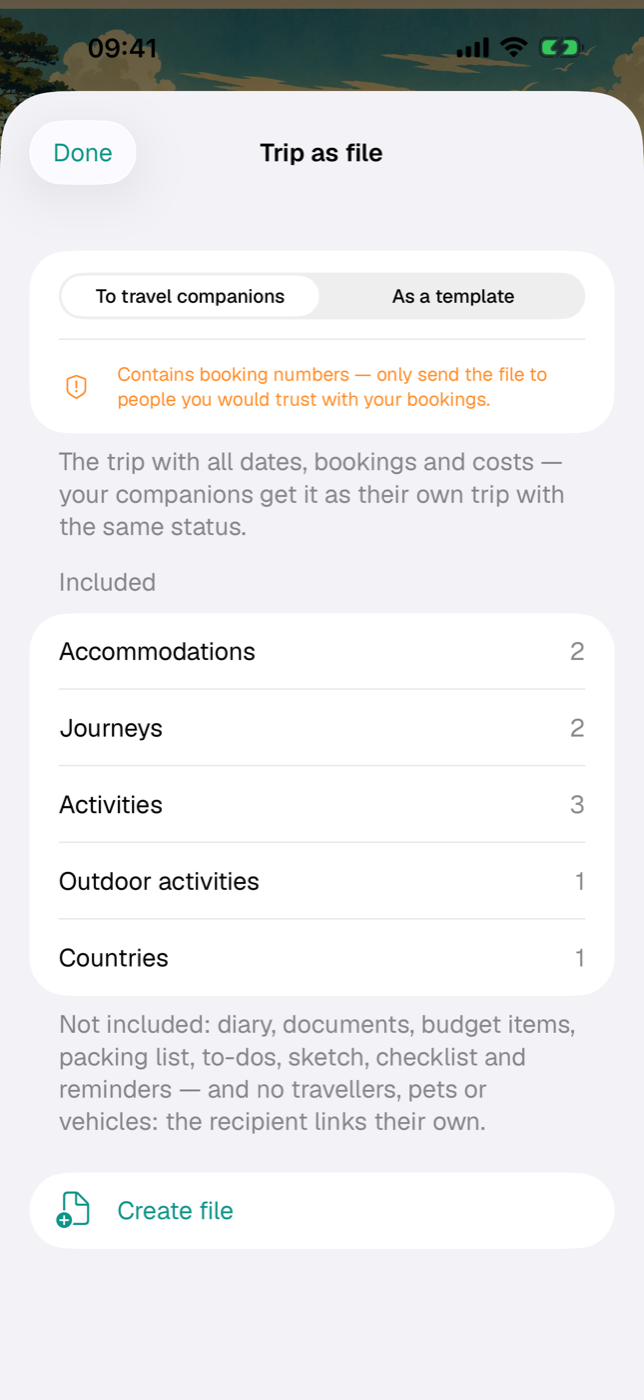
Tap Create file, then “… share” — the iOS share sheet opens with AirDrop, Mail, Files and anything else that accepts files.
Included are trip data, countries, accommodations with campsite details, journeys (for companions also the recorded route), activities and outdoor activities with GPX. Not included are journal, documents, budget items, packing list, to-dos, sketch, checklist and reminders — and no master data: travellers, pets and vehicle don’t come along, the recipient links their own (People, Pets, Vehicles).
Receiving: You open a .etappe-reise file straight from Mail, AirDrop or Files — Etappe starts with a preview dialog. Alternatively More → Backup → Add trip from file … reads a saved file. The dialog shows title, period and what’s included; for a template you pick the start date under Starts on, and all dates shift so that this day becomes day 1. Add as new trip creates the trip.
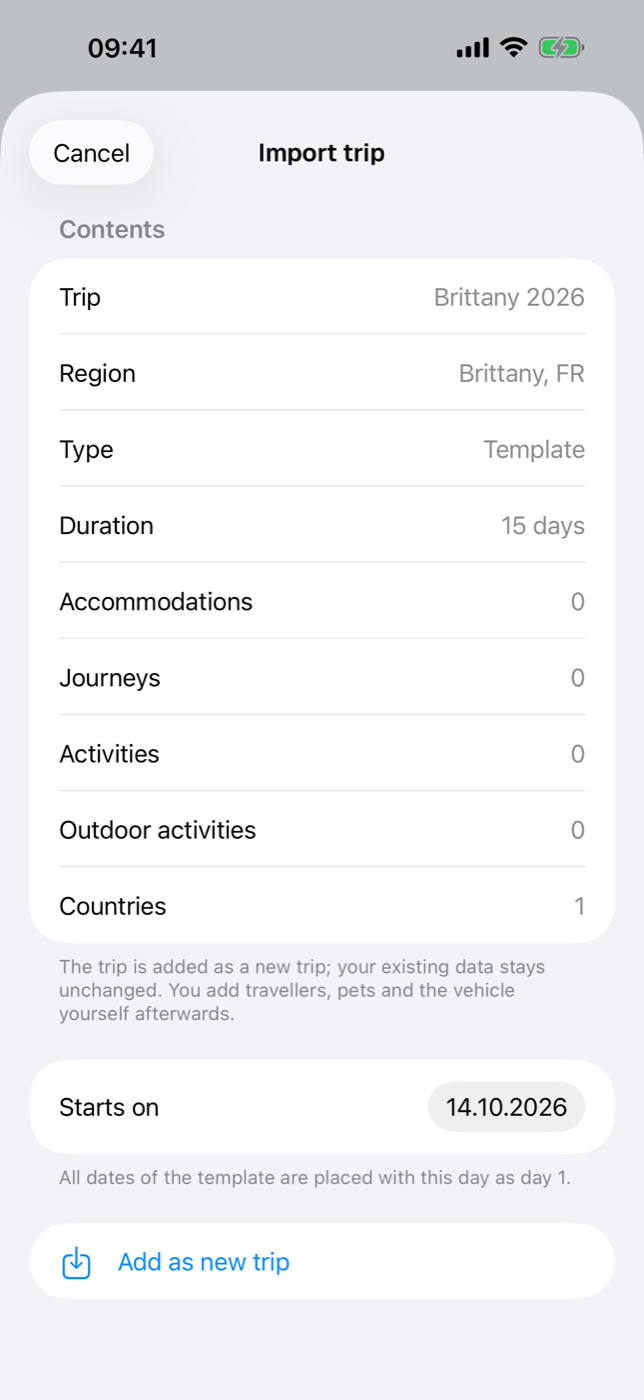
Etappe finds countries by their country code; a country you don’t have yet is created with name and flag and fills up with the next country import (Countries).
Security. A shared trip is content from someone else, so Etappe checks it before adding it:
- The checksum detects a file damaged on the way. It does not prove who built the file — trust a trip as far as you trust its sender.
- Implausible dates (before 1970, after 2100, longer than 400 days) or an unusually large file are rejected.
- Links are only taken over if they are web addresses (
https://…); coordinates off the globe, unknown country codes and unknown selection values are dropped; a cover image is saved anew. - “To travel companions” contains booking numbers — only send the file to people you would trust with your bookings. “As a template” only includes explicitly approved fields, leaves out places within 2 km of your home location (Home) and shortens provider and ticket links to the home page.
The import is a write operation and needs the full version or the running trial (Trial and full version).
35.7 Trips checked by Etappe#
Etappe checks trips that are sent in and passes on the suitable ones as checked templates — directly in the app under Load from Etappe or as a file. A checked template carries a digital signature from Etappe.
Recognizing them. The import dialog shows Checked by Etappe at the top with the Etappe logo and — if there is one — the credit “Route by …” with a link to the source. After Add as new trip, a short confirmation appears. In the trip list the trip then carries the Checked seal, and in the trip detail From a template checked by Etappe appears below the header image. The seal names the origin: whatever you change in the trip afterwards is up to you.
Checked means: plausible and free of personal data. Whether opening hours and prices are still correct is best checked before you travel.
Load from Etappe. In the Trips overview, tap the plus and choose Load from Etappe — without a trip, the empty view offers this route too. Etappe fetches the list of checked trips from etappe.app only at that moment and never in the background. You can filter by country, length and Dog-friendly or search by title, region and author. Tapping a trip shows its cover image, description, route map, countries, length, total distance and credit; Load trip fetches the file, checks it against the list and its signature and opens the usual import dialog, where you choose the start date. Etappe does not show a list that is not signed by Etappe or is older than the one loaded last; in offline mode the list stays closed (All settings).
Changed files. Etappe does not import a file that claims to be checked but no longer is:
| File | What happens |
|---|---|
| Signature does not match the content (changed after the check) | no import; note to download the trip again from etappe.app or to ask the sender for the original file |
| Check note without a signature | no import, same note |
| Signature with a key your version of Etappe does not know | no import; note to update Etappe |
| ordinary trip file without a check note (from fellow travelers, your own template) | import as usual, without a seal, with the note “Not checked by Etappe – the content comes from the sender.” |
A checked file also goes through the checks from section 35.6.
Sending a trip to Etappe. If you have a route that could help others, tap Share → Send to Etappe in the trip. The trip always goes out as a template: without booking numbers, notes, ratings and cover image, without places near your home location, costs as you choose. Under Credit you can enter a name or blog and a link — they appear as “Route by …” on the published template. With the switch I may share this route, and Etappe may publish it in edited form you give your consent; only then does Write email to Etappe open the mail window with the file attached, addressed to info@etappe.app. If no mail account is set up on the device, share the file through the share sheet to this address. With the email, Etappe also receives your sender address. Every submission is checked and edited if needed; it is only published after that, signed.
Linked from
- 2. Installation and first launch
- 5. Trial and full version
- 7. People
- 10. Packing list templates
- 11. Home
- 12. Creating a trip
- 17. Activities
- 20. Packing list
- 21. To-dos
- 23. Documents and receipts
- 24. Reminders
- 25. Today
- 31. Overview
- 33. Where I’ve been
- 34. Exports and printouts
- 36. Storage and files
- 37. iCloud sync
- 38. App lock
- 39. Your data
- 40. All settings
- 42. FAQ and troubleshooting
- 45. Legal and contact
- 46. Travelling across time zones