 Etappe
14. Research#
Between “That looks good” and “Let’s book it” there are usually weeks. Research is the holding area for that stretch: a place for links, addresses, prices and notes that you later turn into an accommodation, a journey or an activity with a single tap.
Research always belongs to a trip. You reach it on the trip page through the section picker (eye symbol) under Research; the trip’s plus button creates a new item directly via Research. If nothing has been collected yet, the empty list says what it is for: “Collect hotels, restaurants, sights — with address, price, and phone. Whatever fits later becomes an accommodation, activity, or journey.”
A research item is thus the finest of the three zoom levels: it always means a specific place, not the order of the day and not the destination (Core concepts).
14.1 Collecting hotels, restaurants and sights (link, price, rating)#
The form is deliberately broad — only the Topic is required.
| Section | Fields |
|---|---|
| Research | Topic, Category (with a suggestion list: Accommodation, Restaurant, Activity, Transport, Hike, Shopping, Vet, Other), Subcategory, Status, Priority |
| Find | Link (URL), Source, Content / description |
| Place | Place, Country, coordinates via Choose on map |
| More details | Address, Phone, Opening hours, Connection / directions, Capacity, Check-in from, Check-out by |
| Costs | Amount, Currency (picker), EUR factor, Equals |
| Rating & notes | Rating (1 to 5 stars), Notes |
The Country field offers the trip’s countries; if the trip has exactly one country, it is already set for new research items.
For the costs, enter the amount in the currency shown on the website. The Currency field is a picker: your base currency (preselected), euro, the currencies of the trip’s countries and the currencies of the ECB rate list; Other … unlocks a text field for any other code. If that is not EUR, the EUR factor appears below (“1 GBP = ? EUR”). Etappe prefills the empty field — from the ECB rates, otherwise from the exchange rate of the selected country or of a country with that currency (Countries) — exactly as for a budget item (Budget); the prefill never touches a value you entered yourself, and when you change the currency it only replaces a factor that was set automatically. The Equals line shows the euro amount and, if your base currency is not the euro, “≈ CHF 107.50” alongside. Only with the factor can Etappe work out the euro value — and only then does the amount count toward the trip’s budget once it has been turned into an entry.
In the list, each row shows the topic, a pill with the priority — or “Turned into entry” —, plus flag, category, place and stars. The category carries its own symbol: the bed for accommodation, cutlery for a restaurant, the hiker for a hike, the bag for shopping; categories you make up yourself get the research magnifier. The list is sorted by priority, then alphabetically. Swiping left deletes a research item.
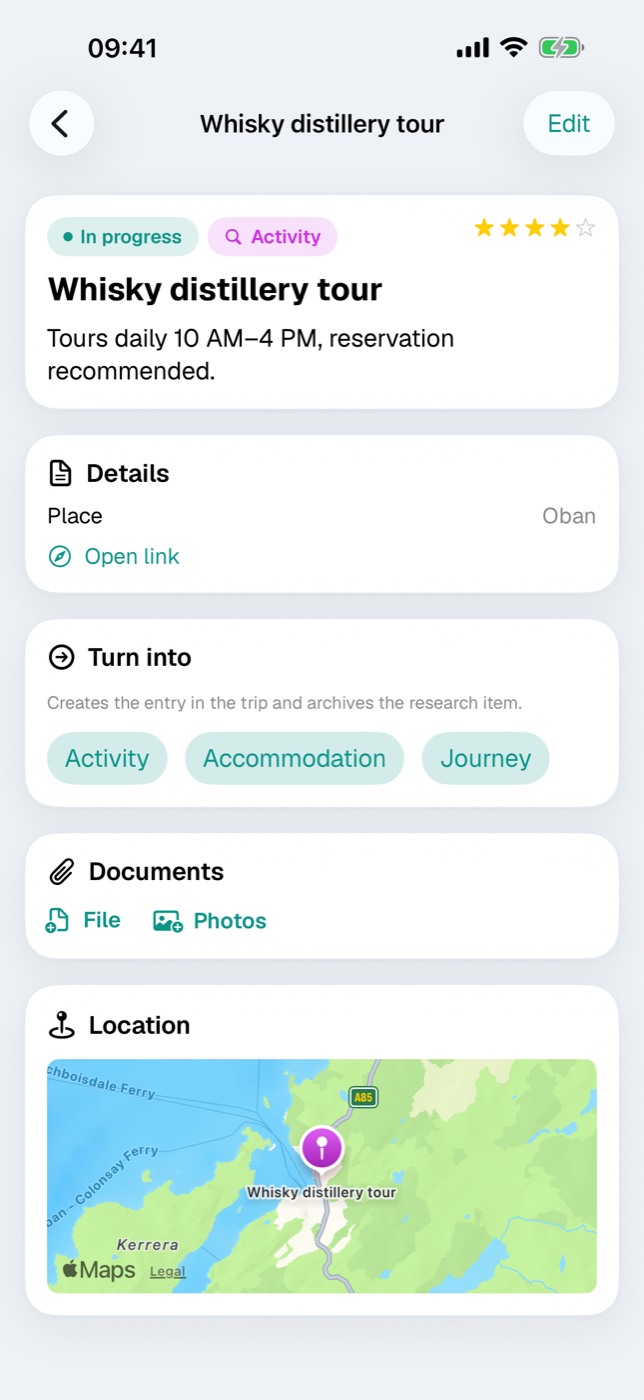
The detail view shows status, category, stars and the description at the top, and below that every field you have filled in — the costs in their own currency and, if your base currency differs, with “≈ …” in the base. An address you have entered can be tapped and opens your route planner; Open link brings up the source in the browser. If coordinates are stored, a small map with a marker sits at the bottom.
The detail view also carries a Documents card: this is where you attach menus, offers or screenshots directly to the find — file and photo attachments work the same as everywhere else (Documents and receipts).
14.2 Status: Open, In progress, Done, Discarded#
The status describes how far along you are with a find:
| Status | meaning |
|---|---|
| Open | not looked at yet |
| In progress | under review, quote requested, comparison under way |
| Done | checked off — set automatically when the item is turned into an entry |
| Discarded | reviewed and dropped |
The status is purely a note for you; Etappe derives no deadlines or alerts from it. Separately, the Priority (High, Medium, Low) controls the order in the list.
Above the list sits the Active / Archive switch. A research item does not go into the archive by hand, but only by being turned into an entry. It only comes back via the route from the sketch, where the entry that was created is deleted (see Sketch).
14.3 “Turn into”: a research item becomes an activity, accommodation or journey#
As long as a research item has not yet been turned into an entry, the detail view shows the Turn into card with three buttons: Activity, Accommodation and Journey. One tap is enough — Etappe creates the entry in the trip and reports back that the research item has been archived. There is no confirmation prompt, and the step cannot be undone here — you delete a surplus entry in the respective section.
The new entry has no date yet. You add date and time afterwards in the respective section — or you take the route via the sketch right away, which does both in one go: 14.5 Creating research items from the sketch.
14.4 What carries over when turning into an entry, and what is archived#
What carries over is whatever fits the target:
| Target | details carried over |
|---|---|
| Activity | place, address, country, coordinates, phone, opening hours, adult/child admission, reservation required, costs, link, notes; status “Planned” |
| Accommodation | place, address, country, coordinates, costs, booking number, link as provider address, notes |
| Journey | costs, booking number, source as provider, link as route address, notes; means of transport “Other” |
For the notes, Etappe combines the research item’s description and notes. The costs arrive as entered — amount, currency and the EUR factor as a frozen rate; a euro amount stays euro. If the EUR factor is missing for a foreign currency, the cost field in the new entry stays empty; the amount is still there in the archived research item.
The research item’s attachments move along too: when the item is turned into an entry, they switch to the new entry and sit in its Documents card there. If you take back an entry created via the sketch (Sketch), the attachments return to the research item — including any that were only added to the entry.
Three things happen to the research item itself: the status jumps to “Done”, it moves into the Archive with a date, and the header from then on reads “Turned into …”. The Turn into card disappears so that one find does not accidentally become two entries. Editing and reading it remain possible.
14.5 Creating research items from the sketch#
Blocks in the sketch can carry a research item along. The block form has the Linked research section for this: the picker lists all research items of the trip that are still open and not archived — each with the symbol of its category —, and the New research item button creates one directly and links it.
Once a research item is selected, it appears below as its own row: tapping it opens it directly in the form, with all details, documents and the map. Next to it, All research takes you to the trip’s overview page — so you can browse in the middle of sketching without leaving the block. In the sketch list, too, the linked research item can be tapped under its block.
When you later create the entry for the block, the research item is turned into an entry in the same step — with all its data and, provided the trip has a start date, on the right day straight away. Which entry is created depends on the block type: Accommodation, Journey, Activity and Outdoor activities can link a research item. For the Outdoor activities type, Etappe takes place and coordinates as the start point and the link as the tour address.
It also works the other way round: a block of the Note type itself becomes a research item when its entry is created — that is where there is room to flesh out the vague idea.