 Etappe
11. Home#
Etappe doesn’t need to know where you live. Two settings, though, make the app fit better, keep it calmer, and make its maps more meaningful: the home country and the home location. Both live under More → Settings in the Home section; on the iPad under “Settings” in the sidebar. The Getting started assistant also asks for the home country on the very first launch (Installation and first launch). You set it once and never have to think about it again — not even on your second device, because both travel with you via iCloud (11.4 Home and base currency travel between your devices).
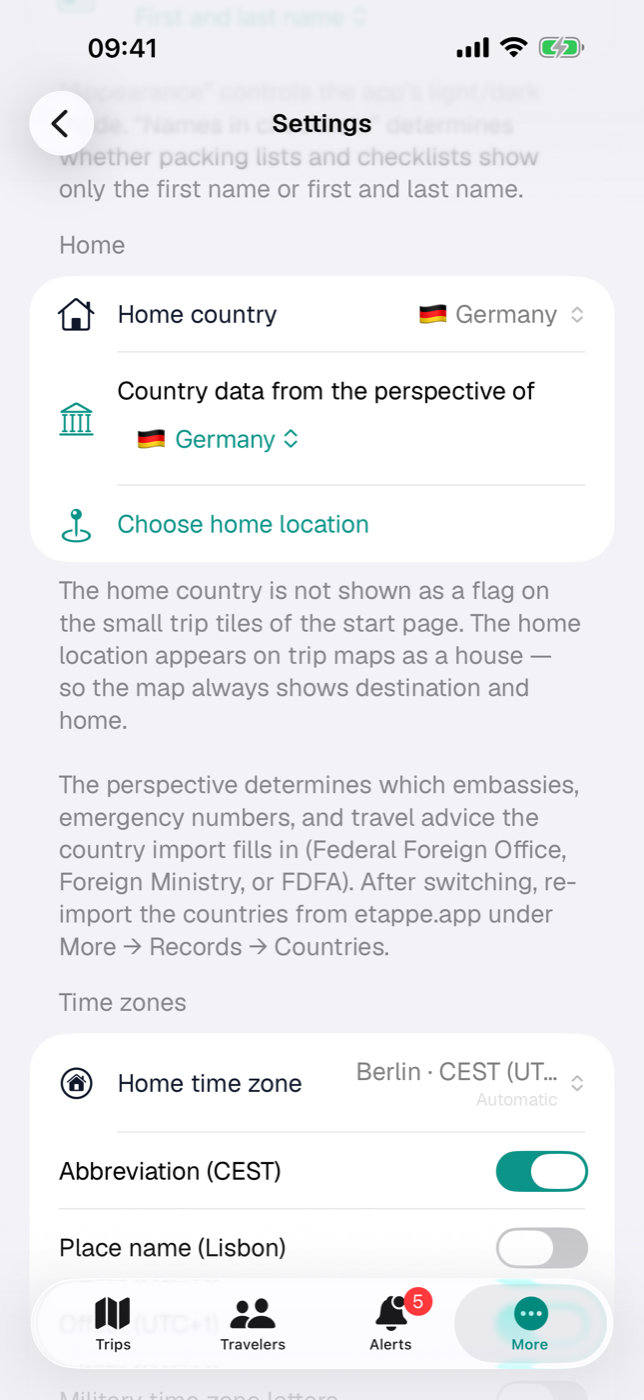
11.1 Setting the home country — and why it gets no flag on trip tiles#
Tapping Home country opens a list of every country in the world with flag and name — not just the countries in your records — plus a search field (name or country code) and, at the very top, the entry Not specified. You don’t need any loaded countries for this; in the Getting started assistant, the country of your device region is preselected.
The setting has three effects. The first concerns the perspective of the country data: the country import enters embassies, emergency numbers and travel advice from the perspective of your home country — Germany, Austria or Switzerland (Liechtenstein counts as Switzerland). There is no dedicated perspective for any other home country; in that case the perspective of your device region applies, usually Germany, and Settings says so with a note: “There is no dedicated perspective for France — embassies and travel advice show the perspective of Germany.” If you deliberately want a different one, choose it below under Country data from the perspective of; changing the home country resets this override. After a change, import the countries from etappe.app once more so the data of the new perspective arrives (Countries).
The second effect concerns the trip list: in the All view, trips under way and the next one appear as a large card, all others as square mini tiles in a grid. On these mini tiles, Etappe shows the flags of the trip’s countries at the top right, six at most — and leaves out the home country. The third: on the world map Where I’ve been, the chosen home country appears in gold; without a selection, there is no golden country there.
On the first launch, the base currency also follows the home country as long as you don’t choose one yourself — it has its own Currency section in Settings (All settings).
The reason for the missing flag is a practical one: almost every trip starts and ends at home, so the home country is part of almost every trip. As a flag on the tile, it says nothing and only crowds out the flag you are actually interested in. If your home country is the only country of a trip, the tile has no flag pill at all.
The large trip cards are not affected — there is enough room there, and all countries of the trip are shown, the home country included. If you switch the trip list to a status filter or to the archive, you also see large cards with all flags.
11.2 Choosing the home location on the map#
The home location is a point on the map, not an address. This is how you set it:
- In the Home section, tap Choose home location. If one is already set, the button reads Change home location.
- Choose location opens. The map starts over Central Europe, or over the location already set.
- Tap the map — that’s where the marker lands. Another tap moves it. The current coordinate is shown at the bottom with five decimal places.
- Alternatively, tap Current location. The first time, iOS asks for permission to use your location. While the position is being determined, the button reads “Determining location …”; if Etappe gets no position within eight seconds — or permission is missing — the marker simply stays where it is.
- Apply at the top right saves. The button is only active when a marker is set. Cancel discards the selection.
Afterwards, the Home location row shows the saved coordinates with four decimal places. Remove home location deletes them again; the row and the remove button then disappear.
Only the pair of numbers is stored — on your device and, if iCloud is turned on, in the key-value store of your Apple ID, so that your second device knows it. It is not transmitted to anyone else, and it does not appear in any export — see Your data.
11.3 Where the home location appears#
The home location appears on the maps of your trips as a white house on a green circle, labeled “Home” — deliberately different from the teal dots of the trip places. You’ll see it in two places: on the small map card in the trip overview and on the large trip map (Map). On the large map, the house always stays visible, even when you hide places with the type filters or use the day slider.
More interesting than the marker is what the home location does to the map section. Etappe decides based on how many places of its own the trip has at all:
| Places in the trip | Map section on opening |
|---|---|
| none | the large trip map centers on your home (the map card in the overview doesn’t appear at all) |
| one | home is included in the frame — you see the destination and the starting point |
| two or more | only the trip; the house stays a marker with no influence on the zoom |
That is intentional. A map with a single point says little — together with home, it immediately becomes “from here to there”. But as soon as the trip has several places of its own, a far-away home would stretch the map across half the globe and shrink the trip area to a postage stamp. A minimum section also makes sure the map doesn’t zoom in too far when places lie close together.
If you haven’t set a home location, both are dropped: no house, and the section follows the places of the trip alone.
11.4 Home and base currency travel between your devices#
Home country, home location and base currency are settings, not trip data. So they don’t live in the synced database — but they don’t stay stuck on one device either. Etappe stores them in the iCloud key-value store of your Apple ID and mirrors them locally as well:
- On your second device, the three values are there by themselves after syncing; the same goes for the most recently loaded rate table (iCloud sync).
- If different things are changed on two devices, the last change wins.
- Without iCloud — not signed in, turned off — the values stay local on the device and apply there as normal.
- They are not part of the backup; an import doesn’t overwrite them (Backup).
- Delete all data in Settings clears them too — including in iCloud (All settings).
The override Country data from the perspective of, appearance, name format, route planner and the app lock, on the other hand, stay purely on the device. All the app’s other switches are collected in All settings.