 Etappe
16. Journeys#
A trip is not just a set of places; it is also the way between them. Under Journeys you record every movement: ferry, flight, train, the car leg from one accommodation to the next. Every journey has a start, a destination and a mode of transport — and, depending on that mode, its own fields for flight number, cabin or tolls.
16.1 Creating a journey: from, to, times#
- Open the trip and, inside it, the Journeys section.
- Tap the plus at the top right. If the trip is currently under way, a menu opens instead with Plan journey and Record journey (see Recording a journey).
- In the Journey section, give it a name (such as “Hoek van Holland → Harwich”) and choose the mode of transport and the booking status. Without a name, Save stays grayed out.
- Under From and To, enter place, country and, if needed, coordinates.
- Under Times, switch on Set departure/arrival and choose both with date and time. Then Save.
Next to the place fields sits a list icon with all places already recorded in the trip, grouped by Accommodations, Activities, Ferry ports, Airports, Train stations and Other journey places. One tap takes over name, coordinates and country in one go — handy when the return trip uses the same port. Alternatively, Choose on map sets the point with a tap on the map. For the country, the trip’s countries are offered (Countries).
The arrival moves along with the departure until you adjust it yourself, and it cannot be set before the departure. If the time lies outside the trip period, Etappe asks after saving whether the period should be extended — you may decline; the ferry on the evening before then simply stays an outlier.
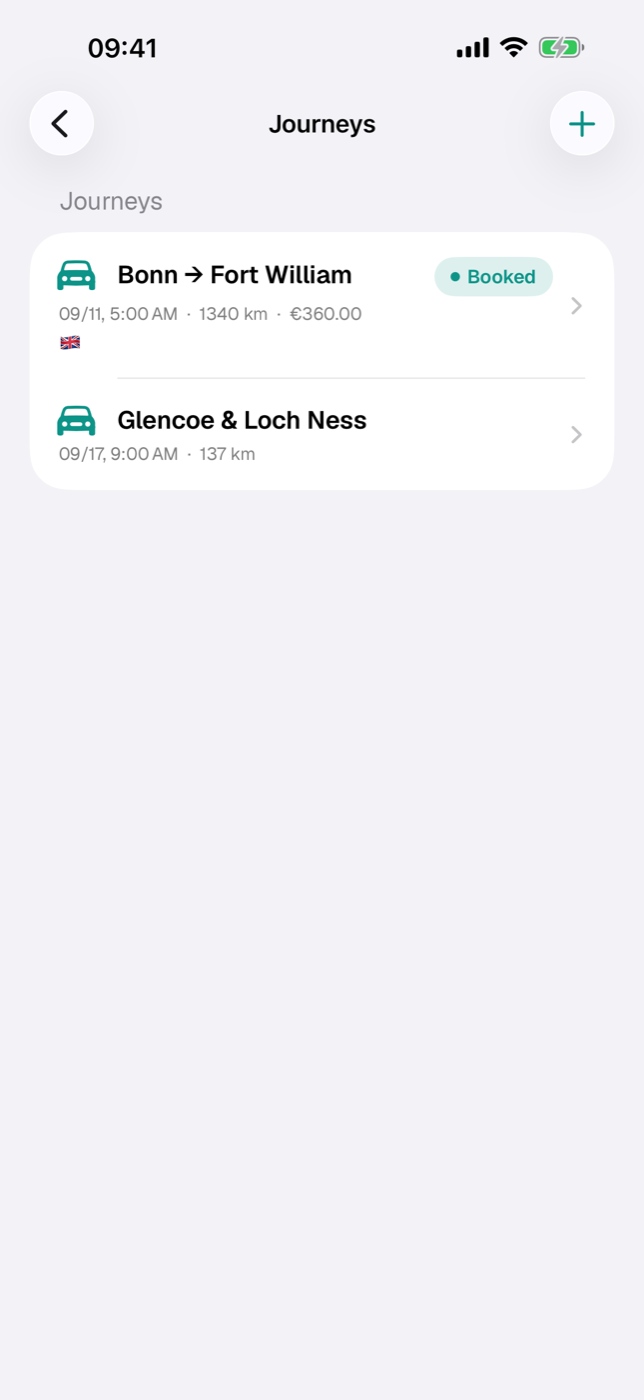
In the list, dated journeys appear sorted by departure under Journeys, all others under No date yet. Swipe left to delete.
16.2 Modes of transport: car, rental car, ferry, plane, train, public transit, bicycle, on foot#
There are nine modes of transport to choose from: Car, Rental car, Ferry, Plane, Train, Public transit, Bicycle, On foot and Other. Each has its own symbol and determines which special section appears in the form. If you change it later, the details you have entered are kept — they are just no longer shown.
16.3 Fields per mode of transport (flight number, ferry port, carriage, license plate …)#
| Mode of transport | Section | Fields |
|---|---|---|
| Plane | Flight | Airline, Flight number, Departure terminal, Arrival terminal, Check-in counter, Booking code |
| Ferry | Ferry | Ferry company, Cabin, Pier |
| Train | Train | Train number, Class, Terminus, Seat reservation, Transfers |
| Public transit | Public transit | Line / route, Type (e.g. subway), Fare zone, Ticket type, Ticket valid from/until |
| Rental car | Rental car | Pickup station, Return station, Pickup, Return |
| Bicycle | Cycling route | Distance (km), Duration (min), Stopovers |
| On foot | Walk | Distance (km), Duration (min), Stopovers |
| Car, Other | Drive | Distance (km), Driving time (min), Toll costs, Fuel costs, Stopovers, Route URL |
The Drive section adds four switches: Motorway, Tolls apply, Emissions sticker required and Vehicle registration required. Switches that are on appear in the detail as a note line of their own — useful for countries where a vignette or sticker has to be bought before the border. Ticket validity and the rental period each sit behind a switch; the Times section also has Check-in by.
16.4 Assigning a vehicle#
For Car and Other, the Vehicle field sits at the top of the Journey section, right below the Mode of transport. Offered is the trip’s vehicle; if none is set, all non-archived vehicles from the records. If exactly one vehicle qualifies, it is preselected for new journeys; None removes the assignment.
It is more than documentation: only with a vehicle assigned does Etappe show the approximate fuel consumption for a recorded route (Vehicles).
If the trip has a towing combination of vehicle and trailer, the With trailer switch sits below the Vehicle field — it is on. For a day trip without the caravan, switch it off; the journey then uses the vehicle’s own consumption instead of Towing consumption, and the Trailer line is missing from the detail (Vehicles, section 9.9).
16.5 Setting and ordering waypoints#
Without waypoints, the map connects start and destination with a straight line. Waypoints bend that line into the actual course — over the pass instead of through the mountain.
In the Route path section they appear as “Waypoint 1”, “Waypoint 2” … with their coordinates. The order follows the order in which they were set and runs from start to destination; you remove single points by swiping left, and to reorder them you set them again.
The line appears only if start and destination both have coordinates. If one side is missing, the waypoints stay saved, but the map shows nothing.
16.6 Drawing a route or importing it from GPX#
The Draw route on map button (later Edit route (n points)) opens the map editor:
- Each tap on the map sets the next point — 1, 2, 3 and so on. Start and destination are shown as a green flag and a red pin.
- At the top, the point count and route length update as you go; at the bottom are Remove last and Delete all.
- Done takes over the points, Cancel discards them.
The kilometers shown are the sum of the straight-line distances between the points, not a road calculation: the closer together you set the points, the nearer the value gets to reality. It is not copied into the Distance field automatically.
A finished track from another program comes in via Import route from GPX in the Recorded route card of the journey detail. Etappe reads track, route or waypoints, calculates the distance and stores the result as a recorded route — just as if you had recorded it yourself; very long tracks are thinned out to 200 points. Etappe then asks whether the route should replace the drawn draft.
There is only one recorded route per journey. As long as one exists, import and recording are locked; deleting it frees up both again (Recording a journey).
16.7 Time zones and border-crossing note#
In a trip with time zones, a journey carries two of them: Departure time zone below the departure, Destination time zone below the arrival. You enter both times as they read on the clock at each place. If you pick start and destination via the place search, the zones usually come by themselves.
Departure at 8:00 PM in Hoek van Holland, arrival at 6:30 AM in Harwich. Below the times it reads “Duration 11:30 h · time difference −1 h · +1”: the clock says 10:30 hours, you are on the road for 11:30 hours, arrival is on the following day.
If, after conversion, the arrival is before the departure, the form warns: “Arrival is before departure – check the times or time zones.” In the list and detail, the time difference appears as a tag −1 h next to the journey. Everything else, including journeys with a fixed offset from older versions, is in Travelling across time zones.
If the start and destination countries are set and differ, Etappe marks the journey as a border crossing: in the list in orange next to the flags, in the detail as the line Crosses a border. It is just a note — what needs attention at the border is checked by the Entry checklist.
16.8 Costs: journey costs, tolls and fuel — what counts toward the budget#
| Field | Where | Counts toward the budget |
|---|---|---|
| Costs | Booking section, for every mode of transport | yes |
| Toll costs | Drive section (Car, Other) | yes |
| Fuel costs | Drive section (Car, Other) | no |
Fares, tickets or a ferry booking go under Costs; tolls, vignettes and tunnel fees under Toll costs. Both flow into the trip’s expense calculation — the same total appears in the “Journeys” tile in the trip detail.
All three fields share one Currency, which you choose under Costs in the Booking section — preset to your base currency — and one exchange rate, which Etappe freezes when you save. A ferry in Norway is entered in kroner, and so are the toll and fuel of the same journey. If you paid toll and fuel in different currencies, convert one of the amounts or record it as a budget item. The other rules are the same as for accommodations (Accommodations, section 15.3); in the list and detail, the amount appears in its own currency, with “≈ …” if the base currency differs.
Fuel is deliberately left out. You fill up on the road, and the fuel receipt ends up as a budget item of its own in the trip budget. If Etappe added the journey field on top, the same tank of fuel would appear twice in the calculation. The field is therefore a planning aid, not a transaction. How the expenses come together is described in Budget.
16.9 Booking status, tickets and receipts#
| Status | Meaning |
|---|---|
| Planning | idea, nothing arranged (default) |
| In progress | request under way |
| Booked | confirmation pending |
| Confirmed | confirmation received |
| Completed | done and settled |
| Discarded | kept for the record |
In the list, the status pill appears only from “In progress” onward, “Discarded” in gray. The Booking section holds Provider, Booking number and Costs; if a Route URL is stored, the detail offers the Open route button.
Tickets, boarding passes and booking confirmations are attached in the detail on the Documents card, via File or Photos. A long press on a document offers Mark as booking receipt; whether the marked receipts end up in the itinerary PDF is your decision at export time, via a switch that is off at first (Documents and receipts, Exports and printouts).
For everything that fits no field, there is Notes at the bottom of the form.
16.10 Duplicating a journey or creating the return leg#
A long press on a journey in the list — a right-click on the Mac — offers Duplicate and Create return leg; the same two commands are in the three-dot menu of a journey’s detail. Both first ask for the Departure: when duplicating, the original’s departure is prefilled; for the return leg, the last day of the trip period at the original’s departure time. You can switch off Set departure date and time, and the journey is then created without dates. With a date, arrival, check-in, ticket validity and the rental car dates move along, keeping the original’s intervals.
Carried over are mode of transport, places, waypoints, costs, driving time, vehicle, tags, notes and all fields of the mode of transport (flight number, train number, ferry, fare zone …). Not carried over are booking number and booking code, the attached receipts, budget items and recorded routes — the status is back to Planning. The copy is called “‹Name› (copy)”.
The Return leg swaps start and destination including coordinates, time zones and countries and mirrors the waypoints; a stored route URL is dropped because it shows the outbound route. Etappe calculates the arrival from the actual duration of the outbound journey. For a rental car, pickup and return stations stay as they are. If the journey is called “Hamburg – Copenhagen”, the return leg is called “Copenhagen – Hamburg”; without such a pattern, “Return leg: ‹Name›”.