 Etappe
26. Calendar and day view#
Accommodations, journeys, activities, outdoor activities and the journal each live in their own list. The Calendar lays them on top of one another and shows what is due on which day — and the Day view goes one step further, spreading the events of a single day across a 24-hour timeline.
You reach it in the trip detail via the Calendar tile.
26.1 The trip as a day-by-day agenda#
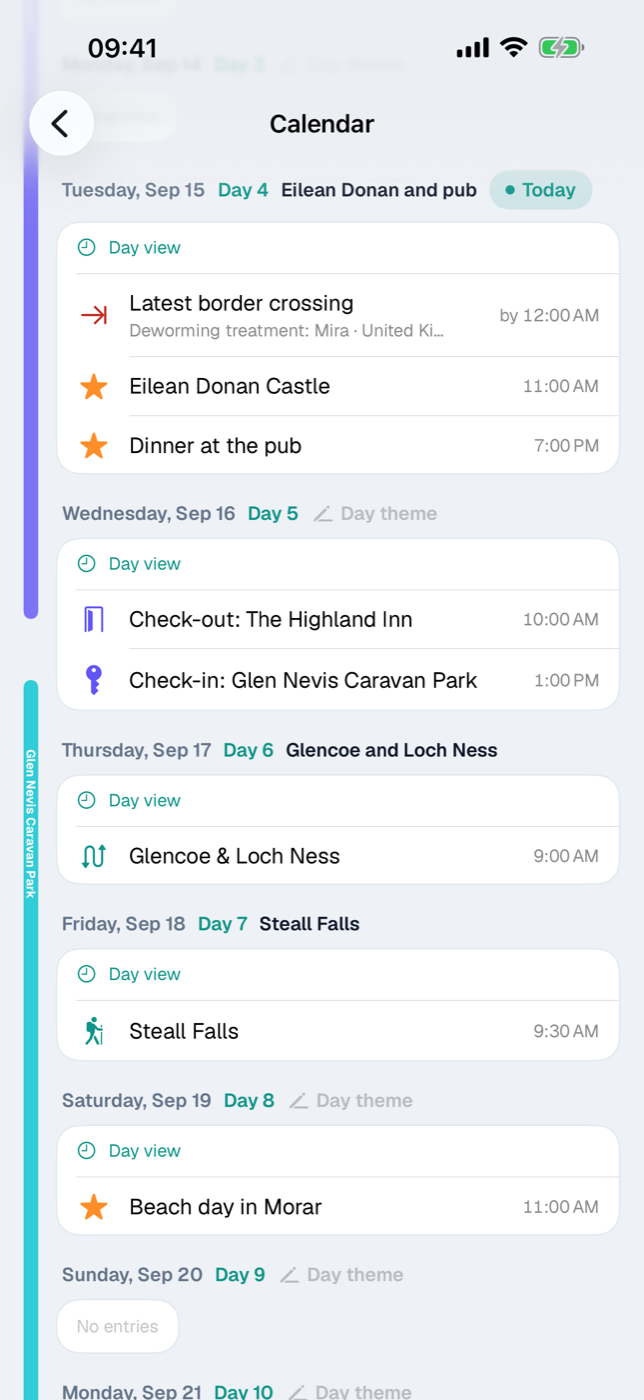
The calendar shows one card per day, stacked vertically. Which days those are comes from two sources: the trip period (every day from start to end) and all dated entries. Anything outside the period — the ferry the evening before, a journal entry added later — still gets its own row. If neither exists, you see No period with a note to set the trip period first or to plan entries with a date (Creating a trip).
Above each card is the weekday with the date, next to it Day N within the trip and, on the current day, the additional Today pill. When you open the calendar, the list jumps to today automatically, provided that day belongs to the trip.
The card itself lists the day’s entries:
| Entry | Comes from | Time in the calendar |
|---|---|---|
| Check-in: … | Accommodation | Check-in time |
| Check-out: … | Accommodation | Check-out time |
| Journey name | Journey | Departure |
| Activity name | Activity | Start |
| Name of the outdoor activity | Outdoor activities | Start time, otherwise all day |
| Title of the entry | Journal | always all day |
All-day items come first, then everything else in chronological order by time. On the right is the time or the word all day. In a trip with time zones, every entry is on the day it falls on in its local time, with the time in local time — and with the zone’s label if it differs from that of the day (Travelling across time zones). A tap opens the detail page of the underlying entry; a day without events simply shows No entries. As soon as at least one entry exists, the Day view button sits at the top of the card.
26.2 Reading the overnight bars#
To the left of the day cards, vertical colored bars run through: one per accommodation, from the check-in row to the check-out row. On the first day the bar starts with a rounded top at the height of the check-in entry, on the last day it ends with a rounded bottom at the height of the check-out entry — in between it runs without interruption. The name of the accommodation is written along the bar. So you see at a glance where you are staying and for how long.
If one accommodation follows another, both share a lane — even on the handover day: the old bar ends at the check-out row, the new one begins at the check-in row below it. Only when two stays actually overlap in time do the bars get separate lanes side by side. The colors cycle through indigo, turquoise, orange, purple and brown.
A bar only appears when both check-in and check-out are set and at least one night lies between them. Tapping the bar opens the accommodation (Accommodations).
26.3 Day view with timeline#
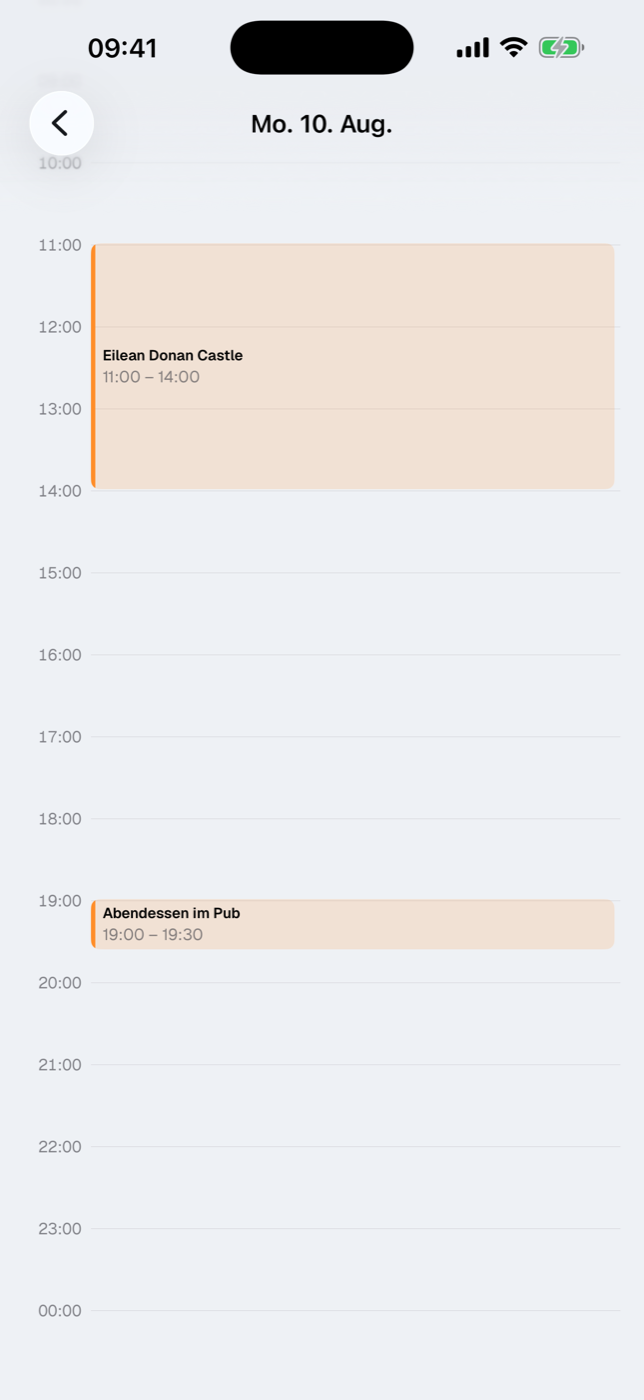
The Day view button in the day card opens the hourly grid for that day. At the top — if there is anything for it — sits the All day card with everything that has no time: journal entries and outdoor activities without a start time. Below it the timeline runs from midnight to midnight with a line for each hour.
Each event is drawn as a block: position and height follow from start and end, the block shows the title and the time span, and a colored strip on the left carries the color of the entry type. Depending on the type, the end comes from different fields:
| Type | End of the block |
|---|---|
| Journey | Arrival |
| Activity | End of the activity |
| Outdoor activities | Start time plus the likely total duration (walking time × 1.25) |
| anything without an end | 30 minutes after the start |
Events that overlap in time stand side by side in columns: Etappe groups overlapping blocks together and splits the width among them. If an event runs past midnight, the block ends at the end of the day. When opened, the view scrolls to the hour before the first event — so you don’t land in the middle of the night.
In a trip with time zones, the timeline runs in the zone of the day; the line above it names it, such as “Times in Tokyo · JST (UTC+9)”. Entries in another zone still sit at the right point in time and carry their own local time with a label. If a journey with a time difference arrives that day, a line marks the spot: “From here UTC+9 (+7 h)”.
Above the timeline — provided an accommodation covers the adjacent nights — a small card shows the day’s overnight stay. It follows the same rule as the overnight bars in the agenda (26.2 Reading the overnight bars): if you spend the night before and the night after the day in the same accommodation, it reads Overnight: ‹name›. On arrival and departure days and when changing accommodation, the information splits into Night before and Night after — on the handover day you see both accommodations that way. Without an overnight stay in those nights, the card is omitted.
26.4 Moving entries to another day#
A long press on an entry — in the agenda as in the day view — opens the context menu with Move to …. In the sheet that appears, you pick the New day in the month calendar; for entries with a time, the Time field sits below it, preset to the current one — so you can push an event to “the day after tomorrow, 3:30 PM” in one go. Move confirms, Cancel leaves everything as it was. End times move along with unchanged duration; all-day entries stay all day. In a trip with time zones, the time in the sheet is the entry’s local time.
This is how each type behaves:
- Journey — the departure lands on the new day at the same time, the arrival moves along by the same number of days. A night ferry stays a night ferry (Journeys).
- Activity — start and end move together (Activities).
- Check-in / Check-out — only the tapped event moves. Etappe doesn’t let the check-in slip past the check-out or vice versa; if you try, it is clamped to the other event so that no negative night count arises.
- Outdoor activities — the entry switches to the new day, the start time stays untouched (Outdoor activities).
- Journal — the entry is appended to the end of the target day. If something is already there, that is no problem: a day can hold several entries, and the moved one then comes last (Journal).
If the entry was deleted elsewhere in the meantime, Etappe reports Cannot move.
26.5 Extending or shortening the duration#
For journeys and activities, the context menu additionally offers 30 min longer and 30 min shorter. Both only move the end; the start stays put. If no end has been recorded yet, Etappe starts from a duration of one hour; below 15 minutes it won’t go — the event gets no shorter, no matter how often you tap. This is handy in the day view, where the block grows or shrinks immediately.
26.6 Editing and deleting from the calendar#
The same context menu takes you via Edit straight into the entry’s form — journey, accommodation, activity, outdoor activity or journal. So you don’t have to go back to the respective list first.
Delete asks Delete “Title”? first. For a check-in or check-out it says so explicitly: this deletes the entire accommodation — including everything attached to it. Everything else deletes only that one entry.
The context menu is the same in the agenda and the day view: Edit, Move to …, the two duration buttons and Delete are therefore also available on the timeline.
26.7 Border-crossing window when deworming is required#
If a destination country requires a deworming treatment for a pet traveling with you and the time of that treatment is known, the calendar adds two note rows: Earliest border crossing (green arrow) on the day the permitted entry window opens, and Latest border crossing (red arrow) on the day it closes — each with a time (“from …” or “by …”), pet and country. Day and time follow the zone of the border crossing; if it differs from the zone of the day, the time carries a label. These rows are display only: they can’t be tapped, moved or deleted, and they only appear on days the calendar shows anyway.
The deworming time is taken first from the treatment checked off in the Entry checklist (Deworming treatment on); failing that, from a vet appointment of the pet whose type contains “worm” — such as “Deworming treatment” or “Deworming” (Pets). The window follows from the country’s hours; without a specific setting, 24 to 120 hours after the treatment (Countries). If either of the two times falls on today, the same note also appears in Today. Archived trips and archived pets are left out.
26.8 Day theme in the header#
Next to “Day 2” is the day’s theme, if you have set one — for example “North coast and Kronborg”. Tap the pencil or the theme to enter or change it; this only works for days within the trip period. The day view carries the same theme in its header below the date, so it stays put while you scroll; a tap opens the input there as well. Where the theme comes from and why it is attached to the trip day is explained under Sketch.