 Etappe
40. All settings#
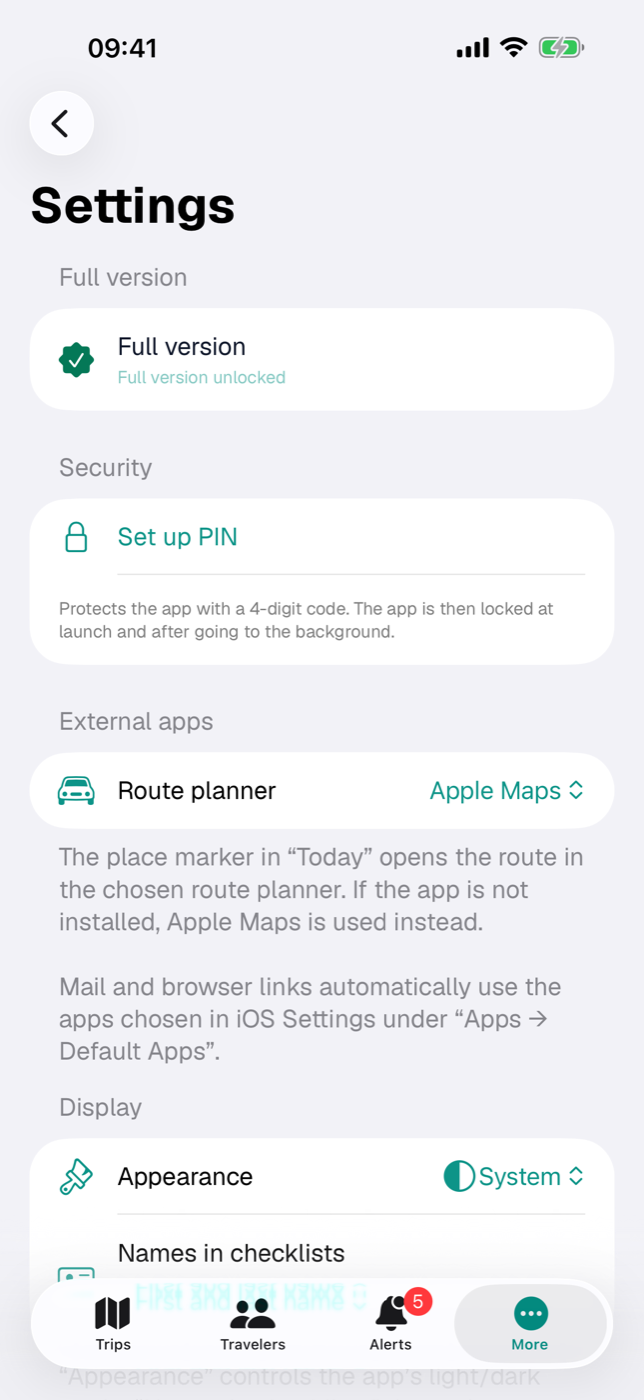
Etappe has few settings, and you don’t need to touch any of them — the defaults give you a working app. This chapter still goes through the screen line by line, as a reference.
On the iPhone you reach it via More → Settings, on the iPad via Settings in the sidebar. It has eight sections: Full version, Security, External apps, Display, Home, Time zones, Currency and — at the very bottom — Reset.
| Setting | Section | Default |
|---|---|---|
| Full version | Full version | not purchased, trial running |
| Pro mode | Full version | off |
| Offline mode | Full version | Off |
| PIN | Security | none set |
| Allow Face ID / Touch ID | Security | on |
| Lock | Security | Immediately |
| Route planner | External apps | Apple Maps |
| Appearance | Display | System |
| Names in checklists | Display | First and last name |
| Home country | Home | Not specified (the Getting started assistant pre-fills the country of the device region) |
| Country data from the perspective of | Home | follows the home country, otherwise the device region |
| Home location | Home | not set |
| Home time zone | Time zones | Automatic (from the home country) |
| Abbreviation (CEST), Place name (Lisbon), Offset (UTC+1) | Time zones | abbreviation and offset on, place name off |
| Military time zone letters | Time zones | off |
| Look up time zone online | Time zones | on |
| Base currency | Currency | currency of the device region |
| Rates | Currency | No rates loaded yet |
None of these values is part of the backup. Most of them apply per device — on a second device you set them once more. The exceptions are home country, home location, the time zone settings, base currency and the rate table: they travel between your devices via the iCloud key-value store (Home, iCloud sync).
40.1 Full version#
The top row shows your purchase status and opens the purchase screen with a tap. Before the purchase it reads Etappe Full Version, afterwards Full version with a green seal icon. Below it is a status line:
| Status line | Meaning |
|---|---|
| Trial — N days left | the trial is running |
| Trial expired — reading & export remain free | creating and editing are locked |
| Full version unlocked | everything free, permanently |
The same row also sits at the very top of More and in the iPad sidebar, there additionally with the price and the note “Never a subscription. Promise!”. What works in which state is covered in Trial and full version.
Pro mode sits directly below the full-version note. Switched on, it hides the app’s explanatory text — the footers and small hints that say what a field or button does, such as “The last day of the trip is selected by default” under the return journey or the formula under the hiking calculator. If you know the app, forms get shorter. Warnings, safety notes before deleting, empty states and status messages always stay visible. The switch applies to this device only; the line “Hides explanatory text” below it stays even in pro mode.
Offline mode sits below it and has three levels:
| Level | What happens |
|---|---|
| Off | Etappe loads rates, countries, places and time zones when you need them. |
| Save data | Etappe no longer requests anything from the internet on its own: no ECB rates, no country download (the built-in country file is used instead), no place search, no place names after a GPX import, no online time zone. iCloud sync keeps running. |
| Fully offline | like “Save data”, plus no iCloud sync and no price request to the App Store. Because iCloud is connected when the app starts, this part only takes effect after the next start — the note below the selection tells you so. Whatever you create in the meantime, iCloud catches up on once you switch back. |
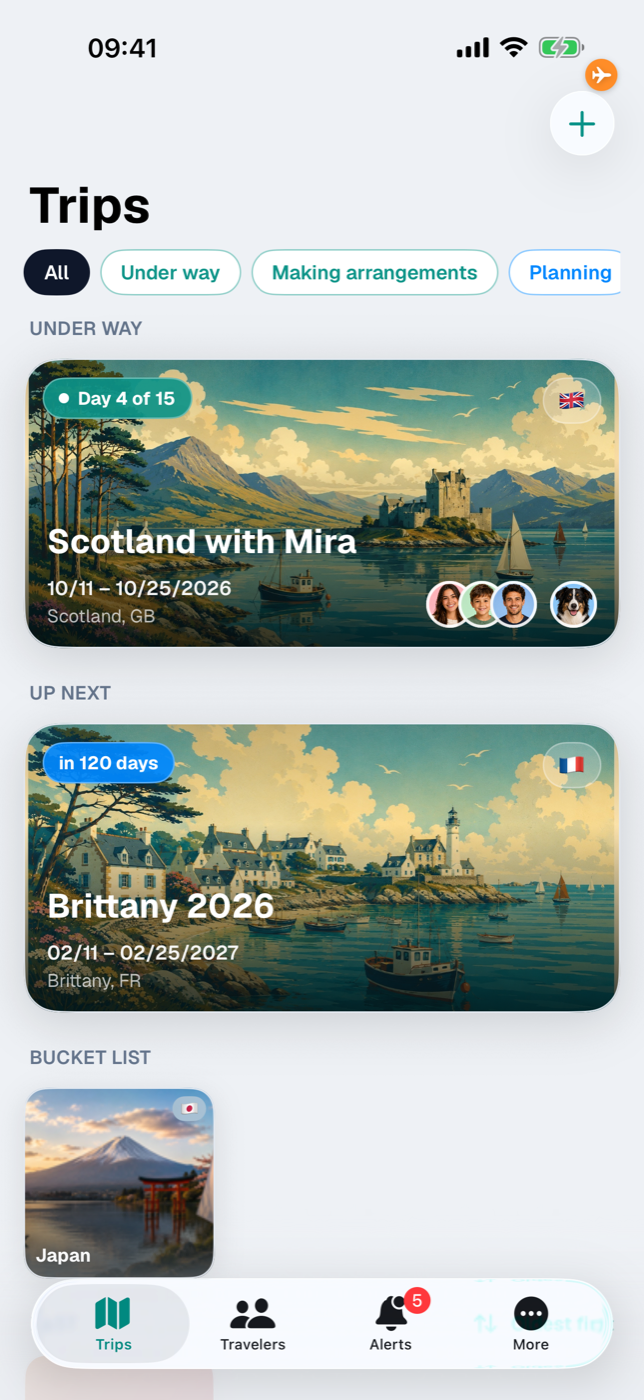
While offline mode is on, Etappe shows an airplane at the top right — orange for “Save data”, red for “Fully offline”. Tapping it opens the selection, so you can switch back right away. Maps keep showing what the device has cached; links, route planners and Mail open other apps and are not affected. The setting applies to this device only.
40.2 Security: PIN, biometrics, lock interval#
Without a PIN set, this section shows only Set up PIN, plus a note that the app is then locked at launch and after going to the background. The dialog asks for the code twice (New PIN (4 digits) and Confirm PIN); Save only becomes active once both fields contain four digits.
Once a PIN is set, the section grows:
| Row | Effect |
|---|---|
| App lock active | status display only |
| Change PIN | opens the same dialog again |
| Allow Face ID / Allow Touch ID | unlock by biometrics; only appears if the device offers it — default: on |
| Lock | Immediately, After 1 minute, After 5 minutes, After 15 minutes — default: Immediately |
| Remove PIN | deletes the PIN after confirmation |
Lock sets how long the app may stay in the background before the lock screen returns; with “Immediately” it locks as soon as you leave. Failed attempts, waiting time and a forgotten PIN: App lock.
40.3 External apps: choosing a route planner#
iOS has no system default for map apps, so Etappe has its own selection. The choices are Apple Maps (default), Google Maps, Waze and TomTom GO. If an app is not on the device, “(not installed)” follows its name — it can still be selected.
The selection applies wherever you tap an address or place marker: in accommodations, activities and research items, in the detail panel of a map pin (Map) and via the place marker icon in Today. The address is handed over in preference to the coordinate.
If the chosen app cannot be opened, Etappe falls back: first to the web version (Google Maps, Waze), finally to Apple Maps. TomTom GO navigates only to coordinates; an address is resolved first.
Mail and browser links do not go through this setting but through the apps you have chosen in iOS Settings under “Apps → Default Apps”.
40.4 Display: appearance, names in checklists#
Appearance controls the app’s light/dark mode independently of the system: System (default) follows the device, Light and Dark are fixed. The change takes effect immediately, lock screen included.
Names in checklists decides how people’s names appear in lists where space is tight:
| Value | Shown |
|---|---|
| First and last name | full name (default) |
| First name only | first name only |
This affects the Packing list — both the person filters and the name lines of the items — and the Entry checklist. If a person has no first name, Etappe falls back to their nickname. All other views continue to show the full name.
40.5 Home: home country, country data perspective, home location#
Home country opens a list of all countries in the world with flag and search field, plus the entry Not specified. The Getting started assistant has already entered the country of your device region here — even if you only tapped Next in its country step; Not specified appears only if you never reached that step or come from version 1.0 without a home country. The selection does not need loaded country records. Effect: the country import enters embassies and travel advice from this country’s perspective, its flag is left off the small trip tiles in the trip list, and on the “Where I’ve been” world map it is colored gold (Where I’ve been); with Not specified, none of this applies.
Country data from the perspective of — Germany, Austria or Switzerland — follows the home country (Liechtenstein counts as Switzerland) and can be overridden here; changing the home country resets the override. If your home country has no perspective of its own, a note appears below: “There is no dedicated perspective for France — embassies and travel advice show the perspective of Germany.” After switching, re-import the countries under More → Records → Countries from etappe.app; the section’s footer reminds you of that.
Choose home location — Change home location once a location is set — opens the map picker “Choose location”. The Home location row then shows the coordinates with four decimal places, Remove home location deletes them. On the trip maps the location appears as a house and influences the map section as long as the trip has fewer than two points of its own.
Described in detail in Home.
40.6 Time zones: home time zone, label, military mode#
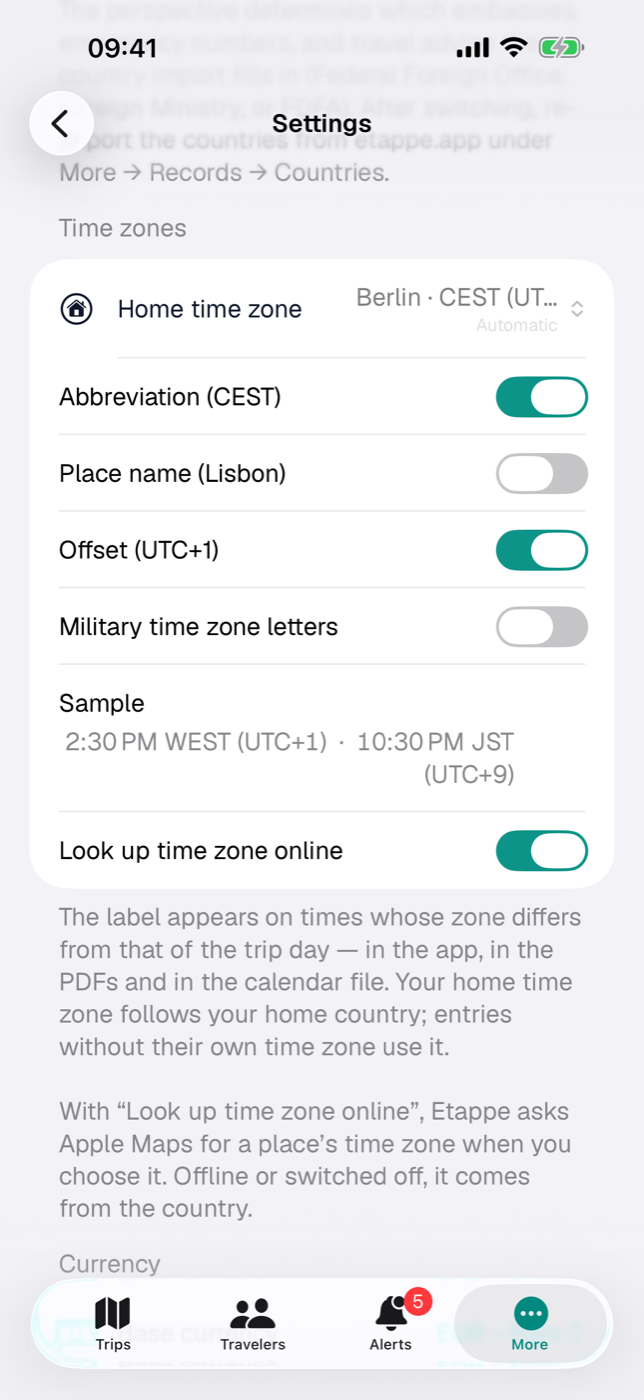
Home time zone is the time that trips without time zones use, and the one “at home …” and “At home it’s …” refer to. It follows the home country; the row then reads “Automatic · Berlin · CET (UTC+1)”. A tap opens the time zone picker, where you set a zone of your own — for example if your home is not in the main zone of your home country.
The three switches Abbreviation (CEST), Place name (Lisbon) and Offset (UTC+1) determine how a time in another zone is labeled. The default gives “2:30 PM WEST (UTC+1)”. Military time zone letters replace abbreviation and place with the zone’s letter and reveal three more switches: Military time format (1430A), Device’s local time as LT and Date-time group (12oct0656B26). The Sample row shows the result for 2:30 PM in Lisbon and the same moment in Tokyo.
Look up time zone online allows Etappe to ask Apple Maps for a place’s time zone when you set it. Switched off or offline, the zone comes from the country (Your data). Everything else is in Travelling across time zones.
40.7 Currency: base currency and ECB rates#
Base currency is the currency in which you enter amounts and read totals — pre-filled with the currency of your device region, in the Getting started assistant with that of your home country. The picker lists the currencies of the ECB rate list as “CHF – Swiss Franc”, plus your home country’s currency if it is missing there — then with the suffix “(no automatic exchange rate)”. The footer says what switching does: “Switching changes the display and new entries; saved amounts keep their currency.” (Budget, How Etappe does the math).
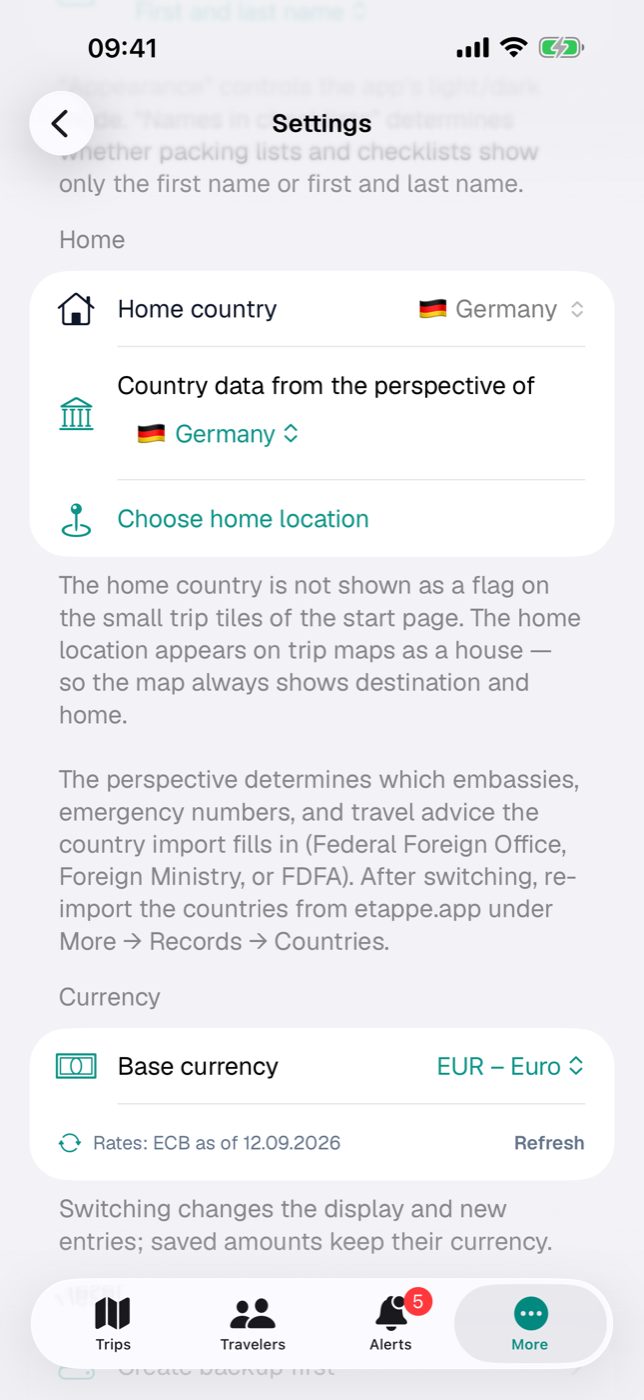
Below that is the row Rates: ECB as of … — or No rates loaded yet — with the Refresh button, which fetches the European Central Bank’s reference rates via frankfurter.dev and applies them to the countries (write access required, Trial and full version). A failed fetch shows as a single line below. If Etappe knows no rate for your base currency, the note “No rate for … — amounts in EUR” follows. Everything else about rates is in Countries, section 6.8.
40.8 Reset: delete all data#
At the very bottom of Settings is the Reset section. It has two rows, and the order is deliberate: first Create backup first — which takes you straight to Backup (Backup) —, and only below it Delete all data in red.
Deleting empties the app completely: trips with all their content, travelers, pets, vehicles, countries, documents and photos. Two things you need to know:
- It also hits the iCloud copy. If sync is on, the data is gone from all devices with the same Apple ID (iCloud sync) — not just from the device you are sitting at.
- It cannot be undone. Without a backup, the data is gone for good. That is why the way there sits directly above.
The PIN stays in place — it protects access on the device, it is not trip data (App lock). The unlocked full version is also untouched: it is tied to your Apple ID, not to the data (Trial and full version).
After deleting, the app is back where it was at the very first launch — and accordingly the Getting started assistant appears again (Installation and first launch). Home country, home location, base currency and the rate table are reset too — in the iCloud key-value store as well, so on all devices — and so is the perspective override.
40.9 Notifications (via iOS Settings)#
Etappe has no notification switch — iOS handles that. You are asked when you first save a reminder; after that you change the permission in iOS Settings under Etappe. If you say no, everything else remains usable, only the notification at 9:00 AM on the lead day stays off (Reminders).
Location (route recording, location picker on the map, journal entries) and Camera (photos in the journal) also go through iOS. If location permission is missing when you start a recording, Etappe shows “Location permission missing” with the Open Settings button (Recording a journey).
40.10 Help, About this app, licenses#
Two entries under “More” are not settings but references.
Help contains Getting started — the guided setup for countries, travelers and the first trip, which appears automatically at the very first launch and can be reopened here at any time (Installation and first launch) — and a link to the Little helpers with the deworming treatment, currency and hiking calculators and the phrasebook (Little helpers). Added to that are the links Open manual (this manual on etappe.app), Guide on etappe.app and Website as well as the entry Legal — the data sources used (maps, country file, exchange rates) and the license note for the “Geist” typeface (Legal and contact).
About this app shows logo, name and the line “Version … (build …)”. Below are three groups:
- App: Platform (iOS / iPadOS), Data (“On device + private iCloud”) and Backup (“JSON export under Backup”).
- Links: Website, Legal notice, Privacy.
- Licenses & acknowledgments: the “Geist” typeface (© Vercel, SIL OFL 1.1) and the map data (Apple Maps © Apple Inc.).
More on this in Legal and contact.
40.11 The remaining entries under “More”#
Everything else in the same list has a chapter of its own:
| Entry | Chapter |
|---|---|
| Overview | Overview |
| Where I’ve been | Where I’ve been |
| Little helpers | Little helpers |
| Records (Countries, Vehicles, Packing list templates) | Countries, Vehicles, Packing list templates |
| Reminders | Reminders |
| Storage & files | Storage and files |
| Backup | Backup |
On the iPad the same items are in the sidebar, joined by Trips, Alerts and Travelers (Finding your way around).
Linked from
- 2. Installation and first launch
- 3. Finding your way around
- 5. Trial and full version
- 6. Countries
- 7. People
- 11. Home
- 15. Accommodations
- 17. Activities
- 19. Budget
- 20. Packing list
- 22. Entry checklist
- 25. Today
- 27. Map
- 35. Backup
- 37. iCloud sync
- 42. FAQ and troubleshooting
- 46. Travelling across time zones
- 47. Little helpers